Section 1:1 — Introduction to Physical AI
Welcome, Tinkerer, to the frontier of Physical AI—the exciting convergence of physical computing, solid-state embedded hardware, and machine intelligence.
This manual is written as an open architecture to ignite the imagination of a new generation of creators, innovators, and educators. Whether you are an AI Native / Software Maker looking to break out of the flat screen and translate digital intelligence into real-world mechanical action, or a Traditional Hardware Student who can wire a circuit perfectly but wants to unlock advanced local inference (Section 5:4 — Local Inference (Edge AI) Mode) pipelines without drowning in low-level compilation lag, this platform is your gateway.
This workbench is designed to inspire the High School STEM Student aiming for the regional science fair, providing a tactile sandbox where cutting-edge electronics and machine learning become accessible milestones rather than distant academic hurdles. It serves the Undergraduate College Student by bringing textbook theory to life, offering a high-fidelity visual and physical playground to deploy real code into real-world reality.
For educators, this studio connects theory and practice across the entire instructional spectrum. It equips the High School Science Teacher with a turn-key, structured physical framework to run engaging, hands-on lab experiments, while providing the University Computer Science Professor a highly sophisticated, multi-modal edge computing testbed for advanced physical computing curriculum and robotics research. The VTM Pro Maker Workbench is an open framework built to show every level of creator that they are no longer limited by what they don't know.
Just 5 years ago, pioneering a custom electronic system or programming an automated mechanism demanded years of specialized study in low-level assembly languages, advanced calculus, and complex circuit architecture. Frustrating syntax errors, confusing formulas, and institutional friction created formidable barriers to entry.
Today, the electronics landscape has fundamentally changed. We are witnessing an evolution moving faster than anything the tech world has ever seen, compressed into a timeline that moves at lightning speed. In a matter of months, solid-state innovation has swept past simple text generation, bypassed autonomous software agents, and collided directly with the era of Physical AI—where digital intelligence breaks out of the screen and takes physical form. Advancements in local edge computing and multi-modal models have completely shattered the traditional barrier between code and copper.
The VTM Pro Maker Workbench is a complete prototyping and learning setup built to make working with technology accessible to everyone. It proves that true learning can be achieved right at your test bench without a formal computer science degree, completely transforming the way you interact with microcontrollers, solid-state electronics, and machine logic.
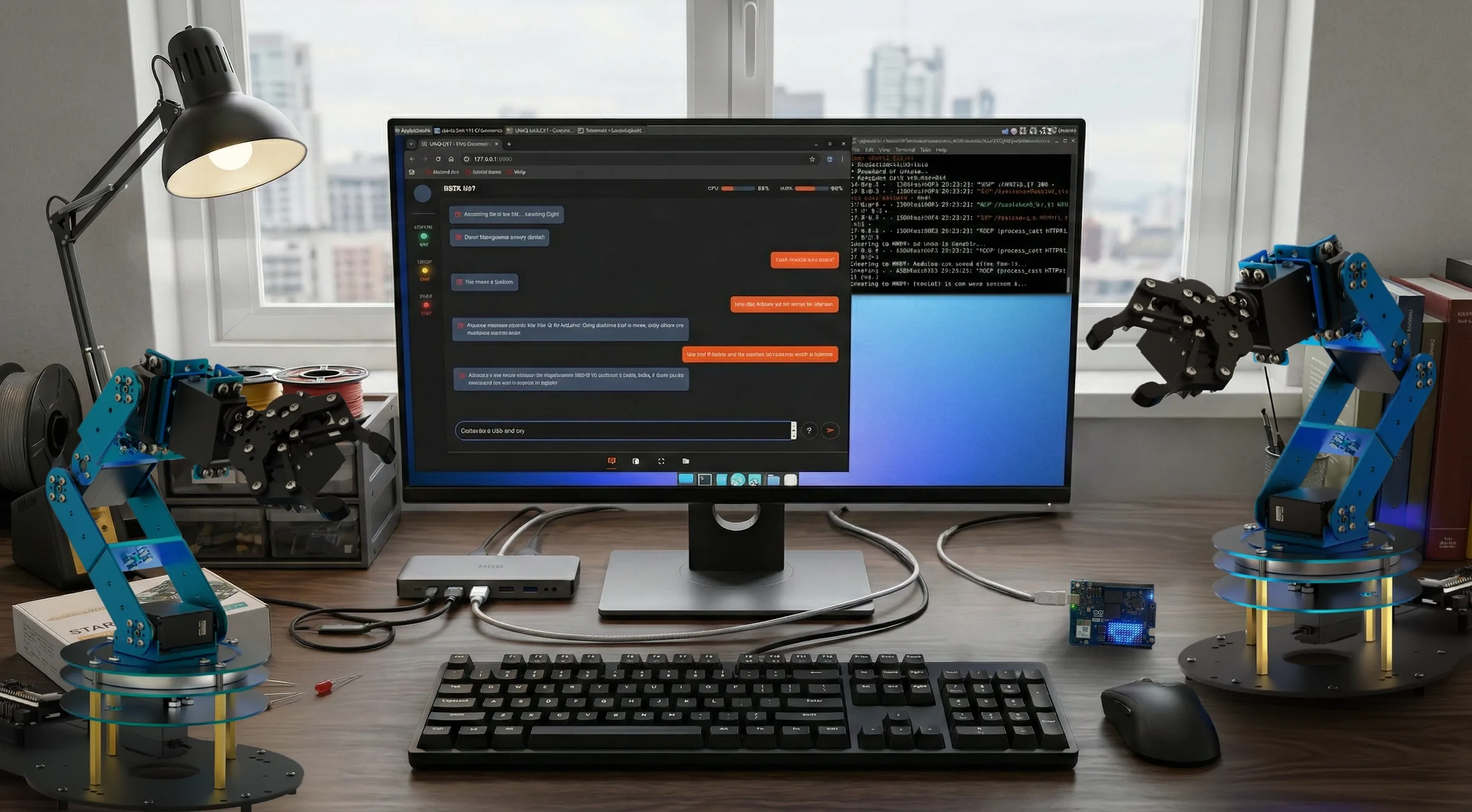
You do not need prior mastery of coding syntax, advanced mathematics, or semiconductor physics to execute complex hardware engineering. The AI architecture integrated inside VTM Studio functions as an on-demand embedded engineer, master coder, mathematician, and technical writer. With the historical barriers to entry eliminated, your role shifts entirely to strategy, layout aesthetics, and conceptualization: you imagine, create, and iterate.
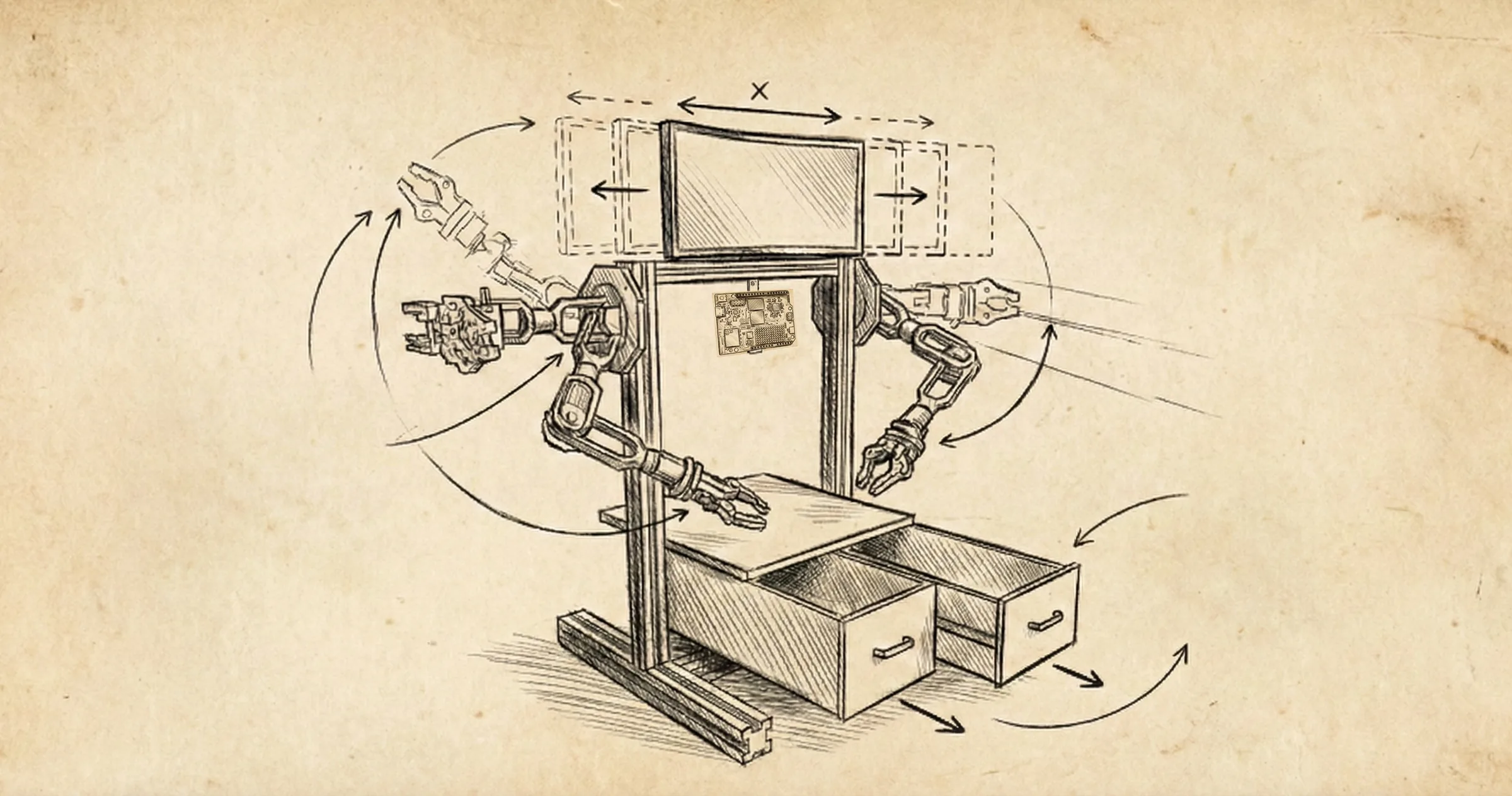
Section 1:2 — Creative Freedom
To understand the VTM Pro Maker Workbench, you must understand that the modules, the modes, and the tools ship-ready today are just the beginning—they are physical arguments proving a grander thesis.
The dual robotic arms, the custom digital multimeter simulator, and the persistent media logs are not a fixed destination. They are concrete, hands-on examples of what is now possible when you merge human imagination with physical computing and artificial intelligence.

This platform was built knowing that this exact architectural foundation will eventually scale into a human-sized robot equipped with advanced environmental sensing, spatial navigation, and mechanical manipulation capabilities. This workbench is your launching pad. It is the proving ground where the core software pipelines, the localized offline audio loops, and the hardware communication bridges are perfected before they run on full-scale autonomous machines.
The true goal of this platform is to show you—by doing, by wiring, by breaking, and by building—that you are no longer limited by what you don't know. The VTM Pro Maker Workbench is an open framework designed to teach you how to think in this new paradigm. The specific tools included here are simply one path among an infinite number of paths you can forge. Once you learn the workflow of technical delegation on this workbench, you can tear down the rails, swap the parts, fork the code, and apply this exact same intelligence structure to build whatever your mind can dream up.
Section 1:3 — The VTM Design Philosophy
The VTM platform is designed around two core principles: long-term utility and workflow integration.
A Permanent Lab Tool
Rather than a temporary setup for a single project, the VTM Pro Maker Workbench is built as a permanent, modular asset for ongoing learning, prototyping, and data collection.
Integrated Context
Traditional workflows often require manually copying code, describing hardware setups, and re-entering telemetry to get an AI assistant up to speed. VTM Studio streamlines this process by maintaining continuous awareness of your active code, layout selections, and hardware state.
By combining local edge-AI processing with online cloud engines, the system gives makers direct control over their data, processing speeds, and physical hardware.
Section 1:4 — What You Can Do with the Platform
The VTM Pro Maker Workbench is a highly versatile launching pad for physical computing. As a turnkey framework, the environment equips you to:
Synthesize Physical & Digital Circuits
Test concepts digitally inside a high-fidelity visual simulation engine, or drop down to a physical breadboard to measure real-world current, voltage, and continuity with high-speed serial parsing.
Deploy Local & Hybrid AI Models
Run local, memory-optimized models like Gemma directly on your machine for text processing, or connect to cloud-based multi-modal models for deep architectural analysis.
Orchestrate Multi-Modal Voice Hubs
Execute completely hands-free, eyes-free bench work using high-fidelity offline voice synthesis (Piper) and audio transcription (Whisper) to control your layout or record tactical observations while your hands are full of wiring.
Section 1:5 — Learn Robotics & AI: Two Paths to Build and Learn
Learning robotics and artificial intelligence on the VTM platform is achieved through hands-on, spatial exploration. Rather than trying to replace the textbook, the platform allows you to integrate dynamic educational resources directly into your workflow—whether that means embedding an open-access library like OpenStax or authoring your own custom, interactive technical text right inside the environment. There are two clear paths to build and learn depending on your goals:
VTM STUDIO™
Polished Command Center• Ready-to-use modes & tools • Built using AI & maker experience
VTM OS REPOSITORY
100% Open-Source Code• Build custom modes & instruments
While VTM Studio serves as your highly polished, turnkey physical AI studio—proving exactly what a maker can achieve by guiding an AI with real-world experience—the underlying VTM OS repository remains completely open-source, public, and accessible for your personal use. VTM Studio provides the structural inspiration and daily utility, while the open-source VTM OS repo serves as your DIY playground. On this workbench, you don't just chat with AI—you learn to actively deploy it across software and mechanical layers:
Learning Technical Delegation
You learn the ultimate modern workflow—retaining absolute control over the art, design, and system architecture while delegating the low-level execution (C++ scripts, Python wrappers, and mathematical formulas) to specialized models. This is the exact method used to build VTM Studio, proving that you can architect highly sophisticated instrumentation by directing the AI's output.
Kinematic Visualization
Instead of wrestling with inverse kinematics formulas manually, the AI
translates
high-level spatial requests into precise joint coordinate snaps and safe
boundary
validations (100 to
900 pulse ranges) using mechanical limbs
like the dual 6-DoF robotic arms.
Vision-Guided Manipulation
Learn how robots perceive their environments by passing live camera feeds into the vision engine, mapping real-time normalized 2D spatial bounding boxes onto the video HUD to guide mechanical interaction.
Understanding Model Optimization
Through tools like the Model Forge and the integrated Q4/Q8 toggle, you get immediate, practical experience with model compression. You learn exactly how quantizing model weights reduces RAM footprints and computational load, observing firsthand how precision choices alter response velocity and logic depth on local chips.
Context Engineering
By writing custom, system-level rulesets inside the tabbed ruleset editor, you learn how to actively manage prompt context windows, adapting your custom instructions to guide model behaviors optimally between cloud boundaries and constrained local hardware.
The Retro-Modern "Maker Lab" Plan
Inspired by classic, tactile electronics manuals, the workspace features structured lab projects (such as coordinate calibration and joint heatmap mapping) that use hand-drawn vector schematics, interactive checklists, and persistent digital notebooks to turn raw concepts into functional mechanical reflexes.
The core takeaway is that VTM Studio serves as your plan, while the open-source VTM OS code gives you the power to become the architect. You are explicitly encouraged to use your AI assistant to generate custom code, invent your own virtual instruments, program unique physical modes, and expand the core software in any direction your mind can dream up.
Section 1:6 — VTM Store Mode & Workbench Tier Unlocks
VTM Studio™ is architected as a modular physical computing environment. The VTM Store Mode is the central purchasing and licensing hub where makers can expand their workstation capabilities. Whether you choose to start with the base app shell or unlock specialized AI, spatial vision, and robotics suites, every mode permanently binds to your account and synchronizes across all your devices.
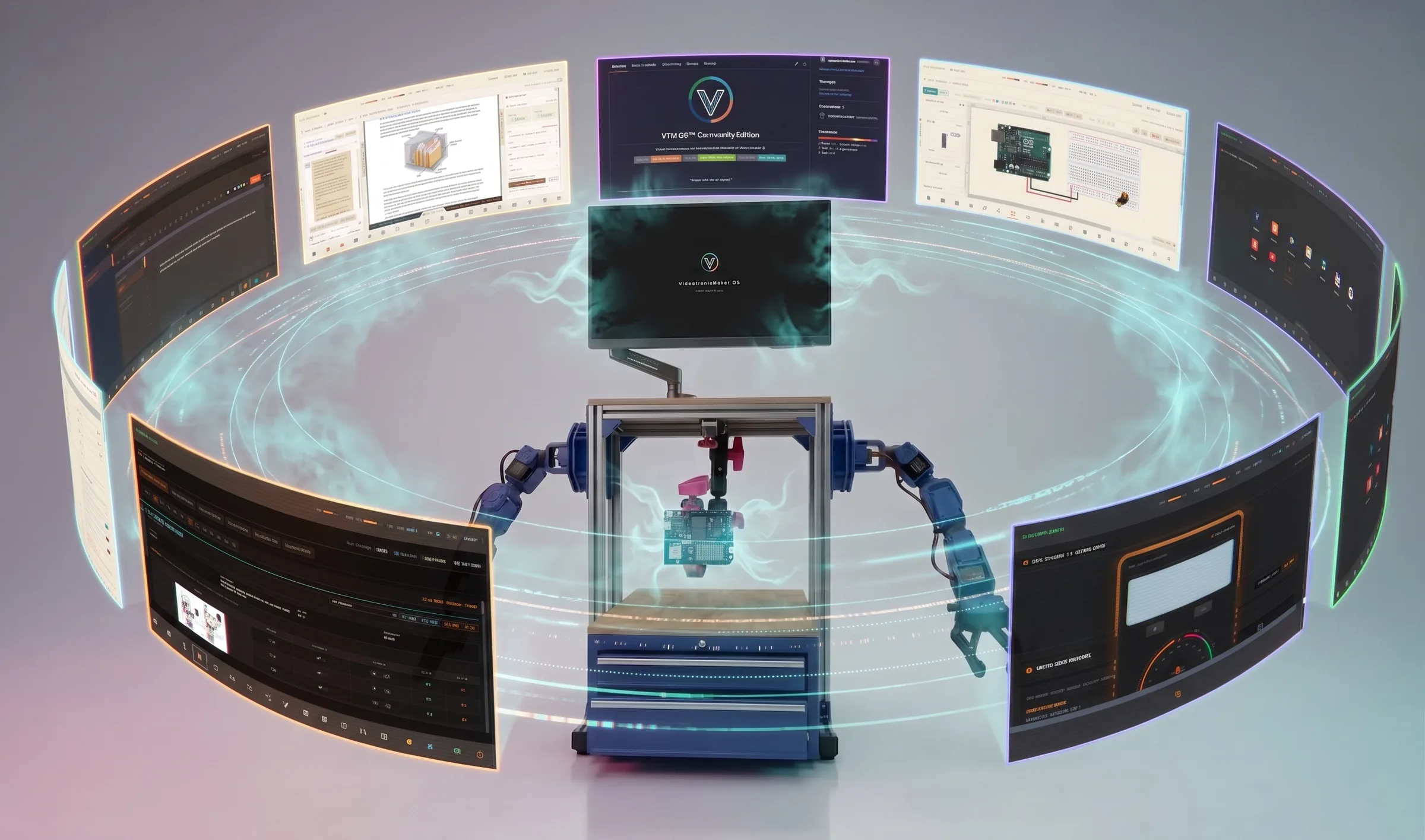
Chapter 2 — Platform Features: All-in-One AI & Physical Computing Prototyping
VTM Studio is a comprehensive prototyping platform for physical computing. It brings together everything you need to build, test, and iterate on projects combining artificial intelligence with physical hardware—all in one unified workspace. Instead of using separate tools for code editing, circuit layouts, serial monitoring, 3D simulation, and AI assistance, VTM Studio integrates these environments. By combining local voice control, offline voice synthesis, visual spatial tracking, physical serial hardware diagnostics, and prompt-driven UI orchestration, it provides a seamless, interactive AI assistant experience for makers, students, and researchers alike.
AI & UI Orchestration
- Prompt-Driven Navigation: Open or close tabs, collapse sidebars, and switch views instantly using natural language or voice commands.
- Direct Code Writing: Ask the AI to write a program, and it will inject the code directly into the active IDE buffer.
- One-Click Injections: Load any AI-generated code block from the chat panel directly into the editor with a single click.
- State-Aware Prompting: The AI automatically receives real-time telemetry from your active dials, code, and views.
Physical & Hardware Link
- 3D Digital Twin: Simulate multi-axis robotic movements and plan collision-free trajectories in a 3D kinematics sandbox.
- UART Bus Diagnostics: Monitor raw serial hex commands and calculate instruction checksums in real-time.
- Multichannel Telemetry: Stream ambient, kinetic, and orientation sensor data from mobile devices directly to your desktop.
- Arduino Integration: Compile and flash C++ sketches directly to your physical microcontrollers from the browser.
Premium Workspace
- Offline Voice Hub: Crystal-clear, local speech synthesis and high-accuracy dictation operating 100% offline.
- Visual Studio Dark Theme: Professional, high-contrast syntax highlighting for the code and log editors.
- WYSIWYG Section 5:14 — Maker Log Mode: Document observations with rich text formatting, custom color codes, and database saves.
- Sortable Navigation: Drag-and-drop mode icons in the bottom bar with persistent layout saving.
Navigating the AI Rollercoaster: Built for Longevity & Developer Choice
The recent history of the AI era has been a fast-moving rollercoaster. In just a short period, we have watched developer workflows shift rapidly: startups and makers have built entire workflows around specific cloud APIs, only to find the ground beneath them moving overnight. Free developer tiers shrink. API endpoints get deprecated. Platform policies change unexpectedly. Tools built on a single vendor stall out when the vendor alters their terms.
VTM Studio is built on a fundamental founding philosophy: You buy the workbench once, and it is free to use after that.
Because the future of cloud AI infrastructure is inherently uncertain, VTM Studio is engineered to navigate this volatility by offering complete vendor agnosticism and multi-engine flexibility. Rather than locking developers into a single proprietary cloud API or forcing subscription fees, the studio provides a dual-purpose multi-engine system:
- Resilience Against Changing Free-Tier Terms: If a provider alters allotments, throttles requests, or experiences downtime, the workbench continues operating smoothly.
- Developer Choice & Model Preference: Developers have complete freedom to manually select different models—switching between Gemini and Groq Qwen models—whenever a specific task benefits from a different model architecture or reasoning style.
As of today, there are effectively two primary, obvious providers offering accessible free-tier API access:
- Google Gemini: High-reasoning cloud inference
- Groq: Ultra-fast LPU cloud inference hosting open-weights models such as Qwen 2.5 / 3.6 / 3.8
By pairing these two key free-tier providers, VTM Studio ensures your workbench remains active, functional, flexible, and zero-cost, regardless of how the surrounding cloud landscape evolves.
Section 2:2 — Standard Maker Workflow & Mode Ordering
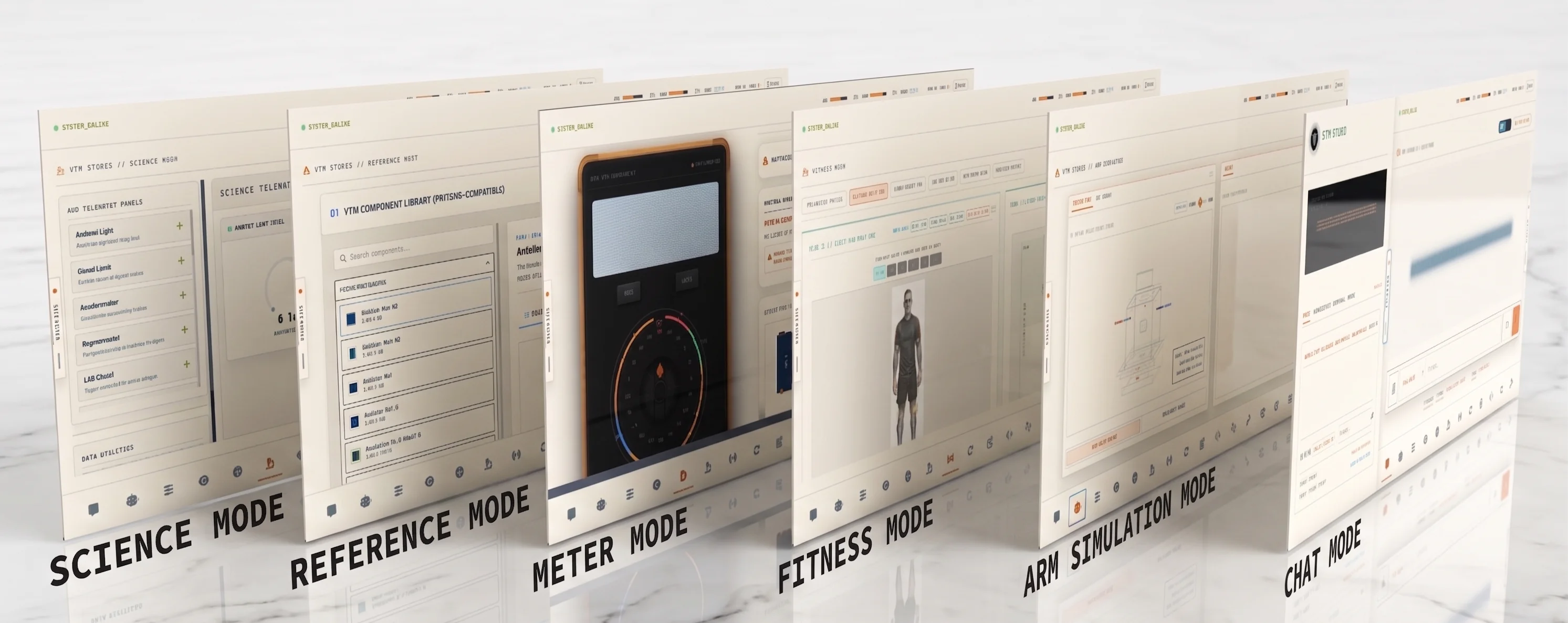
VTM Studio provides a sortable navigation menu at the bottom of the workbench. By default, the active modes are organized sequentially to reflect a logical, multi-phase prototyping workflow.
| Seq | Mode Name | Purpose |
|---|---|---|
| 01 | Chat Mode | AI Ideation & System Command |
| 02 | Mag Mode | Platform Guide & Interactive Publication |
| 03 | Study Mode | Fundamental Academic Research & Theory |
| 04 | Reference Mode | Engineering Calculators & Pinout References |
| 05 | Spec Mode | Datasheet Specifications & Custom Library |
| 06 | Layout Mode | Circuit Diagram & Wiring Layout Design |
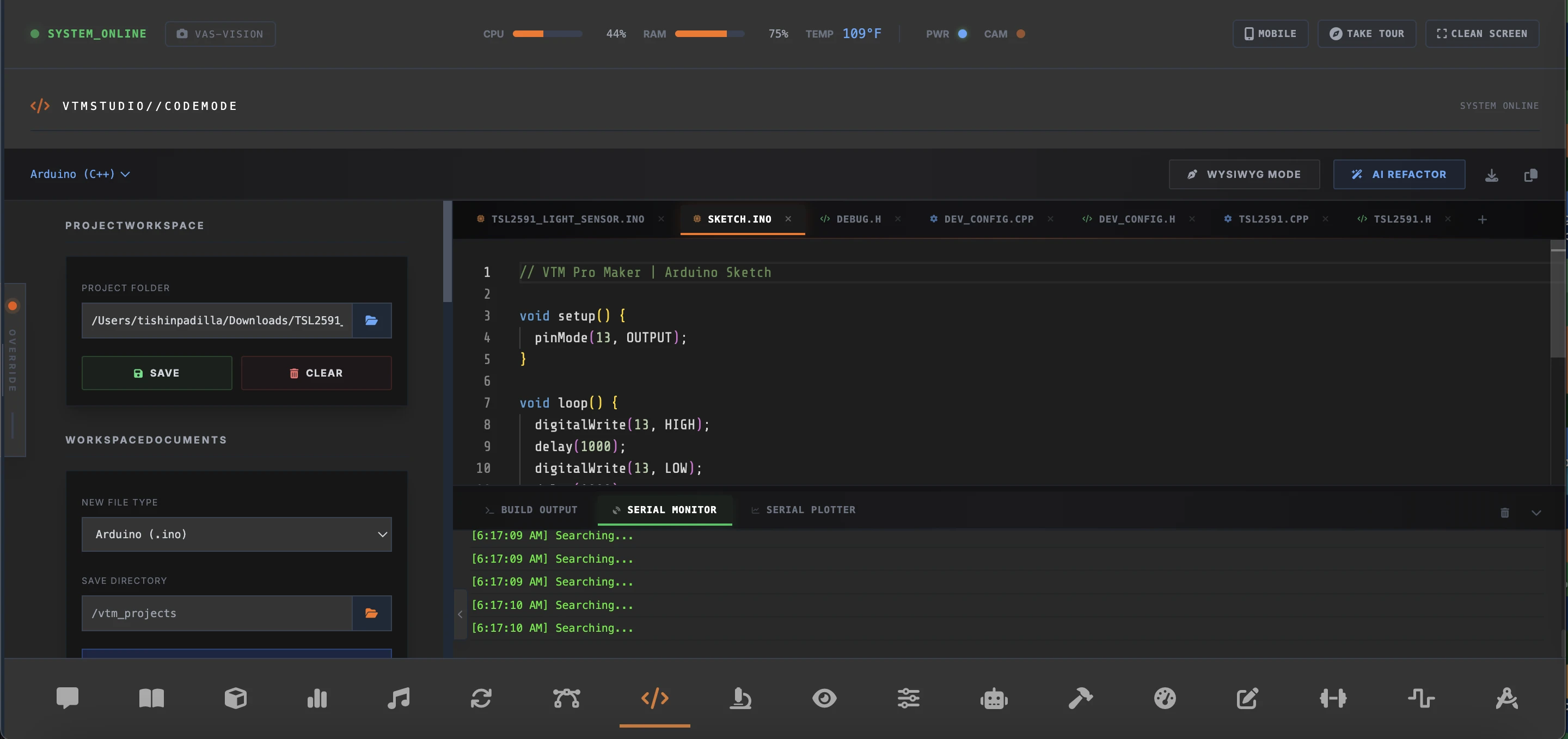
| 07 | Code Mode | Software Development & Firmware Flash |
| 08 | Model Forge Mode | Local AI Model Quantization & Compilation |
| 09 | Arm Control Mode | Physical Kinematics & Servo Power Control |
| 10 | Meter Mode | Hardware Electrical Diagnostics & Multimeter |
| 11 | Science Mode | Sensor Data Logging & Telemetry Calibration |
| 12 | Vision Mode | Spatial AI Computer Vision & Camera Sensing |
| 13 | Audio Mode | Voice Agent Speech-to-Text & Audio Analysis |
| 14 | Mixer Mode | Audio Gain Processing & Signal Normalization |
| 15 | Image Mode | Bézier Vector Tracing & Component Cutout Studio |
| 16 | Converter Mode | Asset Format Conversion & Optimization |
| 17 | Log Mode | Mission Journal & Lab State Saving |
| 18 | Favorites Mode | Master Dashboard & Quick Launch Shortcuts |
| 19 | Fitness Mode (Coming Soon) | Ergonomic & Biomechanical Lab Health Tracking (Expansion Pack) |
| 20 | Music Mode | Workplace Focus Ambience & Flow State Audio |
Chapter 3 — AI-Powered Workspace Control
VTM Studio features a deeply integrated AI orchestration system that allows you to control much of the prototyping environment using natural language or voice commands. Instead of manually clicking through menus, you can speak to VAS-X to navigate the UI, write code, and automate actions.
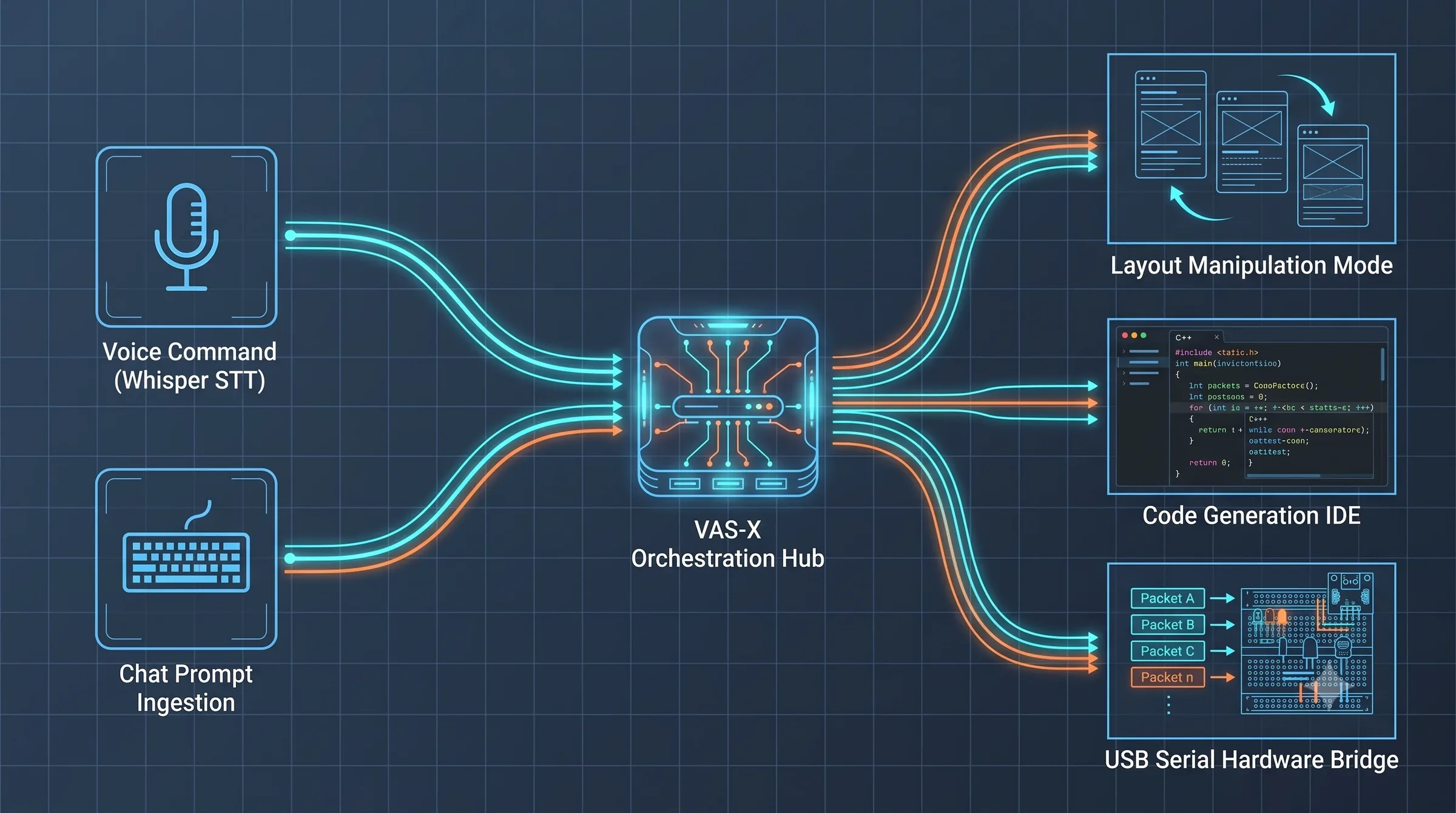
Section 3:1 — Voice & Prompt UI Navigation
You can navigate the entire interface hands-free. Simply speak into your microphone or type a command in the chat input:
- View Switching: Say "go to code mode", "open fitness journal", or "navigate to the science lab" to instantly switch the active workspace.
- Tab & Sidebar Control: Tell the AI to "close the x-panel" or "open the instructions drawer", and the UI will immediately adjust.
- Hybrid Execution: Common navigation commands are processed instantly locally (sub-50ms), while complex conversational requests are translated by the AI to navigate to the exact panel you need.
Zero-Cost Multi-Engine Pipeline: Choice & Automatic Fallback
To protect makers and students from bench-test interruptions and provide total flexibility, VTM Studio incorporates an automated Zero-Cost Multi-Engine Pipeline. This pipeline serves two key purposes: giving you direct model selection control, and providing automatic fallback if an API provider experiences rate limits or outages.
           ┌─────────────────────────────────────────┐
           │          USER INPUT / COMMAND           │
           └────────────────────┬────────────────────┘
                                │
             [User Model Selection OR Auto-Fallback]
                                │
               ┌────────────────────┴────────────────────┐
               │                                         │
               ▼                                         ▼
┌─────────────────────────────┐   ┌─────────────────────────────┐
│    ENGINE A: Gemini Free    │   │    ENGINE B: Groq LPU       │
│  (High-Reasoning Cloud)     │   │ (Qwen 2.5 / 3.6 / 3.8 Fast) │
└──────────────┬──────────────┘   └──────────────┬──────────────┘
               │                                 │
   [HTTP 429 / Rate Limit?]          [HTTP 429 / Rate Limit?]
               │                                 │
               └────────────────────┬────────────────────┘
                                │
                                ▼
                ┌──────────────────────────────┐
                │  Automatic Silent Failover   │
                └──────────────┬───────────────┘
                                │
                                ▼
                ┌──────────────────────────────┐
                │       Render Response        │
                └──────────────────────────────┘
Key Technical Capabilities:
- Developer Model Selection: Switch models on-the-fly directly from the UI dropdown whenever you want a different model architecture, speed, or reasoning style for your prompt.
- Automatic HTTP 429 & Quota Failover: The runtime continuously monitors API HTTP response headers. If the primary endpoint returns a rate limit or connection degradation, VTM Studio automatically fails over to the secondary endpoint mid-session without dropping state or interrupting hardware telemetry.
- Ultra-Low Latency Inference: Powered by Groq's custom LPU (Language Processing Unit) hardware, queries run at extreme generation speeds—ideal for real-time serial telemetry monitoring, kinematic calculations, and interactive hardware debugging.
- State Preservation: System prompts, active mode context, and conversation history are automatically reformatted and preserved across engine switches.
Section 3:2 — AI Code Writing & IDE Integration
VTM Studio connects AI code generation and your physical editor, allowing you to go from a prompt to running code on hardware:
- Direct Code Injection: You can ask the AI to write a program (e.g., "write a sketch for an LED array with 4 LEDs. Red, blue, green and yellow"). The AI will generate the code and automatically inject it directly into the Section 5:12 — Code Mode IDE.
- "Load into Editor" Button: Every code block rendered in the chat interface features an interactive button. Clicking it instantly copies the snippet and loads it into your active editor buffer.
- State-Aware Code Editing: When you ask the AI to comment, edit, or debug your code, it automatically receives the full context of your active editor file, ensuring highly accurate modifications.
Section 3:3 — Microcontroller Compilation & Flashing
Once your code is loaded into the IDE, you can compile and flash it directly to your physical hardware over USB serial:
- MicroPython Live Execution: For MicroPython-compatible boards (such as the Raspberry Pi Pico, ESP32, or Nano RP2040 Connect), write your Python script and click Run Live to execute it directly on the board.
- C/C++ Compilation & Upload: For traditional microcontrollers (such as the Arduino Uno, Nano, or MKR WiFi 1010), the studio compiles your code and uploads it directly to the board over USB.
- Auto-Detect Connected Boards: The studio scans active USB serial ports, detects the board's unique identifier, and configures the compiler settings automatically.
Chapter 4 — The Fundamental Philosophy: Two Parts, One Unified System
To navigate the system successfully, you must understand that your workbench is divided into two distinct, interconnected layers:
Section 4:1 — VTM Studio (The Software Layer)
This is the desktop application running locally on your primary computer. It manages the local user interfaces, houses your offline audio pipelines (Speech-to-Text and Text-to-Speech), processes localized AI inference models, manages the plugin configuration, and visualizes incoming live physics data on absolute coordinate canvases.
Section 4:2 — The P³™ Platform (The Physical Build Layer)
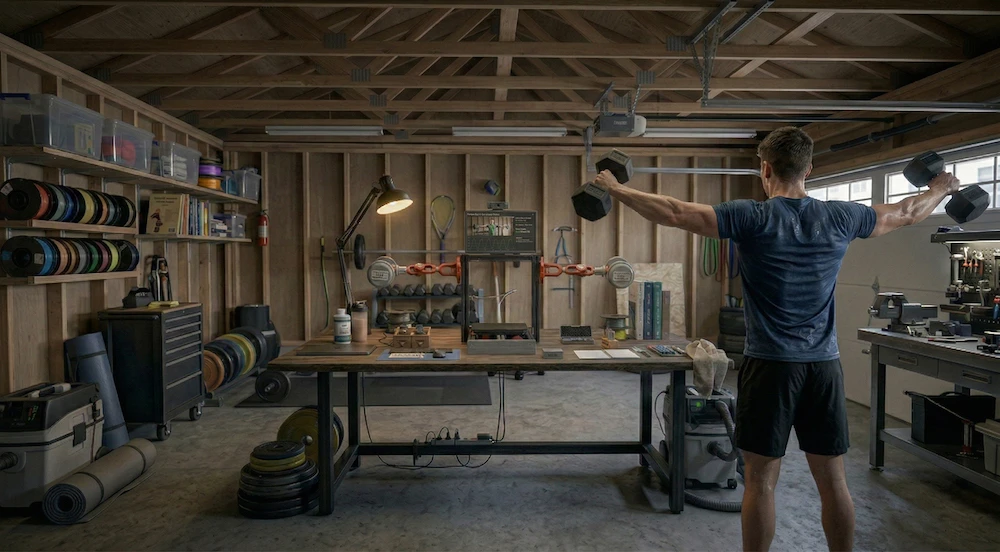
This represents just a few reference implementations among an infinite number of hardware configurations you can choose to build. It is engineered to serve as baseline structural inspiration rather than a rigid, final destination—it is all to inspire, but to be deeply useful. The modular design of the VTM architecture is explicitly built for domain-specific specialization, proving that the physical rails or frame layouts can be reconfigured into completely different functional laboratory variants depending on your needs:
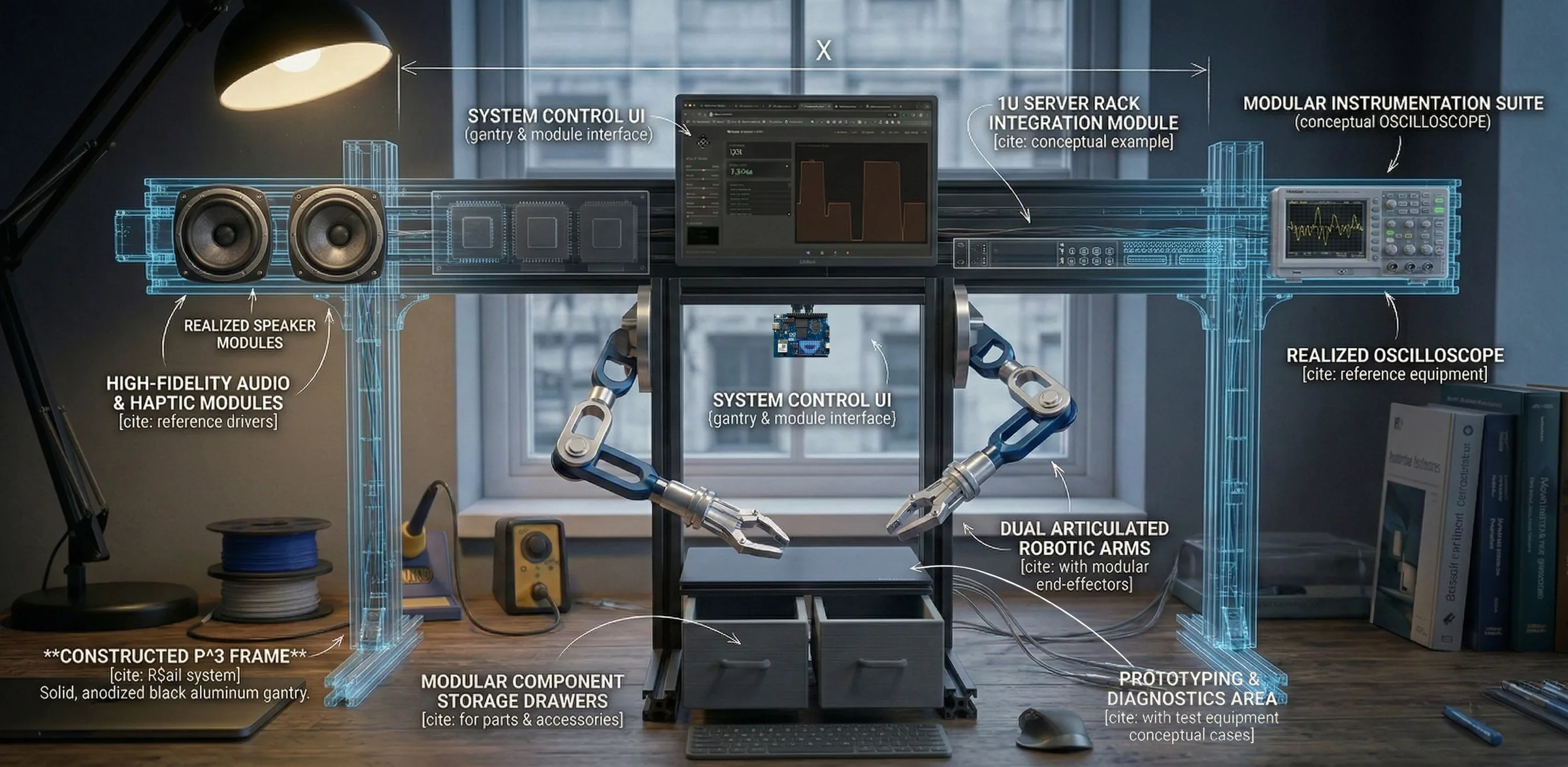
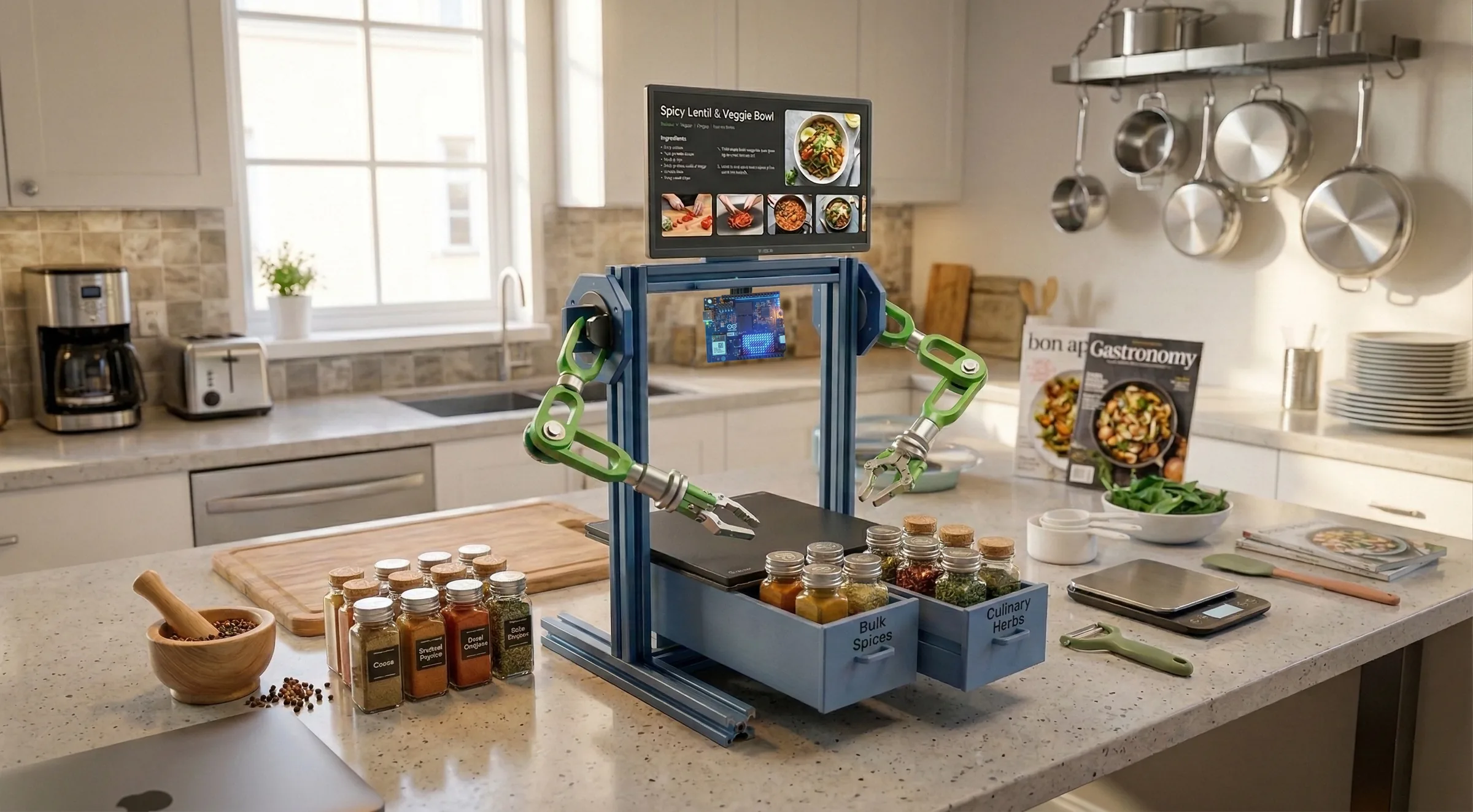
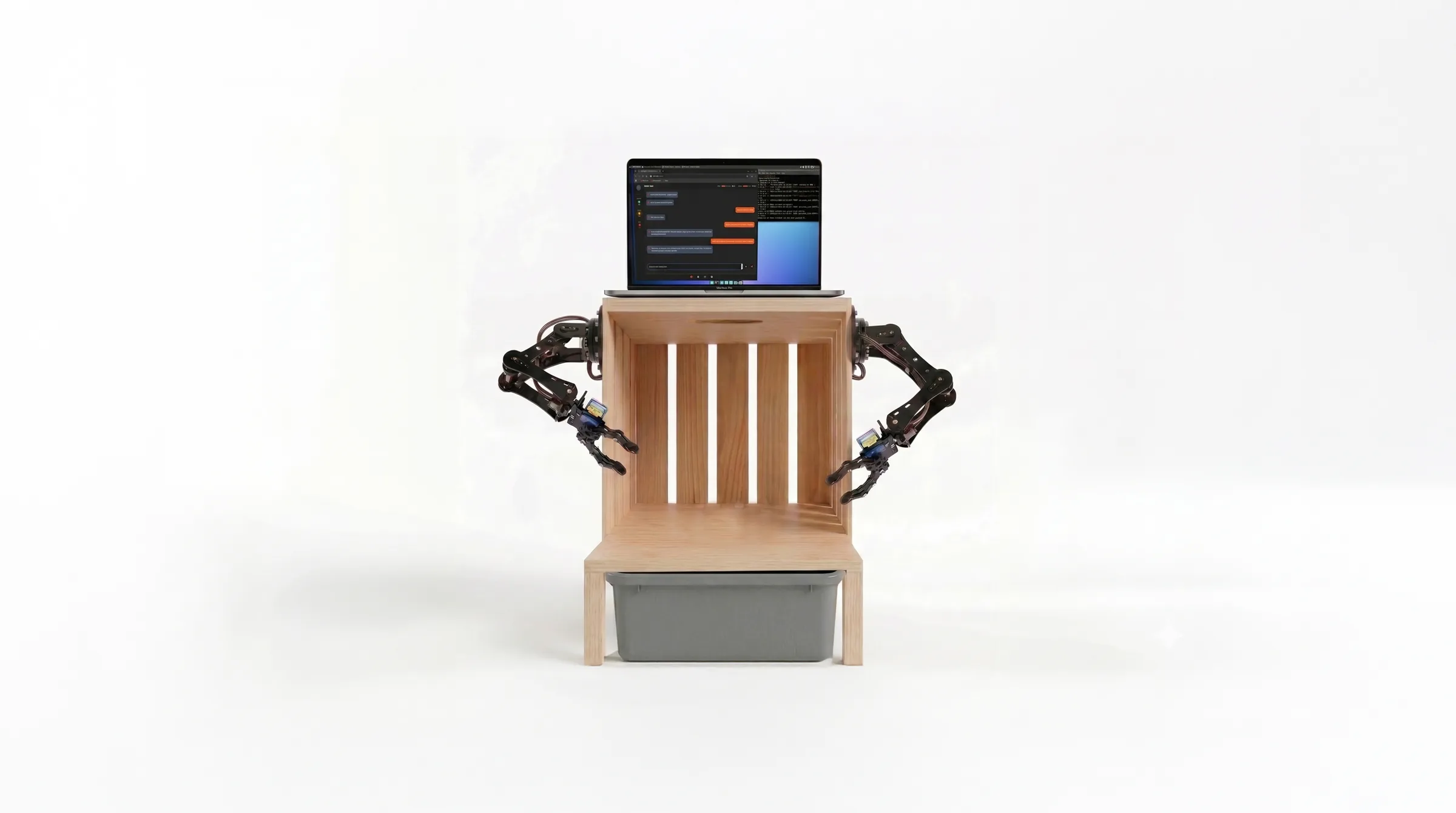
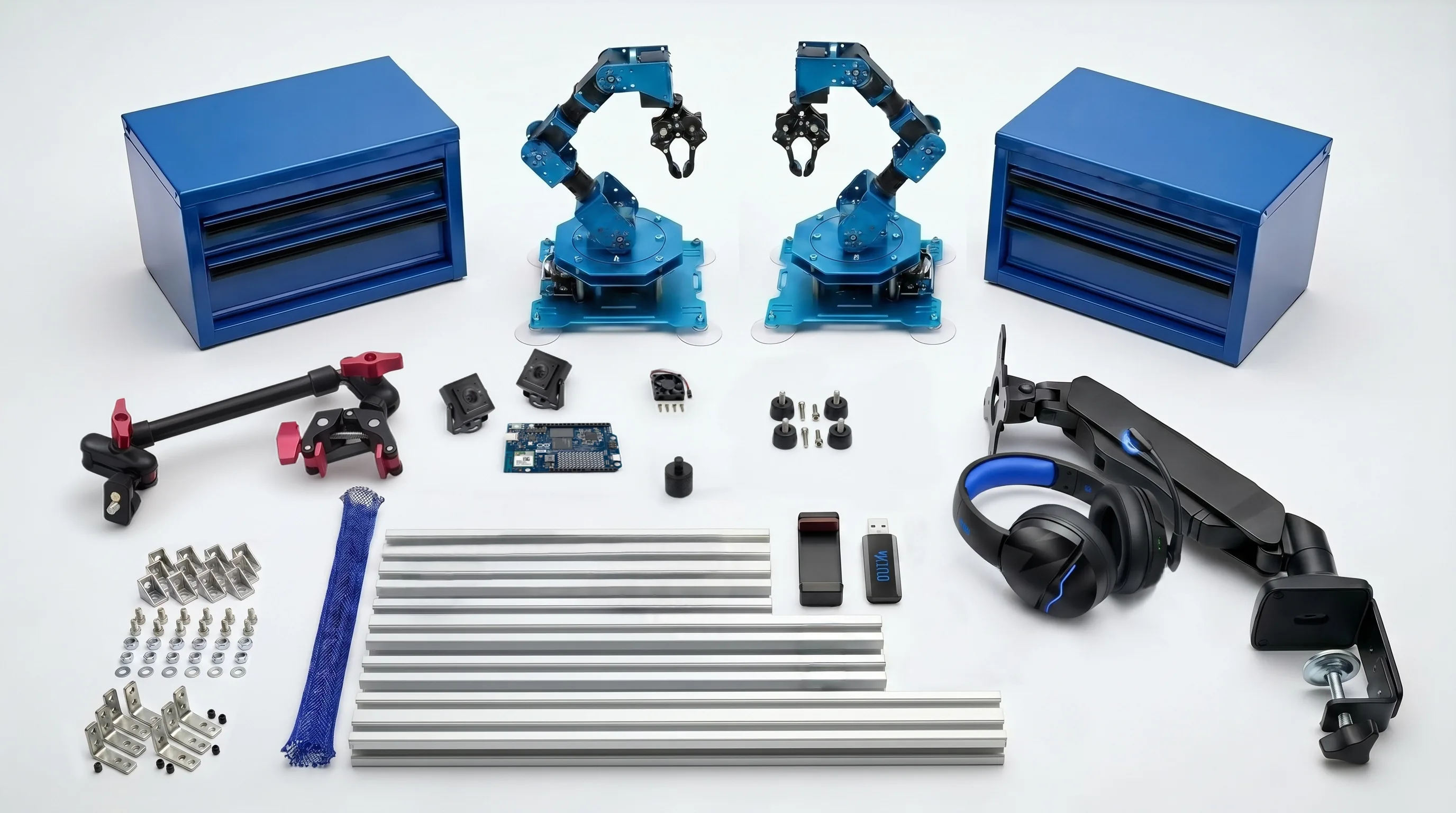
If you choose to build the higher-end reference configuration featuring the dual Hiwonder robotic arms, your physical build will require the following premium setup: Built on a rigid 2020 T-Slot aluminum rail frame (500mm Y-axis, 400mm Z-axis feet, and 300mm X-axis rails), this specific platform variation consists of a 12" x 20" plywood mounting deck, an ELEGOO silicone work mat, dual 6-DoF robotic arms, a gas spring monitor arm, a 13" magic arm holding a 4K USB camera, a standard solderless breadboard, power rails, a microcontroller chip, and integrated mini toolboxes for board and component storage. You are encouraged to modify the dimensions, swap out modules, tear down the rails, or fork the framework entirely as your own project constraints require.

Chapter 5 — VTM Studio Software Modes & Tools
Your studio software configuration consists of separate prototyping modes and functional tools. The purpose of each mode is explained below to help you understand how it functions within the interface and how it processes data during your bench projects. As you progress through the manual, you will learn how these software nodes interact directly with your physical builds.
Section 5:1 — Main AI (ARC: AI Reasoning Core) & Universal Chat Interface
This primary workspace connects directly to free-tier cloud AI providers, bringing advanced reasoning and automated code synthesis directly into VTM Studio. ARC (AI Reasoning Core) is your primary engineering reasoning and code generation AI. It operates with an agile prompt footprint (~600 to 1,000 tokens), allowing it to process prompts, generate verified hardware sketches, and analyze technical documents with zero UI freeze. Because ARC operates with a lightweight contextual payload, it runs comfortably across all supported models on both Google AI Studio and Groq Cloud without rate-limit friction.
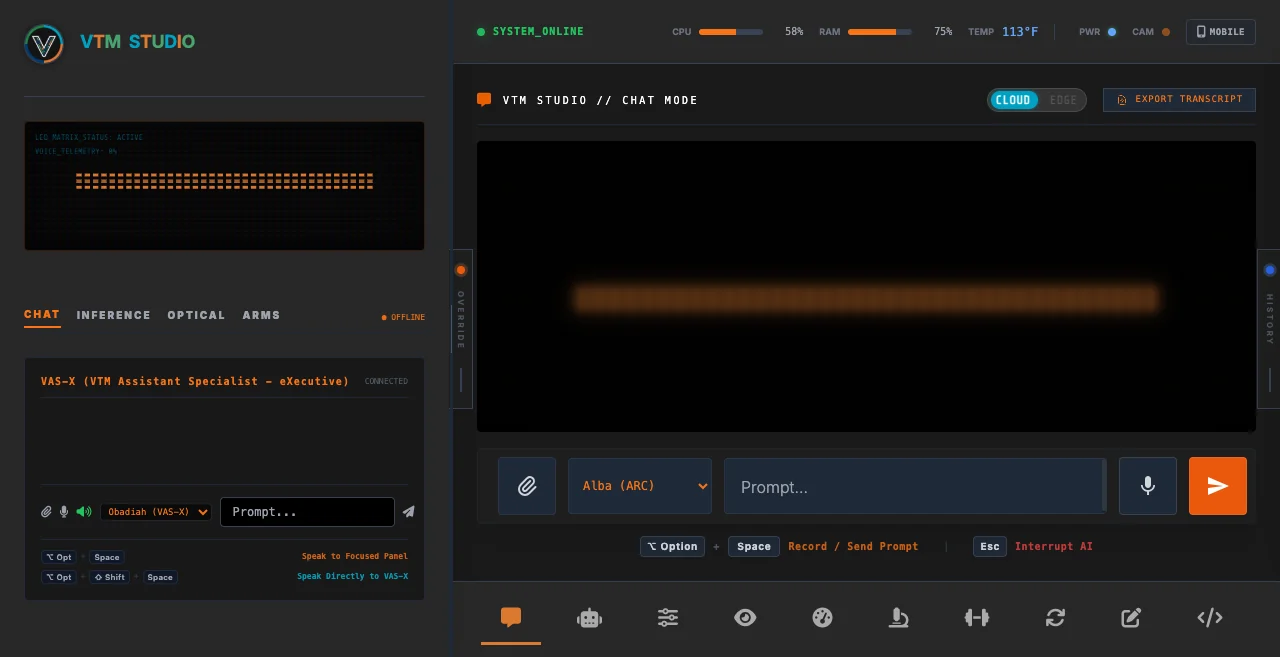
You use this interface as your primary engineering assistant. It gives you a direct chat window where you can ask technical questions, generate firmware code, and analyze engineering files.
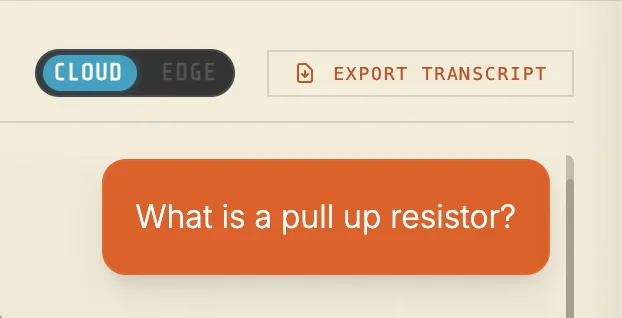

- Click the physical Cloud/Edge Switch in the UI header to select Cloud inference or local offline mode.
- Hold Alt/Option + Space (or click the microphone) to record a voice query via the local STT.
- Press Escape or click the flashing stop button to instantly interrupt incoming text and audio.
- Use the "Instructions" tab in the right-side history drawer to configure behavioral rules.
- Click Export to Doc on individual answers to download a clean Word file, or download the full HTML transcript in the header.
VTM Studio integrates Google AI Studio's Free Tier model suite, providing makers with high-capacity
cloud intelligence at zero cost across three active tiers: gemini-3.1-flash-lite (500 RPD, 15 RPM — default workhorse),
gemini-3.5-flash-lite (500 RPD, 15 RPM — high-speed inference), and
gemini-3.8-flash (20 RPD — flagship reasoning):
- Requests Per Minute (RPM): 15 RPM
- Tokens Per Minute (TPM): 250,000 TPM
- Requests Per Day (RPD): 500 RPD (Flash Lite) / 20 RPD (Flash)
- Note: Extra keys under the same project share project-level quotas.
- Input Token Limit: 1,048,576 tokens
- Output Token Limit: 65,536 tokens max
- Max Images: Up to 3,000 images
- Max Files / Pages: Up to 3,000 total
- Max Video: ~45 mins (with audio)
- Max Audio: ~8.4 hours (~1M tokens)
GroqCloud Engine Free Tier Quotas & Token Limits
In addition to Google AI Studio, VTM Studio integrates GroqCloud ultra-fast LPU (Language Processing Unit) inference endpoints for open-weights models. Below is the free-tier token allotment, rate limits, and context parameters for the Groq models integrated into VTM Studio:
| Model & Model ID | Speed | Free Tier Tokens & Rate Limits | Context Window / Max Completion | Daily Quota |
|---|---|---|---|---|
| OpenAI GPT-OSS 120B openai/gpt-oss-120b |
500 T/s | 8,000 TPM / 30 RPM | 131,072 / 16,384 tokens | 1,000 RPD |
| Alibaba Cloud Qwen 3.8 27B qwen/qwen3.8-27b |
450 T/s | 8,000 TPM / 30 RPM | 131,072 / 16,384 tokens | 1,000 RPD |
| OpenAI GPT-OSS 20B openai/gpt-oss-20b |
750 T/s | 8,000 TPM / 30 RPM | 131,072 / 16,384 tokens | 1,000 RPD |
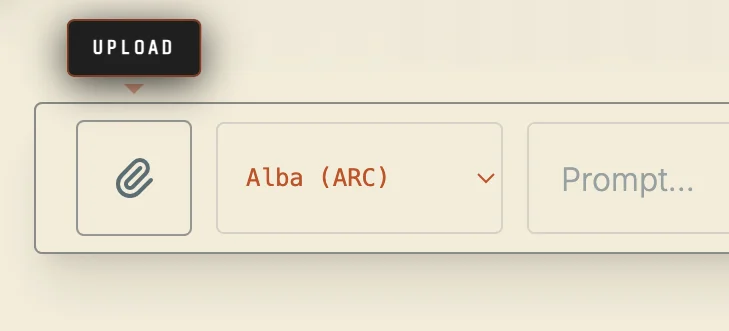
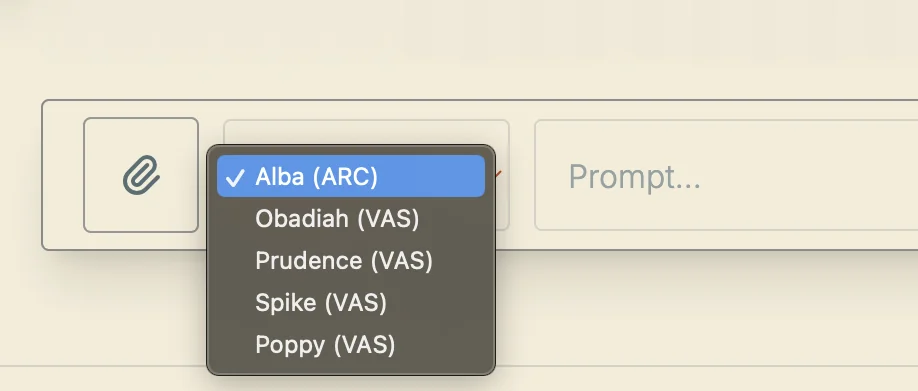
⌥ Option + Space: Record / Send PromptEsc: Interrupt AI Generation

Execution Diagnostics & Metrics
Inside this primary chat workspace, the interface monitors execution performance in real time. Every text response displays a live diagnostic readout directly beneath the message block:
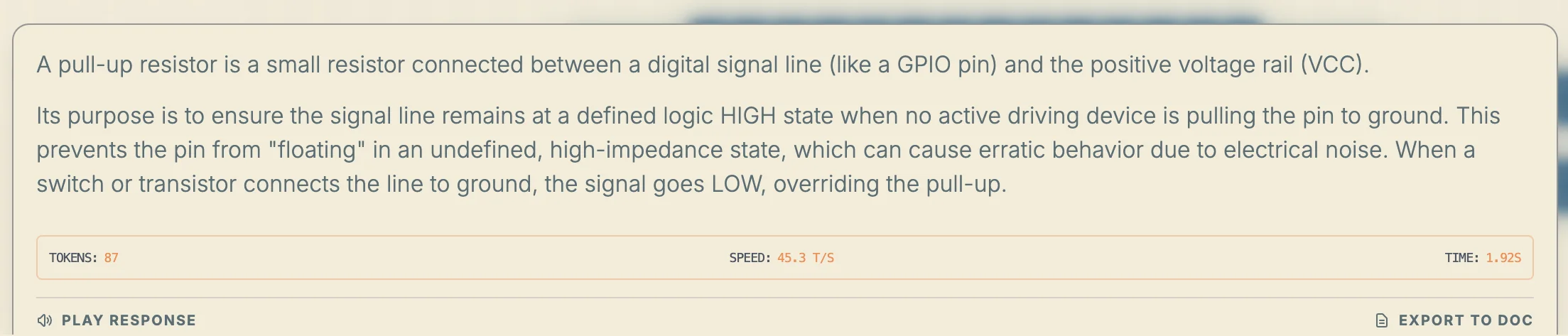
- TOKENS: Displays the exact count of generated text tokens for the active response.
- SPEED: Tracks output velocity measured in tokens per second (T/S).
- TIME: Logs the processing duration in seconds from initial submission to final execution.
Response Actions and Data Export
- Play Response: Routes the text response into the audio layer for vocal playback using your selected voice.
- Export to Doc: Extracts that individual message text block to save it as a separate document file.
- Export Transcript: Compiles the entire active chat archive from your session into a single file download, preserving long multi-turn brainstorming and layout notes.
Section 5:2 — VAS-X (VTM Assistant Specialist - eXecutive)
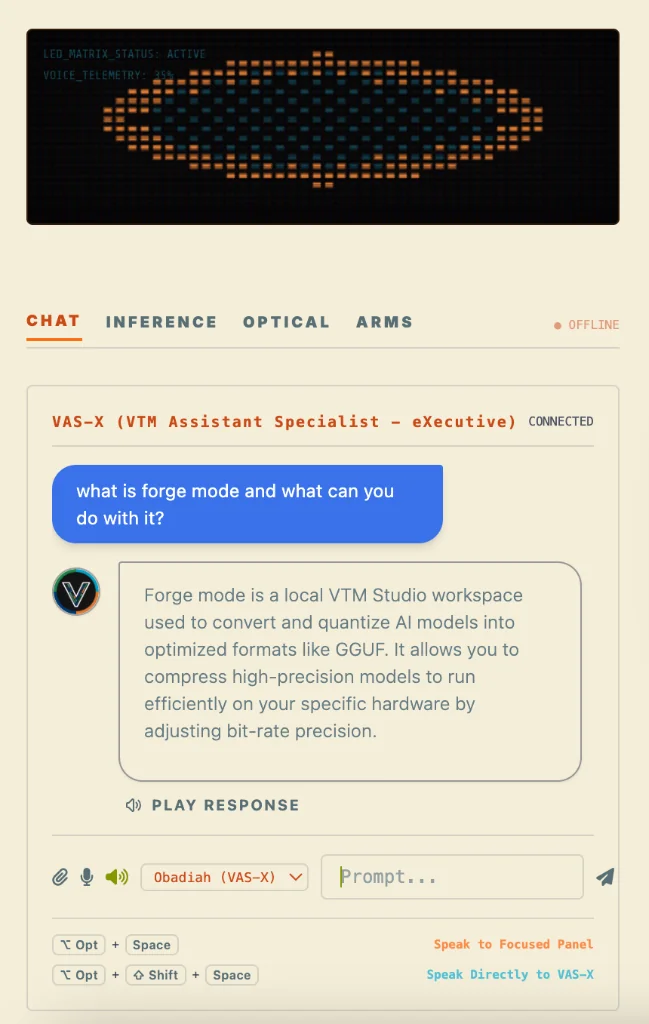
VAS-X (VTM Assistant Specialist - eXecutive) is your dedicated workbench executive. Its defining capability is deep, continuous situational awareness across the entire VTM Studio application. While ARC (AI Reasoning Core) serves as your general reasoning and firmware generation AI, VAS-X operates as a specialized workbench navigator and diagnostic assistant with real-time awareness of active workbench modes, sensor telemetry, camera feeds, and hardware controllers.
VAS-X inherits the complete interaction suite of the main chat console, including file upload parsing, individual response Word doc exports, full session HTML archiving, dedicated keyboard shortcuts, and full integration with the local Piper TTS voice synthesis pipeline.
What VAS-X Can Do (Interactive Workbench Commands)
VAS-X executes real UI commands, hardware controls, and workbench actions in response to your spoken or typed requests:
- Switch detectors: VTM Vision (COCO-80), HSV Lock, Cloud AI.
- Lock target colors: Yellow, Blue, Red, Green, Orange, Purple, Auto.
- Target detection: "Find the green LED" runs Cloud AI scan.
- Toggle optical webcam feed on and off.
- Open side panels: VOCAB dictionary, Model Forge studio, Guide.
- Spawn layout parts: Drops Arduino Uno, ESP32, or parts onto canvas.
- Magazine page turns: "Turn to page 18" flips Mag Mode.
- Maker Log management: Spawns new project folders and doc tabs.
- Code synthesis: Injects C++/Python directly into the Code Mode editor.
- Workbench navigation: Instantly switches between all software modes.
You are running a real-time object tracking experiment on the Optical tab, but the target detection bounding box keeps dropping. Instead of explaining your camera layout or typing a description, you query VAS-X with a screenshot captured via the VAS Vision button. The assistant analyzes your active workbench screen, instantly detecting a misaligned lens slider and a high ambient light reading in the video feed, suggesting an immediate adjustment to stabilize tracking—acting as a true visual specialist.
- Open the VAS-X sidebar chat panel using the mouse or by pressing the quick keyboard hotkey.
- Navigate to any active workbench tool tab (e.g., Optical Mode, Science Mode, or Arm Control).
- Click the VAS Vision button to capture a screenshot of the active screen. The snapshot will be pre-loaded and held in the prompt panel.
- Write or speak your query to accompany the screenshot, then submit them together.
- Review the highly focused, 1-2 sentence specialist diagnostics spoken aloud by the voice pipeline or displayed in the chat bubble.
- Apply the suggested adjustments directly on your active interface tab to immediately verify the fix.
Section 5:3 — Dual-Pipeline System Switch
The transition between cloud-assisted processing and fully offline local operation is managed directly by the Cloud / Edge Toggle button located in the primary control interface. Engaging this toggle changes the active routing path for your requests:
- Cloud Mode: Routes text streaming and contextual awareness through the online models (ARC and VAS-X).
- Edge Mode: Toggles the interface into a local environment, disconnecting external API calls and spinning up the internal computer memory assets.
Section 5:4 — Local Inference (Edge AI) Mode
This mode runs local language model inference completely within your computer's local memory, providing text processing and reasoning without requiring an internet connection or external API access. Because this mode relies entirely on your local hardware resources, its execution speed and practical usefulness are directly limited by your machine's processing power, meaning it can be slow or impractical on lower-specification systems.
When the local inference core is active, an integrated Q4 / Q8 Toggle switch becomes operational on the dashboard panel to let you manage the hardware execution speed:
- Q4 Selection: Compresses the model weights to a lower numerical precision, optimizing execution speed and lowering RAM consumption for standard computers.
- Q8 Selection: Swaps the execution thread to high-fidelity weights for deep logic precision, which increases the computational load and requires a more powerful processor to run smoothly.

Section 5:5 — Arm Control Mode
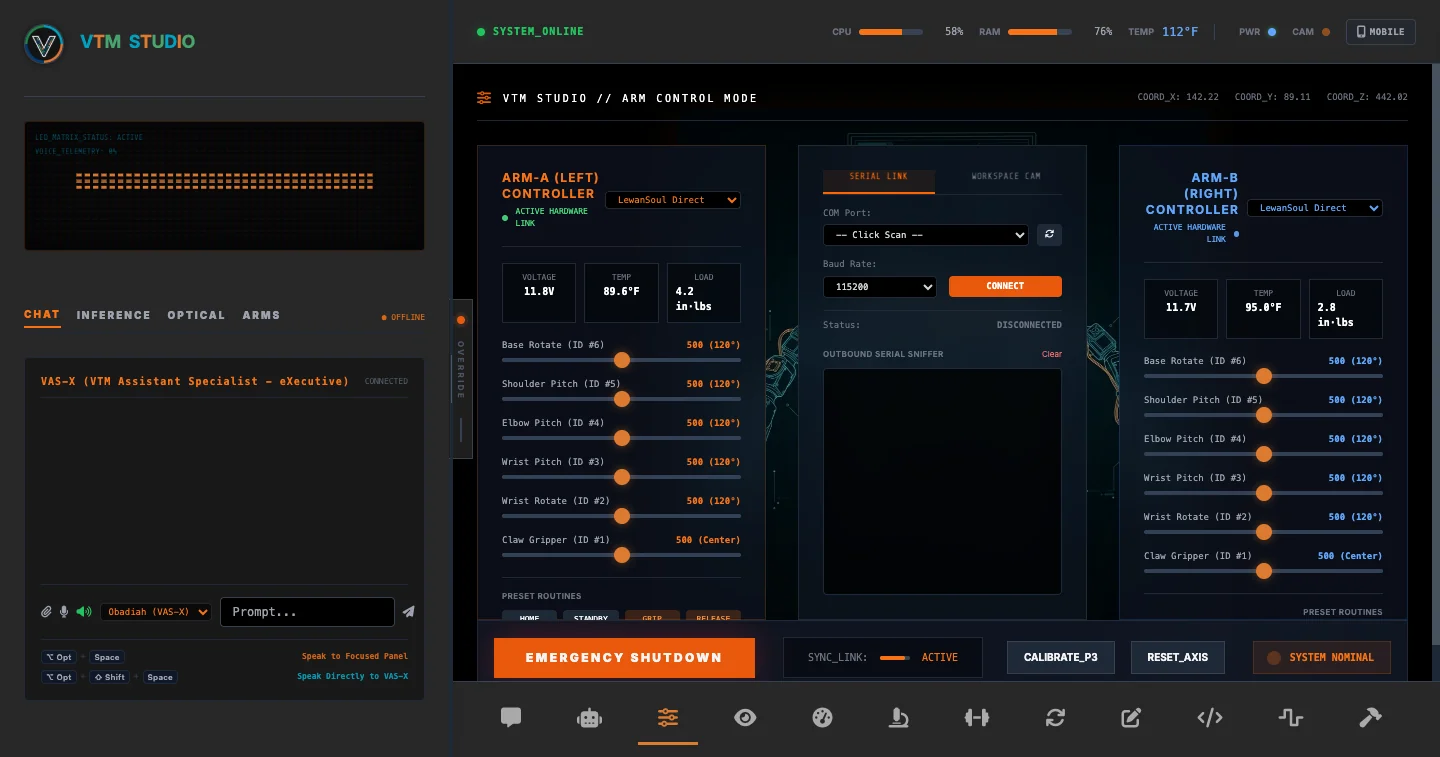
The Direct Physical Arm Control Mode is your direct hardware link to the physical P³™ platform. Arm Control Mode establishes a live physical bridge over serial copper wires—sliding a control here commands actual hardware servos to rotate, clench, and position in real time! Enjoy smooth, high-impact holographic entrance transitions and card delays as the control nodes initialize.
- Scan and select the active COM/USB port for the controller board.
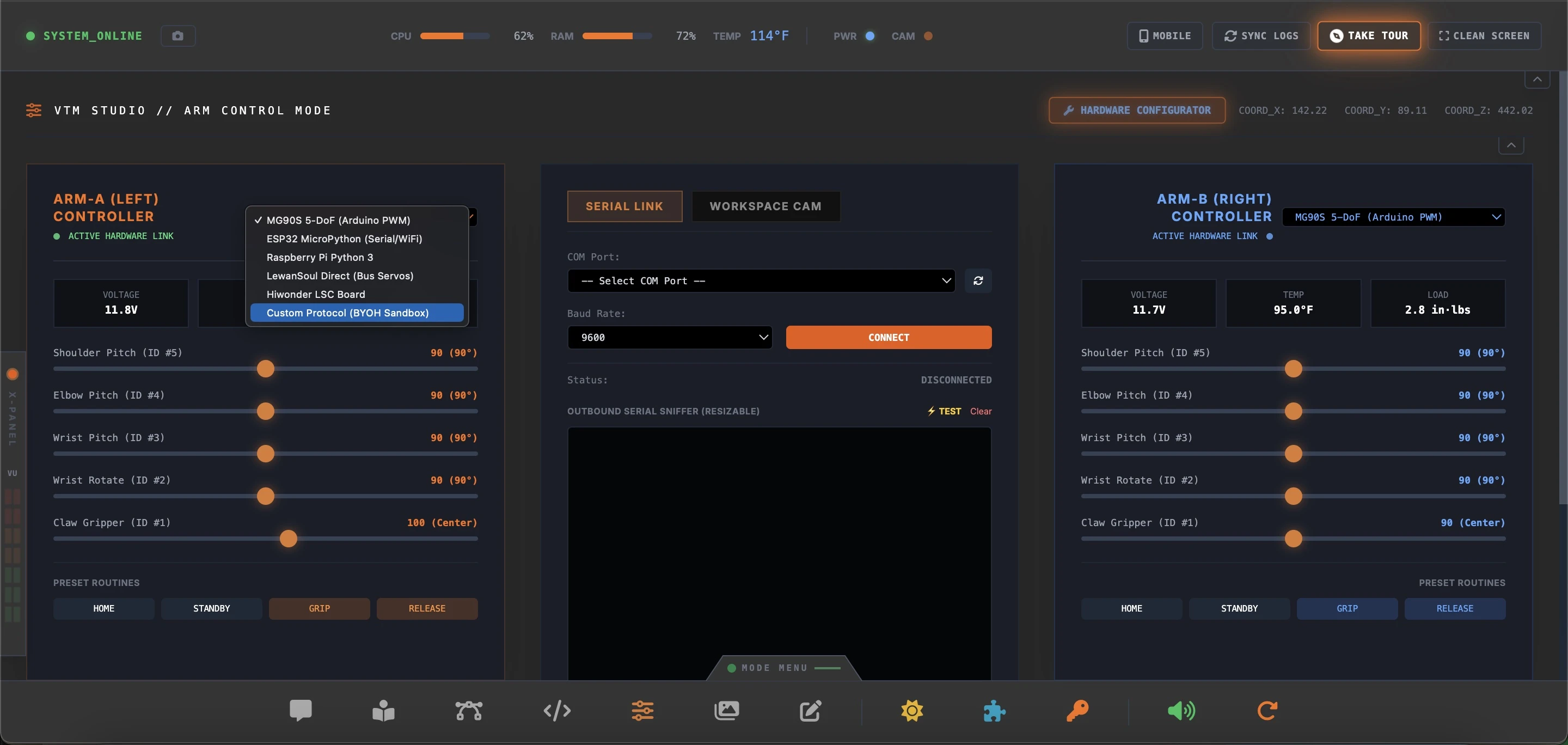
- Select your hardware protocol from the top dropdown (Arduino Nano/Uno PWM, ESP32 MicroPython, Raspberry Pi, LewanSoul Direct, or Hiwonder LSC).
- Baud rate auto-configures (9600 baud for Arduino/LSC, 115200 baud for ESP32/LewanSoul).
- Click CONNECT (which highlights in crisp contrast under light theme) to establish the serial link.
- Drag the sliders or trigger preset action routines (HOME, STANDBY, GRIP, RELEASE).
- Click the glowing HARDWARE CONFIGURATOR button at any time to view interactive wiring diagrams, pinouts, and power supply guidelines.
- In case of collision or excessive motor strain, immediately hit the orange EMERGENCY SHUTDOWN button.
VTM Studio is engineered with an open Bring Your Own Hardware (BYOH) foundation. Makers are not tied to a single proprietary arm kit—you can purchase any 5-DoF or 6-DoF robot arm or buy individual MG90S servos within your budget. VTM Studio supports 6 core hardware protocol configurations out-of-the-box:
- Arduino Nano / Uno + PCA9685 I2C Driver: Uses C++ Wire.h (A4=SDA, A5=SCL) @ 9600 Baud.
- ESP32 / ESP32-S3 MicroPython: Drives PCA9685 via machine.I2C (GPIO 21=SDA, GPIO 22=SCL) over USB Serial @ 115200 Baud.
- Raspberry Pi Python 3: Communicates directly via smbus2 over /dev/i2c-1 (Pin 3=SDA, Pin 5=SCL).
- LewanSoul Direct (LX-16A Bus Servos): Plug-and-play binary protocol directly over USB Serial @ 115200 Baud (zero microcontroller sketch required).
- Hiwonder LSC Controller Board: Binary instruction bus protocol @ 9600 Baud.
- BYOH Custom Protocol Builder & Sandbox: Custom ASCII or Hex binary packet template generator with dynamic placeholders ({id}, {angle}, {pos}, {pos_lo}, {pos_hi}, {checksum}), selectable checksum algorithms (Dynamixel NOT-Sum, XOR, Sum, Bitwise NOT), pre-built commercial-safe presets (PCA9685, Dynamixel AX-12A, Lynxmotion SSC-32), and a vertically resizable Outbound Serial Sniffer with dry-run simulation mode.
Operating behind the scenes is a high-speed 200Hz (5ms frame refresh) sub-degree 12-bit PWM motion engine running on the PCA9685 driver (~0.47° tick resolution). The motion engine provides:
- High-Speed S-Curve Velocity Cap: Limits maximum joint velocity to 170°/sec for fast, natural, cinematic motion without mechanical snap.
- Silent Deadband Lock: Locks updates once joints settle within 0.25° of target, completely eliminating idle servo buzzing and hum.
- Non-Blocking Serial Yield Lock: Employs an internal serial lock (arm_mode_serial_lock) that automatically yields ports from background telemetry listeners, bypassing Optiboot DTR auto-reset delays on connection.
Accessed via the glowing header button, the HARDWARE CONFIGURATOR modal provides an interactive 100% front-end visual setup guide across 4 cards (Arduino, ESP32, Raspberry Pi, and BYOH Custom Builder). Makers can inspect pin assignments, power supply decoupling (5V/3A+ external supply), deploy starter scripts, or construct custom packet formats in the BYOH Sandbox and verify output byte streams live in the resizable Outbound Serial Sniffer without touching a terminal.
As physical servos move, an on-screen coordinate dashboard tracks the absolute 3D position of the gripper claw. The system updates this visual matrix continuously using live sensor feedback:
In Plain English: This reads out the absolute coordinate center of your physical gripper claw in millimeters. Xreal represents side-to-side offset, Yreal is forward-and-back distance from the central post, and Zreal is the elevation above the workbench mat.
The direct control interface divides your physical workspace into two independent controller columns: ARM-A (Left) and ARM-B (Right). Each arm features a dedicated active bus connection panel:
- Active Hardware Link: Telemetry gauges monitor physical operating thresholds:
- Voltage (V): Displays the raw electrical potential on the servo rail (typically 11.7V to 11.8V). A drop below 11.0V indicates battery depletion.
- Temperature (°F): Monitored directly by internal thermistors inside the servo casings. Nominal operation is under 105°F.
- Load (in·lbs): Tracks joint strain. Sudden load spikes indicate that a joint is fighting a physical obstacle.
- 6-DoF Joint Override Sliders: Direct tactile inputs mapped to the individual bus servo IDs:
- Base Rotate (ID #6): Steers the arm base platform (120° center standard).
- Shoulder Pitch (ID #5): Arm elevation leverage joint.
- Elbow Pitch (ID #4): Forearm extension linkage.
- Wrist Pitch (ID #3): Secondary positioning joint for gripper alignment.
- Wrist Rotate (ID #2): Hand roll orientation (360° rotation).
- Claw Gripper (ID #1): Dual-finger clench claw (500 center).
To translate digital slider positions into real-world workspace angles, the system uses a linear mapping equation:
In Plain English: This formula translates raw digital pulse commands (from 0 to 1000 ticks) into angular degrees (0° to 240°). The center value of 500 represents exactly 120° of rotation (neutral center).
To bind VTM Studio to the physical microcontroller, use the connection dock located below the primary joint sliders:
[ COM Port Selector ] ───[ Scan Ports ]
[ Baud Rate ] ───────────[ 115200 ]
[ CONNECT BUTTON ] ──────[ Status: DISCONNECTED ]
- COM Port Scanner: Click the Scan
button to search for active serial ports (e.g.,
/dev/tty.usbserialon Mac orCOM3on Windows). - Baud Configurator: Locks the half-duplex UART speed. Bus servos communicate at 115200 bps for responsive, low-latency response.
- Outbound Serial Sniffer: A live telemetry display console showing the exact hex values flying down the line. Click Clear to wipe the console window clean.
- Preset Routines: Instant command shortcuts to trigger common posture frames:
- HOME: Aligns all joints back to their neutral vertical index points.
- STANDBY: Relaxes servo torque and lowers the arm segments into a stable resting posture.
- GRIP: Clenches ID #1 fingers to hold an object.
- RELEASE: Opens the gripper jaws to drop the load.
- EMERGENCY SHUTDOWN: A massive red button that sends a
0x00power disable byte to all joints, immediately cutting the electrical supply and shutting down the motors in case of a crash. - Calibration Suite:
SYNC_LINK(Active): Synchronizes the coordinates of ARM-A and ARM-B to coordinate cooperative dual-arm movements.CALIBRATE_P3: Calibrates physical joint offsets, saving current positions to the controller's EEPROM.RESET_AXIS: Clears accumulated coordinate tracking drift and resets the origin point.
Unlike the simulation, physical components can collide
and overheat. Stalling a servo under load causes
immediate heating! If a joint temperature rises past
140°F, cut the power immediately using the EMERGENCY
SHUTDOWN to protect the motor coils from melting!
Section 5:6 — Forge Mode
The Model Forge is your local optimization suite. While cloud-based models like Google Gemini will always offer superior processing power due to massive remote data center infrastructure, running models locally on your own hardware provides total independence.
You need to run an LLM offline on local hardware. You quantize the model down to 4-bit, shrinking the memory footprint and enabling smooth Section 5:4 — Local Inference (Edge AI) Mode execution.
- Put raw model files into the converter workspace directory.
- Select the quantization format (Q4_K_M for speed, Q8_0 for high accuracy).
- Set thread bounds and resource constraints to prevent compiler freezes.
- Click "Compile Model" to launch the background conversion subprocess.
- Once compiled, use the hot-swap button to bind the new edge weights in chat mode.
However, local inference introduces unique challenges. Downloading massive, pre-processed model files from unknown online authors raises critical questions: Can you trust that the file doesn't contain malicious code that might compromise your system? Did the author do a precise job optimizing the file, or is the logic broken? The Model Forge eliminates this guesswork by putting the optimization process directly on your workbench. It combines all your essential AI development utilities into a single interface, letting you convert and compress clean, verified models locally in just a few minutes.
Quantization is the process of reducing the mathematical precision of these weights—for example, crushing them down from 16-bit numbers to 4-bit or 3-bit integers. This dramatically shrinks the file size and lowers the memory footprint. While a regular user might not need local inference, learning quantization is the first step on your journey to understanding how massive, trillion-parameter model architectures can eventually be optimized to run on low-resource hardware.
The interface splits this optimization workload into a dedicated, two-tab pipeline depending on your starting file source:
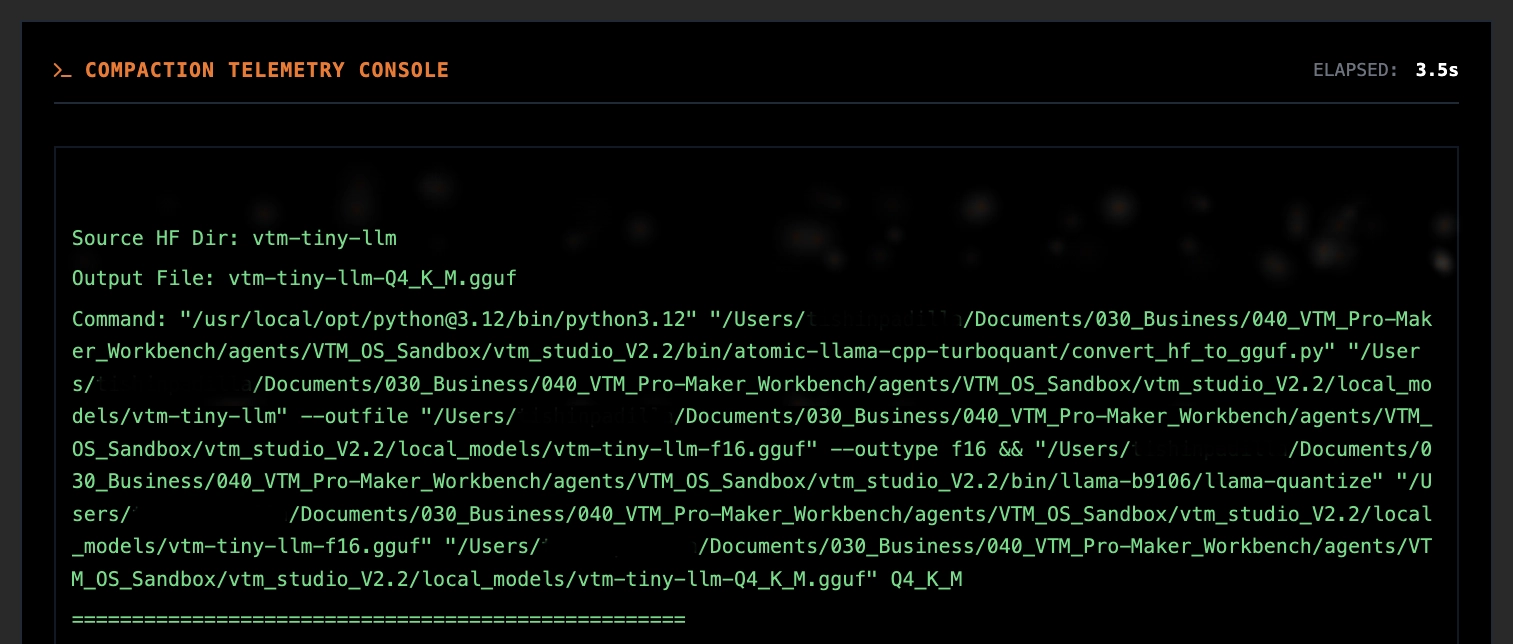
- Convert HF (Tab 1): This is your standard, fully automated pipeline. It scans your Hugging Face directory, converts raw Hugging Face Safetensors into a reference F16 high-precision float layout, automatically quantizes the output into a balanced Q4_K_M file structure, and cleans up the temporary compilation data. For standard workflows—including your gemma-2-2b-hf conversion—use only Tab 1.
- Compact GGUF (Tab 2): This is a manual override configuration layout. Use this tab only if you have manually downloaded an uncompressed .gguf file from the internet, or if you want to compress an existing local model file into a completely different bit-rate precision layout yourself.
When running a manual quantization cycle under Tab 2, the control dashboard provides direct configuration over the output precision and processing load:
- Compaction Target: Determines the compressed bit-rate
depth of your finished local model file:
Q4_K_M: Standard 4-Bit (Balanced processing efficiency and speed).Q8_0: 8-Bit (Near lossless logic precision, requires more system memory).Q3_K_M: 3-Bit (Lightweight footprint optimized for lower-specification hardware).Q5_K_M: 5-Bit (High quality processing and weight retention).
- Compute Threads: Adjusts your computer's processor thread allocation for the quantization task. This defaults to 8 threads to preserve baseline system responsiveness so your computer remains fully usable while the engine runs.
The integrated lower console displays the live status of the quantization engine thread in real time:
- ENGINE STATE: Monitors the immediate operational condition of the engine thread (e.g., Standby, Ready, or Processing).
- ELAPSED: A live on-screen timer tracking the absolute quantization duration down to tenths of a second.
Section 5:7 — Spec Mode
Spec Mode is VTM Studio's cinematic diagnostic interface, inspired directly by the high-tech heads-up displays (HUD) of science fiction. It serves as a visual telemetry and component analysis laboratory, projecting 3D holographic wireframes, engineering-grade datasheets, and high-contrast circuit schematics onto the workspace. Built to feel alive, responsive, and deeply immersive, Spec Mode is the cinematic core of VTM Studio—engineered for hands-free diagnostic lookups while you work with physical hardware.
You are wiring a voltage regulator circuit on your physical workbench and need to verify the input/output pinout on the L7805 without digging through manufacturer PDFs. You say "show voltage regulator" or click it in the glossary—the spec sheet, 3D hologram, and circuit schematic load instantly while your hands stay on the breadboard.
- Say "open spec mode" or type the command to enter the laboratory.
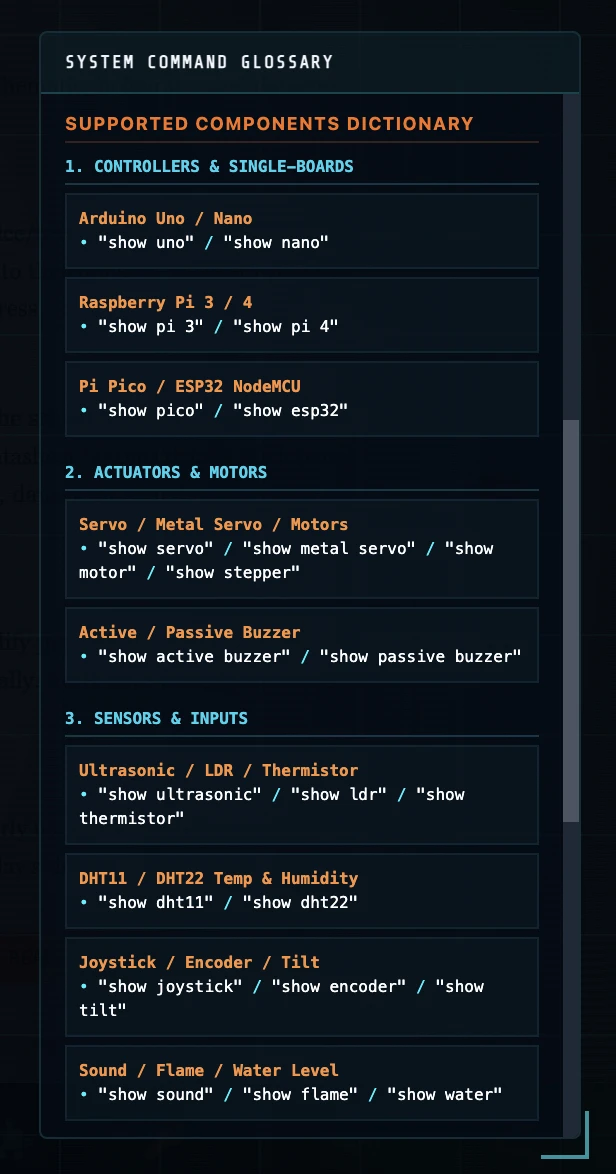
- Say "show uno", "show servo", or any component name to trigger the diagnostic sequence.
- The schematic panel reveals first, followed by the 3D hologram and datasheet.
- Click the expand button (⤢) on the schematic panel to maximize it to full-screen.
- Say "clear screen" or type "clear" to wipe the active component and reset the HUD.
- Use the scrollable Command Glossary on the right to click-to-copy any voice phrase.
The interface is designed to feel like a premium, responsive diagnostic instrument, dividing its visualization workload into several high-fidelity subsystems:
A cyberpunk-themed 3D hologram rendering engine displayed in the center panel. Each component is rendered as a high-fidelity holographic image with screen-compositing over a dark grid background. Components without hologram images gracefully fall back to precision SVG vector line drawings.
Every component carries a comprehensive specification panel displaying model numbers, operating voltages, current draws (idle/active/stall), pin counts, pinout color codes, memory configurations, processor architectures, gear types, physical dimensions, and package types.
Speech-to-text integration via Whisper allows hands-free component selection. Say "show servo" or "show raspberry pi 4" and the system loads the corresponding schematic, hologram, and datasheet instantly.

A scrollable command reference drawer listing every supported voice/text command. Each command phrase is individually clickable—clicking copies the command text to the clipboard and auto-pastes it into the command input bar, ready to execute with a single Enter press.
Loading a new component triggers a cinematic reveal sequence: the schematic panel loads first, followed by the 3D hologram (100ms delay), then the specification datasheet (450ms delay). Each panel transition is accompanied by synthesized audio cues (panel-open, data-print sounds) generated via the Web Audio API.
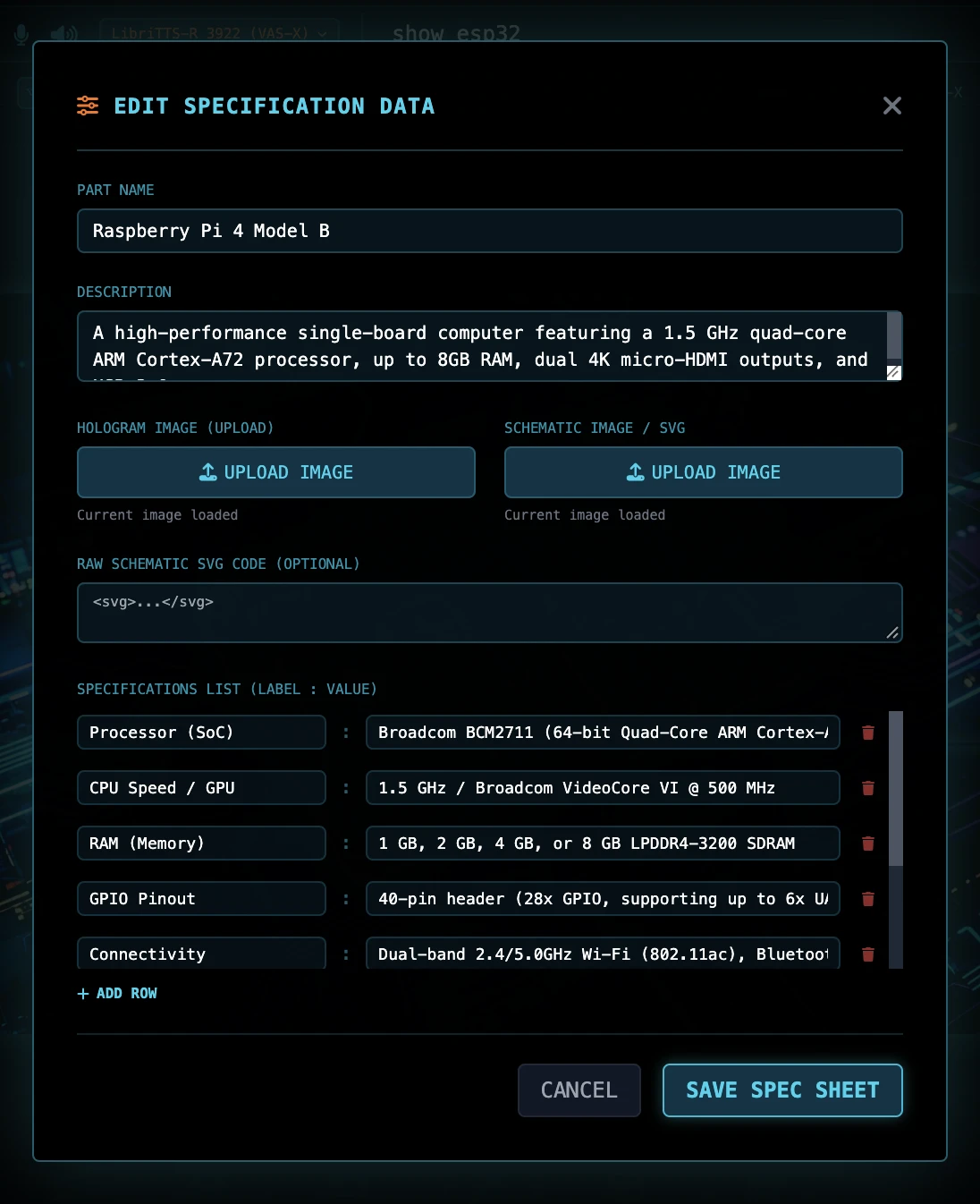
Features a built-in parameters editor in the active HUD view. Modify pin counts, labels, dimensions, descriptions, operating parameters, and datasheet URLs dynamically. Edits save directly to storage, maintaining full database alignment.
Study microchip block diagrams and pin allocation schematics clearly using the maximize control (⤢ / ⤡), which expands the schematics view to full-screen above all overlay sidebars.
When saving custom parts in Spec Mode, typing a matching name but specifying
different physical dimensions automatically suffixes variant IDs (e.g.
_v1, _v2) to prevent data collisions.
Section 5:8 — Layout Mode
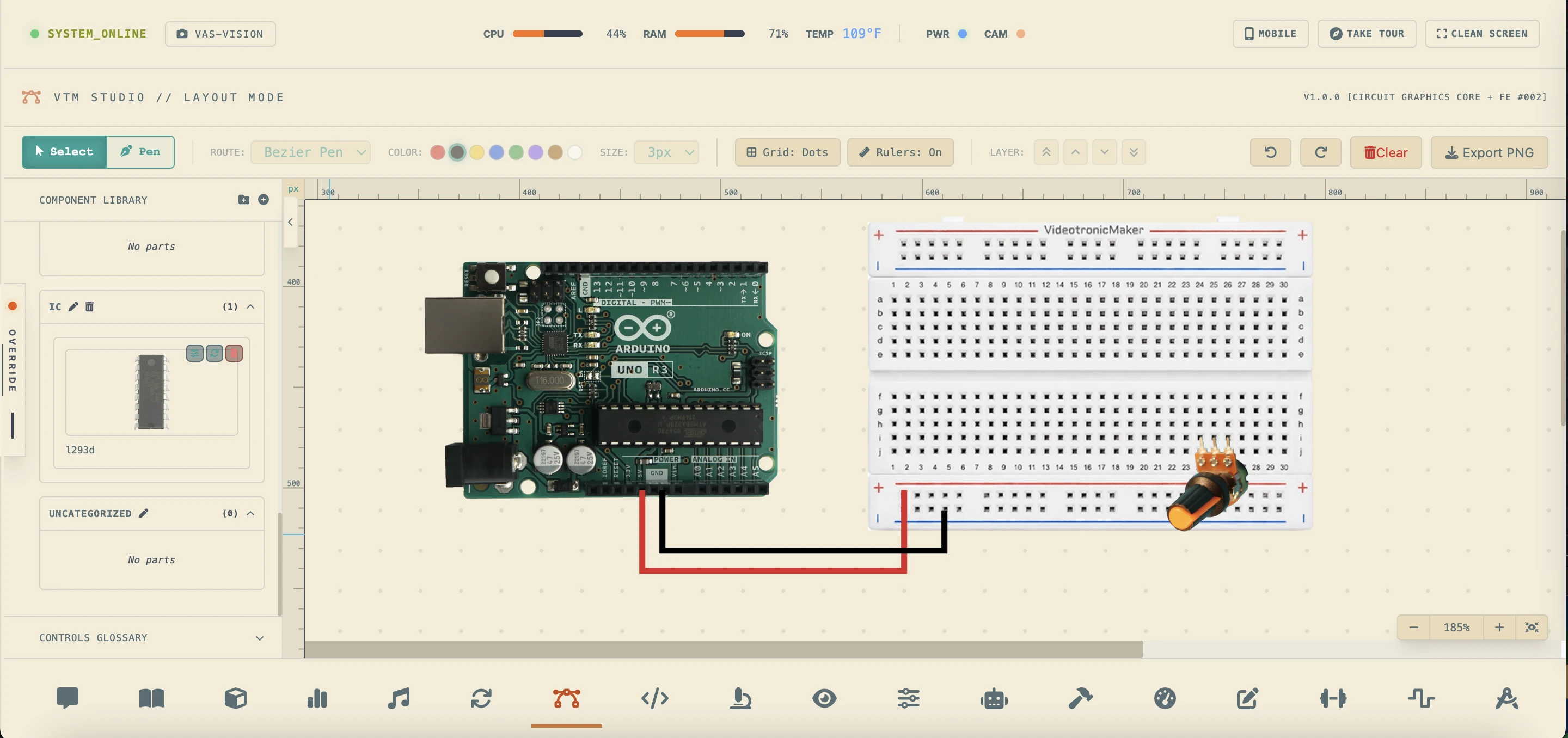
Layout Mode is VTM Studio's advanced, web-standard prototyping canvas designed to let you draft layouts directly alongside your code and telemetry. Using high-fidelity webp/png cutouts of microcontrollers, breadboards, and custom electronic components, Layout Mode provides an interactive artboard where makers can drag-and-drop parts, organize libraries, draw professional vector wires, and export high-resolution PNG wiring layouts. It operates on a fully isolated undo/redo state stack and direct DOM/SVG rendering commands, ensuring smooth 60fps performance without impacting background AI or telemetry tasks.
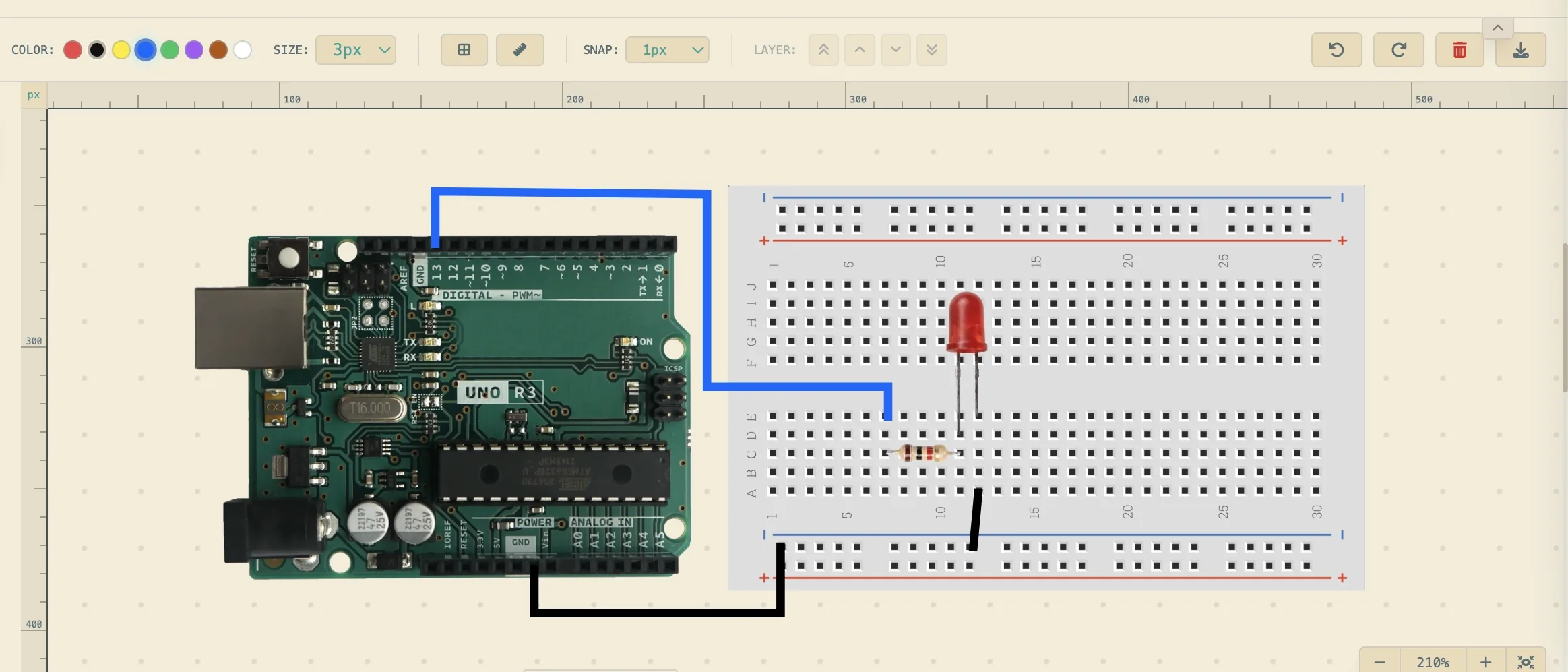
- Point-to-Point Bézier & Orthogonal Wires: The wire tool supports three drawing styles (Bézier curves, 90° orthogonal bends, or straight connections) with multi-node anchor paths. Double-click any wire segment to insert new anchor vertices, and drag bezier control handles to sculpt wires.
- Bypass & Nudge Shortcuts: Hold the Alt (or Option) key to bypass grid-snapping for 1px sub-grid placement. Arrow keys nudge elements by 1px (or 10px with Shift).
- Aspect-Locked Corner Scaling: Drag corner handles to scale components. Hold Shift to preserve the component's original aspect ratio.
- 15px Outer Rotation Ring: Selected wrappers feature a 15px interaction perimeter ring that swaps the cursor to a curved rotation arrow, enabling 1° rotation steps (or 15° steps with Shift).
- Dynamic Spec Mode Asset Sync: Real-time asset syncing fetches custom parts, dimensions, and cutout statuses from Spec Mode. If a part has no design, it renders a gray dashed vector SVG placeholder with "NO IMAGE" text to prevent broken links.
- Integrated Image Isolator Exporter: Outline and extract custom layout parts directly from drawings, schematics, or photos inside Section 5:9 — Image Mode's Isolator canvas, then export them in one click. The isolated part is instantly added to your Layout library under its matched category, ready to be spawned on the canvas.
- Hologram Draft Warning Watermarks: Placing unverified draft components (containing "hologram" in the path) triggers a warning toast and overlays a dashed orange border with a centered "DRAFT DESIGN" watermark.
- Category Auto-Healing: Dynamic library sorting divides parts into Microcontrollers, Prototyping, Inputs/Sensors, Actuators, and Power Supplies, with self-healing routines to automatically resolve storage category corruption.
- Clipboard Duplicate: Quickly clone elements with a slight offset using Ctrl+C and Ctrl+V.
- Isolated State History Stack: A full undo/redo event stack saves all user actions for quick recovery.
You want to document your Arduino Uno, breadboard, and potentiometer setup for a tutorial or project log. Instead of leaving the app to use external drawing tools, you switch to Layout Mode, drag the components from the drawer onto the artboard, choose your wire colors, and click pins to trace precise vector connections using the Bézier Pen tool. Once finished, click "Export PNG" to get a clean layout diagram for your documentation.
- Say "open layout mode" or click the Layout Mode icon in the desktop navigation bar.
- Drag components directly from the left library drawer onto the artboard, or click them to spawn them centered in your view.
- Click a component to select it:
- Move: Drag the component body to slide it. Positions snap to a 10px grid.
- Resize: Drag the corner handles. Hold Shift to lock the original aspect ratio, or resize freely without constraints.
- Rotate: Move your cursor into the outer 15px Interaction Ring surrounding a selected component to display the custom curved rotation cursor, then click and drag to rotate freely in 1-degree steps (hold Shift to snap by 15° increments).
- Press W or click the Pen button in the toolbar to enter Pen drawing mode.
- Click to drop straight/corner anchor nodes, or click-and-drag to pull out symmetric control handles and bend the curve. Right-click, double-click, or press Enter to place the final wire, or press Escape to cancel drawing.
- Choose wire colors (Red, Black, Yellow, Blue, Green, Purple, Brown, White) and thickness (3px to 5px) from the toolbar. You can select any placed wire and click a toolbar color swatch to dynamically re-color it.
- Click Export PNG in the top toolbar to download a clean, high-resolution layout diagram.
- Custom Parts: Click the library folder options to add custom parts by uploading any WebP/PNG image, or trace and export them directly from Section 5:9 — Image Mode's Isolator tool.
- Press Ctrl+Z / Ctrl+Y to undo/redo, or press Del / Backspace to delete selected elements.
Select any placed component or wire and press Ctrl+C (or Cmd+C) followed by Ctrl+V to duplicate it with a slight offset. Hold the Alt (or Option) key while dragging components, drawing wires, or moving vertices to bypass grid snapping and achieve 1px precision. Alternatively, use the arrow keys (←↑↓→) to nudge selected items by 1px (hold Shift to nudge by 10px).
Selecting a wire reveals its blue anchor vertices. Click an anchor to view its orange control handles and dashed helper lines. By default, dragging a handle bends the curve symmetrically. Hold Alt (or Option) while dragging a handle to break symmetry (corner anchor) and create sharp curves or corners. Double-click any anchor vertex to instantly toggle it between curve and corner mode. Double-click anywhere on a wire path to insert a new vertex, or double-click a vertex to delete it. You can also select a vertex and press Delete or Backspace to remove just that point.
Cycle through artboard layouts using the Grid Toggle button in the toolbar to switch between Grid: Dots (radial dot layout), Grid: Lines (full prototyping line grid), and Grid: Off (solid canvas). The grids automatically invert to dark lines when using Solarized Light Theme to guarantee maximum drawing contrast.
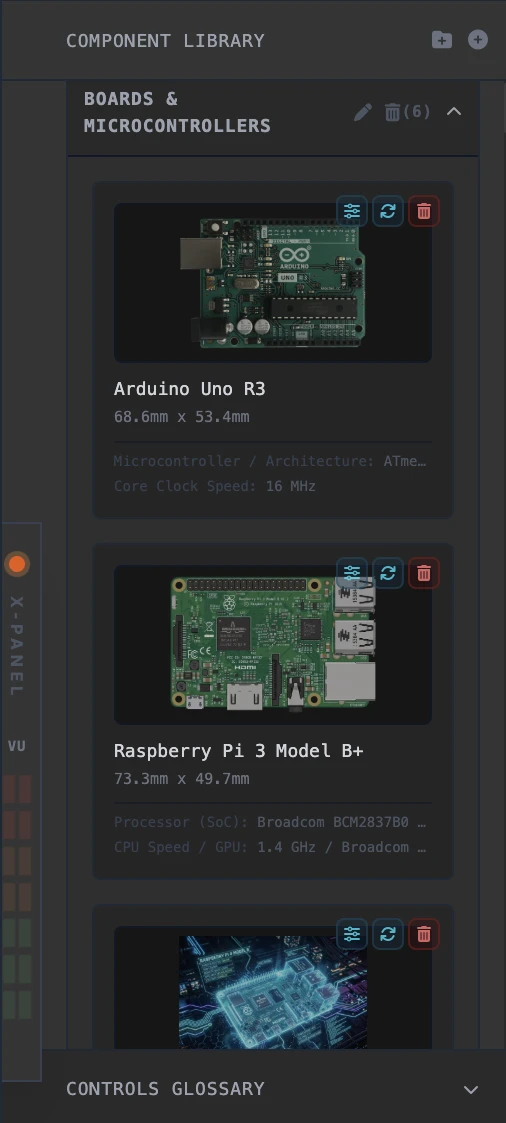
VTM Studio makes adding and organizing custom components effortless. Click the + Folder button in the library header to define new custom categories. Click the + Part button to upload WebP/PNG images, set custom default dimensions, and assign categories. Natural image resolutions exceeding 220px are automatically scaled down proportionally to fit the artboard layout.
Drag component cards inside the library list and drop them onto other category header summaries to instantly reassign categories. Click the edit slider icon next to custom components to open the Edit Part Modal to update their name, category, size, or image. Custom categories can be deleted; confirming will safely re-route contained parts to a default "Uncategorized" folder. All library data is saved as Base64 strings in browser local storage, surviving refreshes and reboots.
Alternatively, you can use Section 5:9 — Image Mode's built-in Image Isolator tool to trace and cut out any part from a drawing, schematic, or photo, and export it directly back into Layout Mode's category libraries with one click.
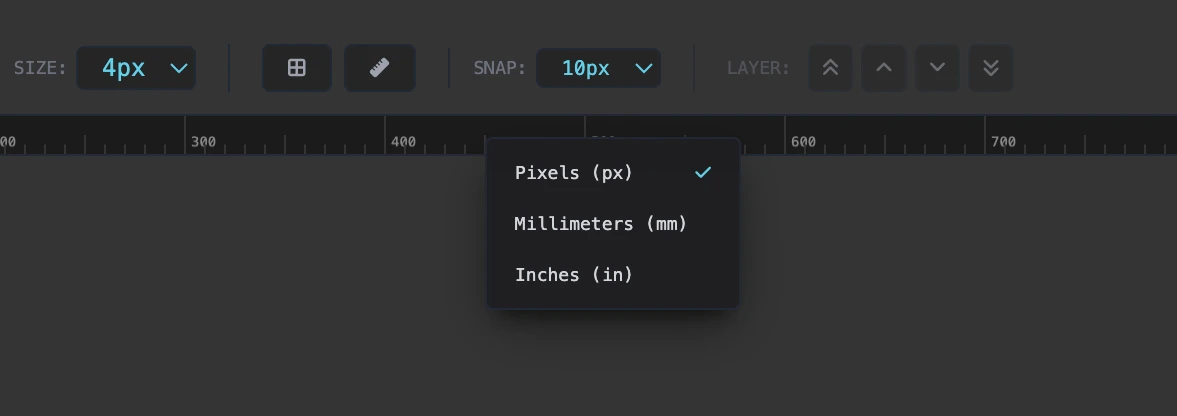
Layout Mode features responsive X and Y axis rulers to assist in sizing and arranging components. Rulers are locked into view at the top and left margins of the workspace, dynamically redrawing their tick marks and labels as you scroll or resize. Right-click any ruler or the corner intersection box to change the active measurement unit between Pixels (px), Millimeters (mm), and Inches (in). Press R or click the toolbar button to toggle rulers on or off. Hovering the artboard projects live guideline markers onto both rulers to track coordinates in real time.
Control the vertical overlap of overlapping parts using the Layer Arrange tools in the toolbar, or use standard professional editor keyboard shortcuts: press Ctrl+] (or Cmd+]) to Bring Forward (Up one layer) and Ctrl+[ (or Cmd+[) to Send Backward (Down one layer). Add the Shift key to these shortcuts to instantly Bring to Front or Send to Back.
Section 5:9 — Image Mode
Precision component cutout and Bézier vector tracing studio. Dedicated to tracing physical electronics components, breakout boards, sensors, and custom hardware from drawings, photos, or datasheets and exporting them directly into Layout Mode's component libraries as transparent assets.
You have photographed a custom breakout board or downloaded a part photo. Instead of launching heavy external graphics programs, you trace the component outline using sub-pixel Bézier curves, adjust edge feathering, and export it directly into your Layout Mode category shelf with a single click.
- Load Source: Drag and drop an image onto the workspace or upload a local file.
- Bézier Pen Tool (P): Click to place anchor points and draw a closed vector outline path around the target component.
- Anchor Edit Tool (A): Reposition vertices, adjust tangent handles, and toggle smooth curves or sharp corners.
- Edge Feathering & Quality: Fine-tune boundary feathering (0–8px) to eliminate hard jagged edges and set WebP compression quality.
- Export to Layout Mode: Assign a part name, select the target category from the synced library dropdown, and click Send to Layout Mode.
Section 5:10 — Science Mode
Welcome to Section 5:10 — Science Mode! This mode functions as an authentic physical instrumentation and telemetry workbench. It links physical microcontroller circuits on your breadboard with real-time software instrumentation, visualizing ambient, kinetic, and electrical measurements over high-speed USB serial and VTM Studio Lite mobile companions.
You build a physical circuit on your breadboard (such as a potentiometer wiper, light sensor, or logic gate). You flash the verified sketch in Code Mode, connect telemetry, and Section 5:10 — Science Mode ingests the live serial stream, prints unparsed RAW diagnostic proof, and drives high-contrast dials, graphs, and logic indicators in real time.
- Open Code Mode: Navigate to Code Mode on the workbench.
- Load Verified Sketch: Open the Science Mode Examples drawer and select the matching circuit sketch (complete with pin wiring table and non-blocking timing).
- Flash & Connect: Flash the sketch to your microcontroller over USB and click [🔗 CONNECT TELEMETRY].
- Launch Science Mode: Open Science Mode, click the matching panel button in the right drawer, and watch live telemetry populate your instruments.
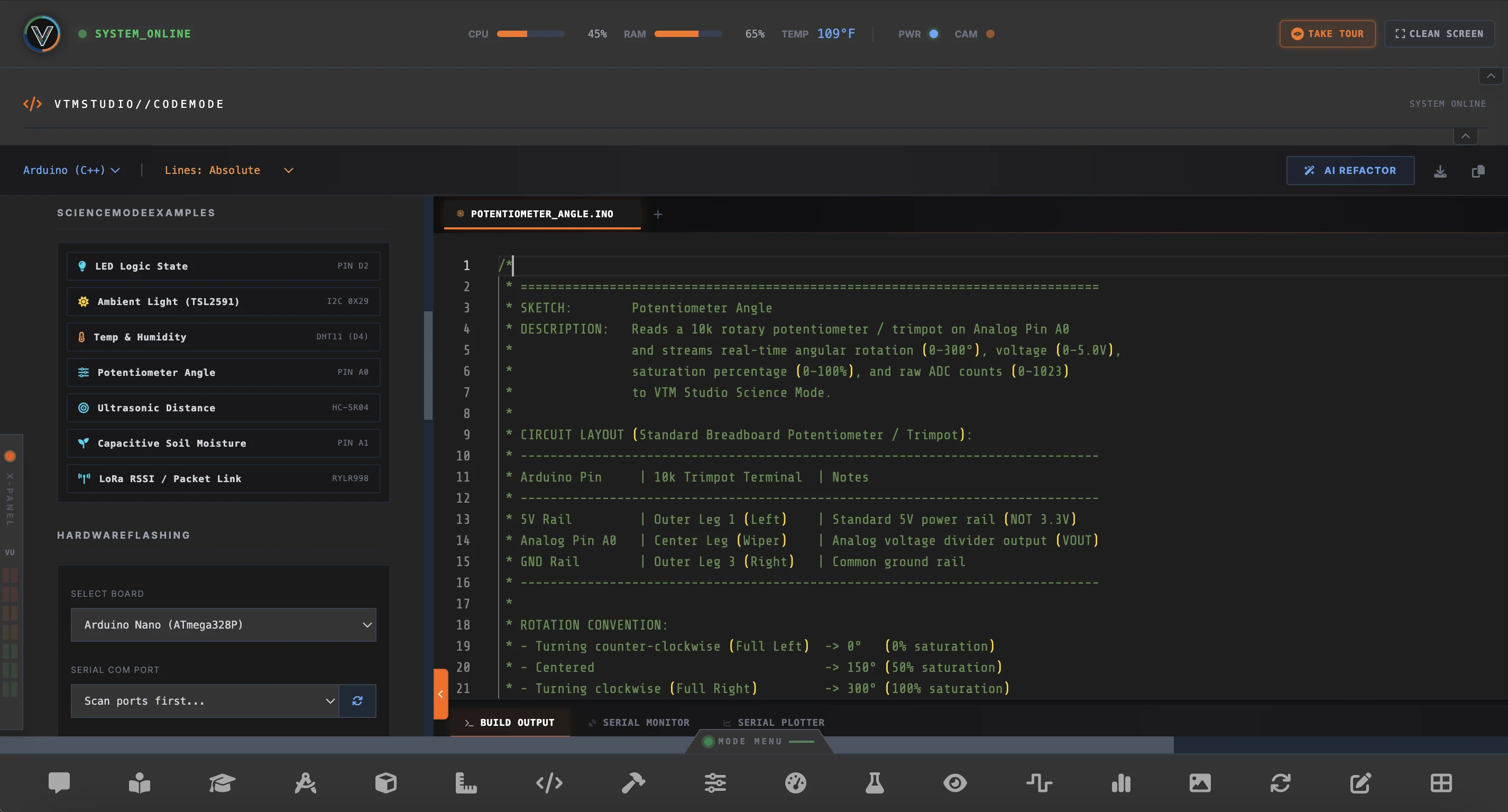
Science Mode is built for real engineering—zero mock data, zero simulated waveforms, and zero placeholder widgets. Every panel corresponds 1:1 to an authentic physical sensor and a verified sketch in Code Mode.
- 115200 Baud USB UART Engine: Listens on verified USB Bridge comports (matching
usbserialorusbmodem), parsing real microsecond telemetry packets from Arduino, STM32, or Raspberry Pi Pico microcontrollers. - 1:1 Hardware Parity: Verified pre-built instruments include Ambient Light (TSL2591), LED Logic State (Pin D2), Potentiometer Angle (Pin A0), Capacitive Soil Moisture (Pin A1), Ultrasonic Distance (HC-SR04), and LoRa Packet Link (RYLR998).
- The RAW Line Contract: Every panel displays a live monospace
RAW:diagnostic readout displaying the unparsed serial string directly from the wire. If the wire is disconnected, telemetry halts truthfully. - In-Panel Setup Guides: Every instrument card features an integrated wiring reference showing required voltage rails, ground returns, and analog/digital pin assignments.
- Layout History: Save custom multi-panel workbench configurations, duplicate setups, rename layouts inline, and restore them with one click. Export logged datasets directly to CSV or JSON offline reports.
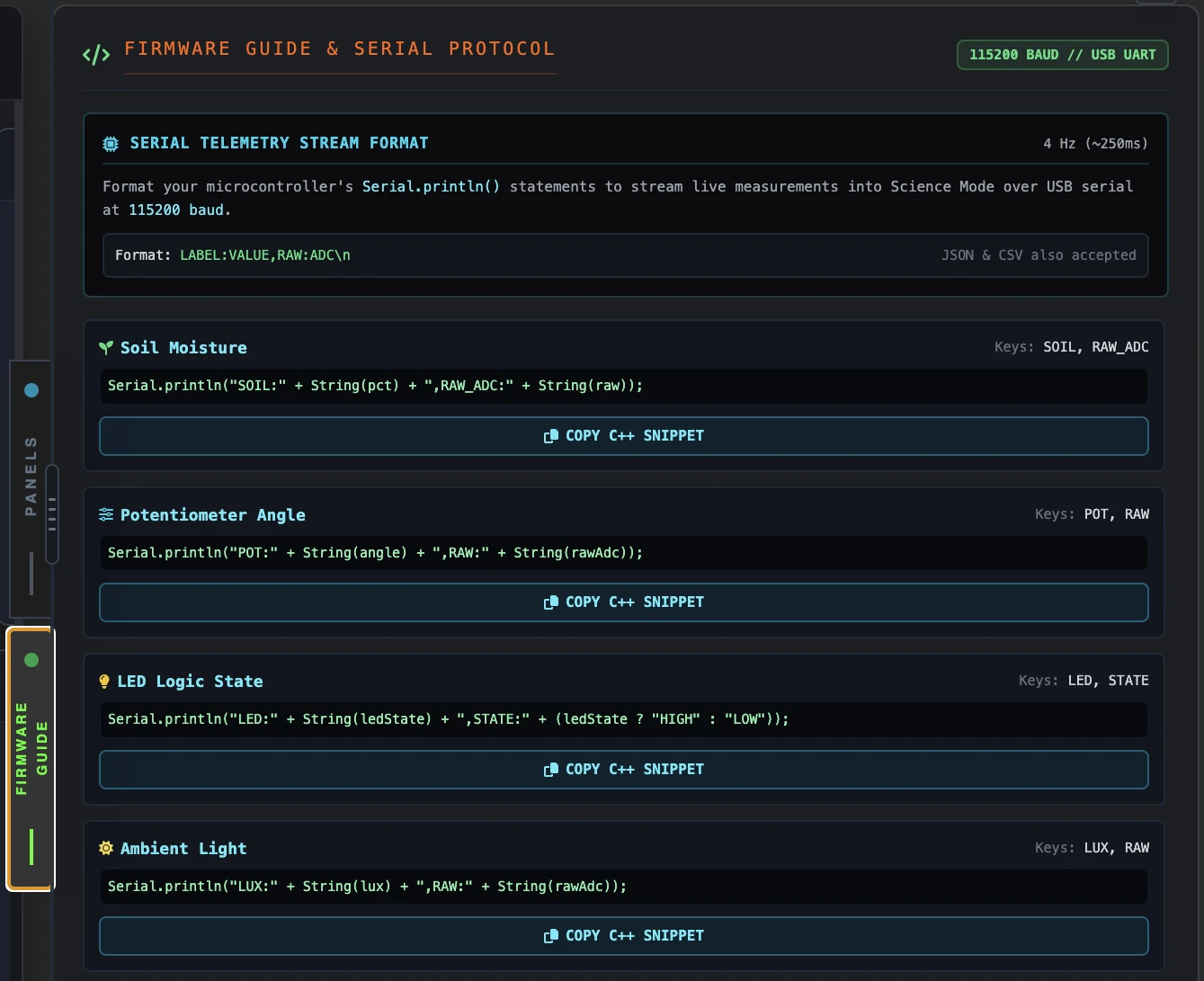
Serial.println("{\"lux\":420,\"voltage\":3.30,\"pot_angle\":180}");
Serial.println("lux:420,voltage:3.30,pot_angle:180");
val_1, val_2, etc.):Serial.print(420); Serial.print(","); Serial.println(3.30);
Serial.println(3.30);
The Universal Telemetry & Key Snippet System
Science Mode decouples physical breadboard computing from software visualization. You don't need custom desktop software or complicated communication libraries for every sensor. Instead, VTM Studio provides a universal 115200 baud key protocol: drop a single formatted Serial.println() statement into your existing Arduino sketch, and Science Mode instantly mounts and animates your circuit instruments in real time.
Transforms any microcontroller (Arduino Uno, Nano, STM32, ESP32, Raspberry Pi Pico) into an active telemetry node streaming engineering metrics and raw ADC signals at 4 Hz (~250ms).
Eliminates manual protocol coding and breadboard fatigue. Makers can build any circuit from standard starter kits and 37-in-1 modules using their own sketches, dropping in pre-mapped telemetry keys with zero friction.
Every panel features a live monospace RAW: line. This unparsed readout proves physical continuity, verifies sensor thresholds (air vs water, dark vs light), and exposes true hardware state with zero simulated illusions.
Wire your sensor to your microcontroller using any standard tutorial pinout, or open your existing working sketch in Code Mode.
In Science Mode, open the right drawer and switch to FIRMWARE GUIDE. Find your sensor and click [Copy C++ Snippet].
Paste the single line into your sketch's loop(). Flash at 115200 baud, add the matching panel on the canvas, and watch authentic physical telemetry animate.
Telemetry is streamed as a single comma-separated text line terminated by a standard newline (\n). Each line carries a primary calculated metric followed by the raw ADC or pulse count:
Whether using a 10-bit Arduino Nano (0–1023) or a 12-bit ESP32 / Arduino Uno Q (0–4095), Science Mode automatically senses your board's resolution. Raw values exceeding 1023 scale cleanly against 4095, preventing 400% dial saturation and needle clipping.
[COM] indicates verified golden-standard bench circuits tested on physical hardware.
[BETA] indicates open starter kit and 37-in-1 kit sensor panels adhering to universal key contracts, ready for maker bench verification.
Transform any mobile device into an auxiliary sensor node. By connecting to the local VTM Studio Lite companion app, 14 onboard smartphone sensors stream live physical telemetry directly to your workbench over WebSockets.
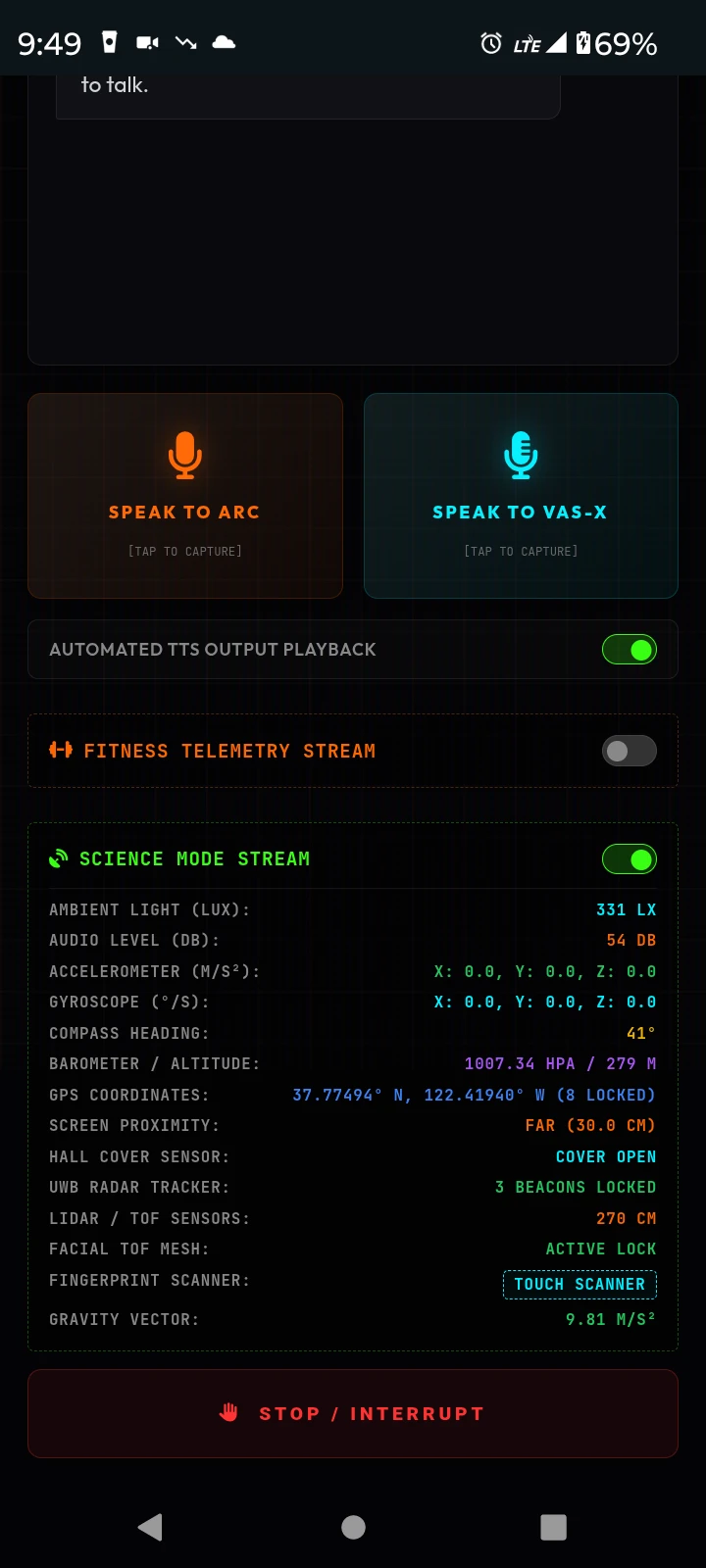
- Mobile Lux Meter: Circular ambient luminance gauge reading ambient phone light sensor lux.
- 3-Axis Kinematics: Real-time Accelerometer, Gyroscope rotation rates, and Gravity pull vectors streaming at 10Hz.
- Environmental & Acoustic: Real-time Sound Decibel (dB) levels driving VU meters, Barometric pressure, and GPS coordinates.
- Spatial & Biometrics: Compass Magnetometer heading, ToF Face, Hall Effect, UWB, and LiDAR depth tracking.
- Tier Staging: Dedicated to physical bench computation in Maker and Maker Pro packs; mobile companion instrumentation activates seamlessly when paired with VTM Studio Lite.
Ready-To-Flash Example Sketch (Code Mode Parity)
Center Wiper → Analog Pin A0
Outer Pin 3 → GND rail
KEY:VALUE pairsKeys:
pot (0–1023), volts (0.00–5.00V), deg (0–300°)
millis() with zero blocking delay() calls.
/*
 * VTM STUDIO — SCIENCE MODE TELEMETRY SKETCH
 * SKETCH:       Potentiometer Angle & Voltage Monitor (Pin A0)
 * HARDWARE:     10kΩ Potentiometer (Outer Leg 1 -> 5V, Outer Leg 3 -> GND, Center Wiper -> A0)
 * TELEMETRY:    115200 Baud | Format: KEY:VALUE | Key: pot (0-1023), volts (0.00-5.00V), deg (0-300)
 * ATTRIBUTION:  Prompted by Tishin Padilla (VideotronicMaker) | Generated by Gemini 3.8 Flash
 * LICENSE:      Public Domain / Open Source
 */

const int POT_PIN = A0;
unsigned long lastTelemetryTime = 0;
const unsigned long TELEMETRY_INTERVAL = 100; // 10 Hz non-blocking loop

void setup() {
  Serial.begin(115200);
  while (!Serial) { ; } // Wait for native USB if needed
}

void loop() {
  unsigned long currentMillis = millis();

  // Non-blocking timer loop (zero delay calls)
  if (currentMillis - lastTelemetryTime >= TELEMETRY_INTERVAL) {
    lastTelemetryTime = currentMillis;

    // Read real physical wiper voltage
    int rawAdc = analogRead(POT_PIN);
    float voltage = (rawAdc * 5.0) / 1023.0;
    int angle = map(rawAdc, 0, 1023, 0, 300);

    // Stream structured telemetry packet matching Science Mode panel
    Serial.print("pot:");
    Serial.print(rawAdc);
    Serial.print(",volts:");
    Serial.print(voltage, 2);
    Serial.print(",deg:");
    Serial.println(angle);
  }
}
Section 5:11 — Vision Mode
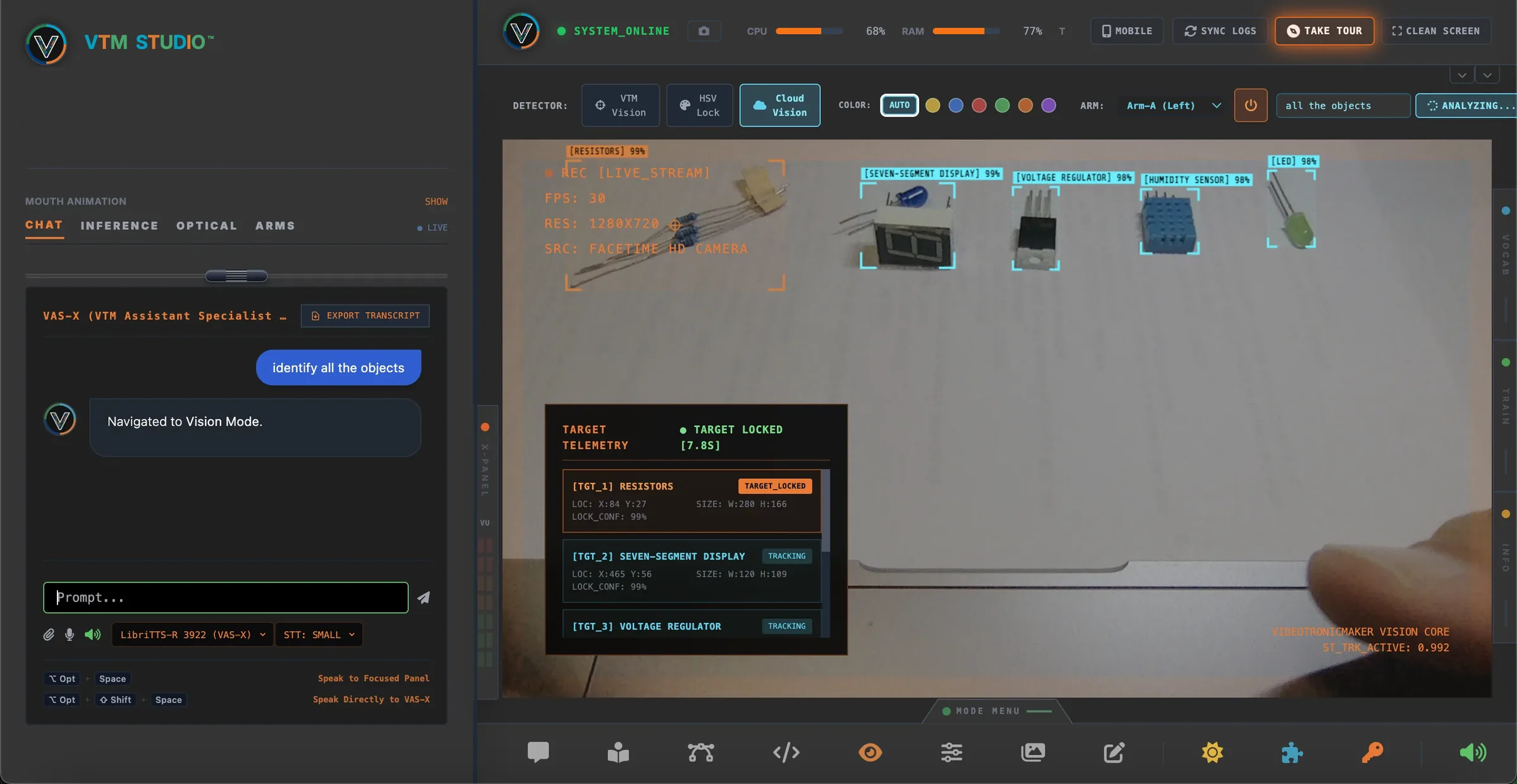
Welcome to the space-age optical command center for your workbench! Section 5:11 — Vision Mode connects live webcam camera feeds directly to artificial intelligence, giving your robotic arms and workbench instrumentation supersonic 20/20 vision. Think of it as your electronic eye in the sky—identifying microcontrollers, transistors, LED chips, and custom 3D-printed parts in real time!
You're assembling a complex circuit on your workbench and need a specific transistor among a pile of components. You say to VAS-X "find the transistor" — Vision Mode instantly boots Cloud AI Vision, tracks the component in seconds, plots tactical 99% confidence corner brackets, locks target telemetry, and routes X/Y spatial coordinates directly to your robotic arm!
- High-Speed Cloud AI Engine: High-speed VTM Cloud AI vision processing analyzes camera frames in seconds with zero wait.
- Top HUD Target Prompt Field: Type any electronic part name directly into the top control bar input (
#vision-cloud-prompt) for instant optical search ("transistor", "yellow comb", "green led"). - VAS-X Voice Target Acquisition: Ask VAS-X "find the transistor" or "where is the green led" — it auto-populates the prompt, switches to Cloud Vision, and executes frame analysis automatically.
- Smart Contextual Engine Routing: Automatically respects your active detector engine — selects matching color swatches in HSV Lock mode ("find the red block") versus running Cloud AI in Cloud Vision mode.
- Live TARGET TELEMETRY Acquisition Timer: Bottom-left HUD timer pulses while scanning (
● SCANNING [0.4s]) and freezes solid green the microsecond your target is locked (● TARGET LOCKED). - Wall-To-Wall Panoramic Viewport: Full-width edge-to-edge optical display canvas (
object-cover) with zero letterboxing for immersive camera streams. - 3 Triple-Engine Optical Detectors: Hot-swap between VTM Vision (local real-time object detector), HSV Lock (fast color & blob tracker with AUTO and 6 target color swatches), and Cloud Vision (high-precision AI vision).
- 4-Mode Robotic Arm Target Sync: Route live spatial X/Y target coordinates to physical servos (
Disabled,Arm-A Left,Arm-B Right,Dual Arms). - 3 Pop-Out Edge Side Panels: Slide open VOCAB (Active Vocabulary dictionary), TRAIN (Model Forge Studio photo dataset builder), and INFO (training guide).
- Click the orange Power icon on the top HUD bar to boot your camera stream into wall-to-wall panoramic view.
- Type a target part name into the HUD prompt field, or speak directly to VAS-X: "find the green led".
- Watch the bottom-left TARGET TELEMETRY timer count up while scanning and lock green upon target acquisition.
- Select Arm Target Sync (
Arm-A Left,Arm-B Right, orDual Arms) to stream X/Y coordinates directly to physical servo motors. - Pop open the 3 flush side panels to inspect model metadata, snap custom photos for Model Forge training, or view guide instructions.
Section 5:12 — Code Mode
Full-featured embedded firmware IDE and physical telemetry workstation featuring multi-board Arduino and MicroPython toolchains, project workspace management, built-in code editor with AI refactoring, and direct serial telemetry synchronization with Science Mode.
You need to write, compile, and flash firmware to an embedded microcontroller or SBC, or wire a breadboard circuit and feed live serial telemetry directly to Science Mode instruments. You write code in the built-in code editor, load verified circuit sketches or robot routines, flash the target board, and stream live serial data to the oscilloscope plotter and telemetry monitors.
- Built-In Code Editor: Multi-language syntax highlighting (C++, MicroPython, Python, Markdown), multi-tab file strip, line number styling (Absolute, Relative, Hexadecimal), and direct AI Refactoring.
- Science Mode Telemetry Bridge: 1-click loading for 7 verified physical telemetry sketches (LED State, TSL2591 Light, DHT11 Temp/Humidity, Potentiometer, Ultrasonic Radar, Soil Moisture, LoRa Link) paired with the [Connect Telemetry] serial bridge.
- Project Workspace & Document Control: Load and save host filesystem project directories, and generate new .ino, .cpp, .h, .py, .mpy, and .md files directly into custom project folders.
- Markdown Preview Studio: Built-in GFM preview canvas to draft, read, and preview README files and circuit notes alongside code.
- Multi-Architecture Toolchain: Dual compiler engine executing Arduino-CLI for AVR/ARM/ESP/RP2040 targets and mpremote for direct MicroPython filesystem flashing and soft-reset.
- Starter Template Library: 1-click starters for Universal Robot Arms (MG90S PCA9685, ESP32 MicroPython, Raspberry Pi), AI Logic (Gemini, Local Inference, Vision), and Hardware Logic (Blink, Serial, Pullup, Animatronic Mouth, IR Car, Fingerprint).
- Diagnostic Console & Plotter: Resizable 3-tab bottom tray featuring Build Output logs, real-time Serial Monitor, and an Oscilloscope Plotter canvas with dynamic Y-axis overlays.
- Dual-Brain Hardware Reference: Dedicated MPU and MCU visual reference slots with custom schematic image upload support.
- Audio Feedback: Mechanical typewriter keystroke sounds and local Piper Text-to-Speech voicing compilation sizing, flash verification, and serial status.
- Open Code Mode and select your target programming language (C++ or Python) and line number preference.
- Choose your board from the board selector (supporting Arduino AVR, 32-bit ARM/STM32, ESP32/ESP8266, and RP2040 Pico) and scan for active USB ports.
- Load a sketch from the sidebar—either from "Science Mode Examples", "Robot Arm Logic", or "Hardware Logic", or load an existing project directory from disk.
- Click "AI Refactor" to clean or adapt the routine, or edit functions directly inside the code editor.
- Click "Verify" to compile via Arduino CLI, or "Flash" to flash the board (or upload MicroPython via mpremote) with real-time voice feedback.
- Click "[Connect Telemetry]" to stream live UART data into the Serial Monitor and Plotter, or jump directly into Science Mode to view live physical instruments.
Section 5:13 — Audio Mode
Diagnostics, real-time signal generation, and acoustic telemetry suite to test microcontrollers, piezo buzzer melodies, and input frequencies. Routes actual analog input or microphone data directly to visualizers and telemetry packets.
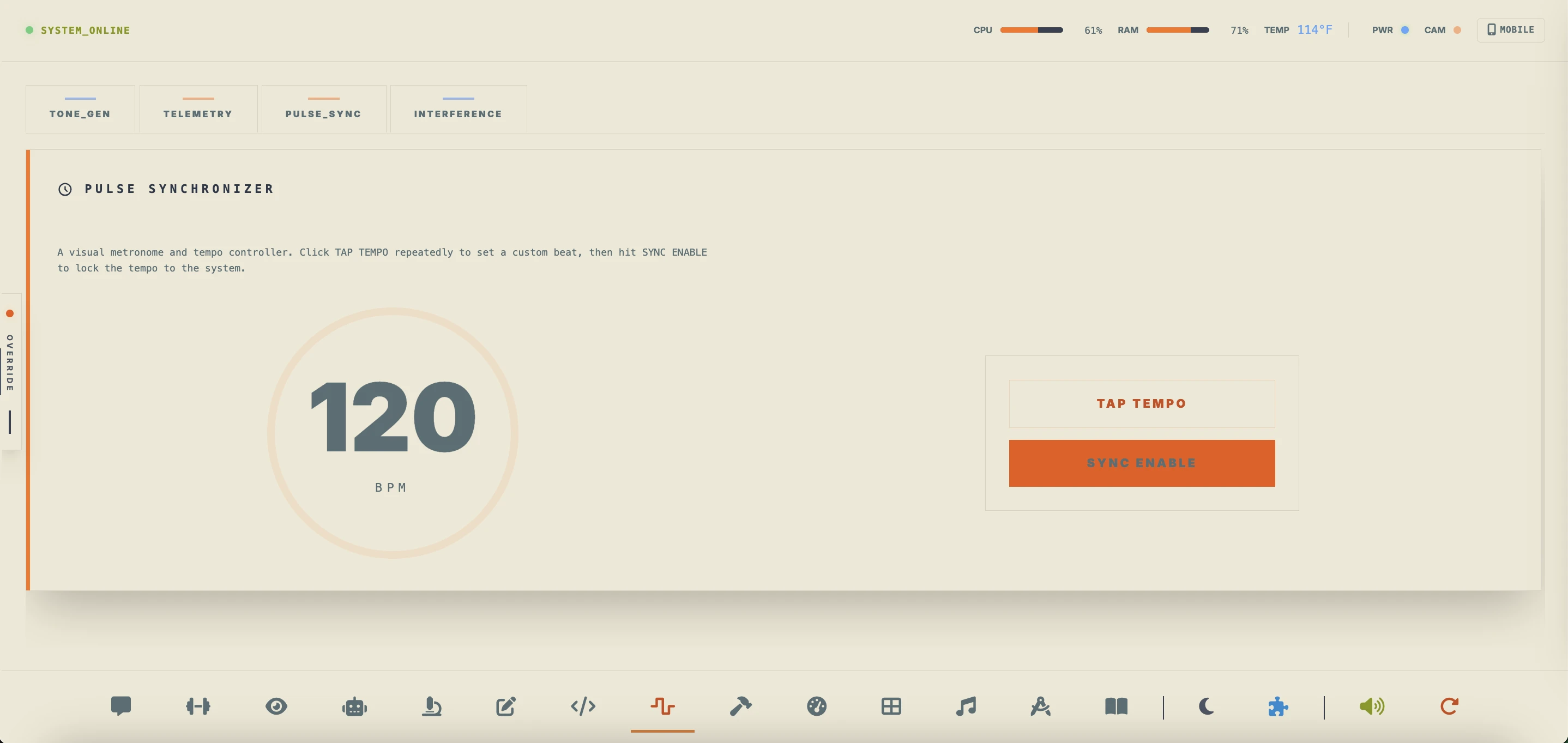
You are building a custom piezo buzzer alert or metronome circuit. You generate tones, write RTTTL tunes, check metronome timing calculations, and instantly export target microcontroller code (Arduino or ESP32) directly to your Code Mode Editor buffer in Section 5:12 — Code Mode.
- Select input source: Internal Synth or live computer Microphone / Line-In.
- Choose target waveforms (Sine, Square, Triangle, Sawtooth) and adjust sliders.
- View frequency bands and domain curves in the real-time **Oscilloscope** and **FFT spectrum canvases**.
- Select a tune from the **RTTTL Melody Library** to play it and generate buzzer frequency arrays.
- Convert tap-tempo BPM timing parameters into non-blocking `millis()` interval loop code.
- Click **Send to Section 5:12 — Code Mode** to forward scripts directly to the IDE editor buffer.
Section 5:14 — Maker Log Mode
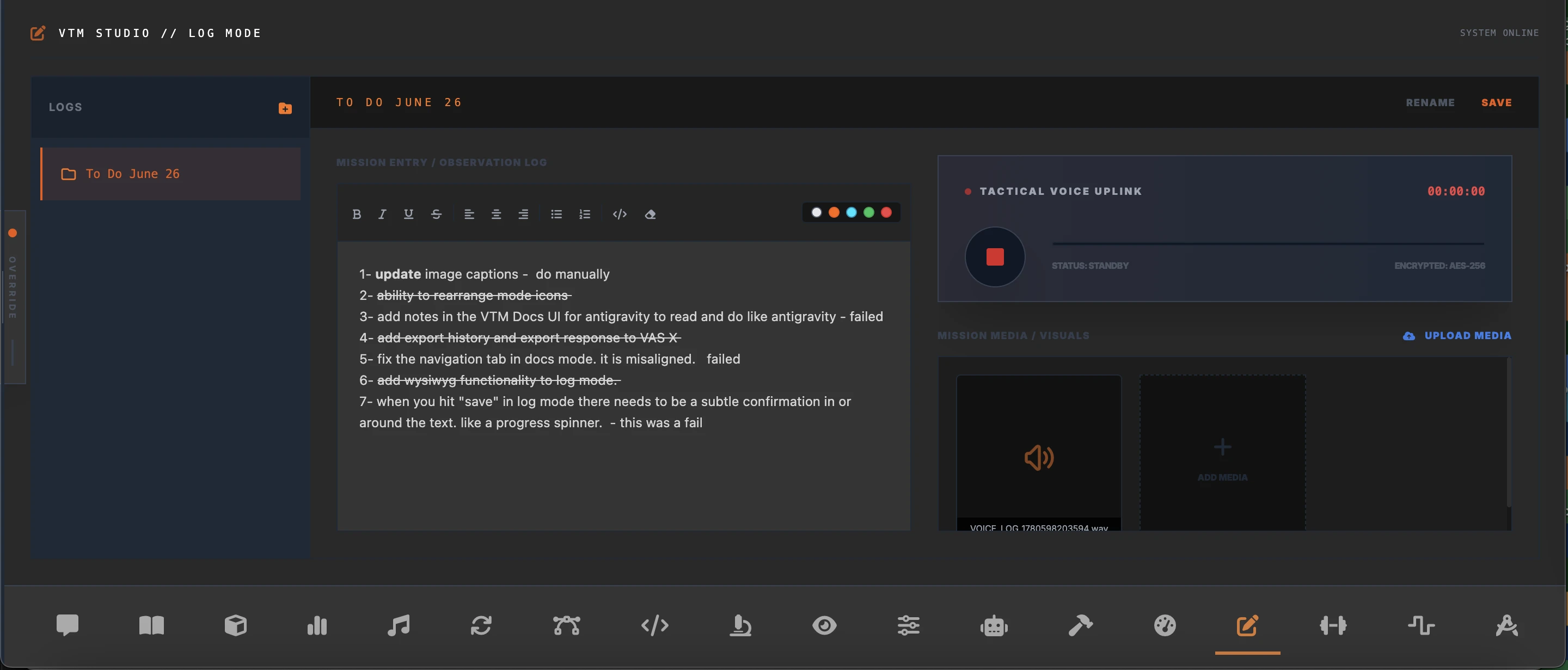
Unified engineering journal and breadboard wiring ledger. Organize research sessions into distinct mission folders, logging progress updates, voice memos, and hardware logs.
You are logging a hardware design iteration. You create a log folder, dictate progress notes via local audio, and attach snapshots of your circuitry logs.
- Create specific "Mission Folders" to organize research projects.
- Use the WYSIWYG Editor (configured with the Visual Studio Dark theme) to write rich text notes, format typography, insert code blocks, and apply custom color-coded highlights.
- Click the voice recorder to dictate audio notes (Whisper STT parses locally).
- Attach screenshots, circuit diagrams, or photos directly to observation drafts.
- Export drafts directly to local system markdown folders.
Section 5:15 — Favorites Mode
High-fidelity bookmark workspace and resource link launcher. Designed to load distributor sites, local datasheet archives, and code repositories instantly.
You need to verify the pinouts of a microcontroller. You click the local datasheet link in Section 5:15 — Favorites Mode to view a cached layout without searching the web.
- Add custom bookmarks by specifying names and external URLs.
- Click locally cached microchip specifications (e.g. ATmega328P, ESP32) for offline viewing.
- Use the app grid to launch external visualizer platforms (Circuito.io, Tinkercad, Fritzing).
- Organize links by engineering tags (e.g. #cad, #datasheet, #learning).
Section 5:16 — Music Mode
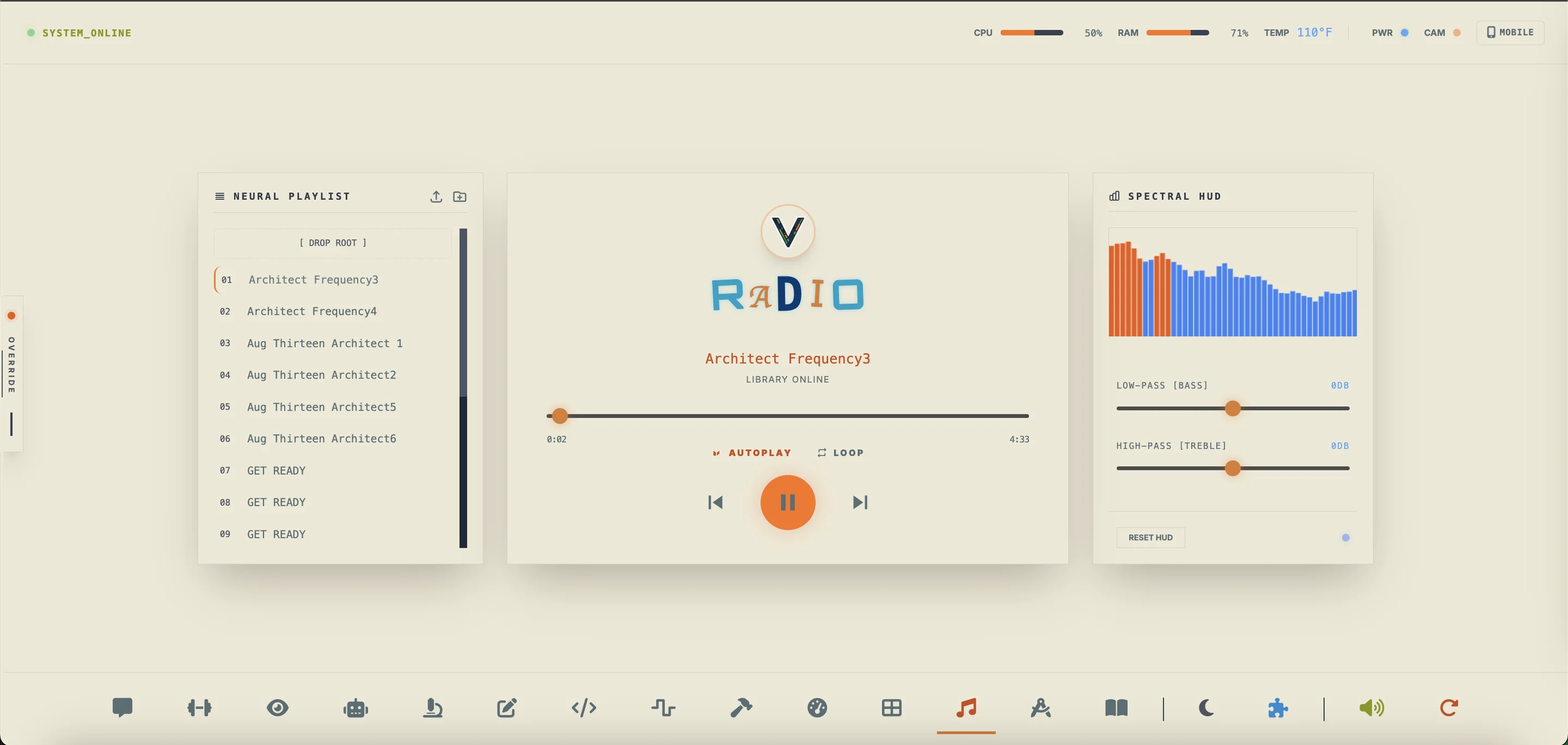
Local media player, multi-folder playlist organizer, and real-time audio equalizer with multi-select file import, direct OS Finder drag-and-drop, inline folder creation, and an auto-suspending FFT frequency spectrum visualizer.
You are organizing reference tracks and diagnostic audio logs during a long build session. You drag multiple WAV and MP3 files directly from Finder into custom playlist folders, fine-tune the Bass and Treble EQ sliders, and send selected recordings directly to Mixer Mode for mastering.
- Click Import or drag and drop multiple
.mp3and.wavfiles from Finder onto[ DROP AUDIO HERE // ROOT ]or any folder row. - Click New Folder to type a folder name inline (press Enter to create) and drag tracks between folders to organize.
- Calibrate the Bass and Treble sliders (-12 dB to +12 dB) and monitor the live FFT spectrum canvas (which auto-suspends when paused or switching modes).
- Click [Mix] on any track row to route it straight into Mixer Mode for loudness normalization or gain mastering.
Import .mp3 or .wav files directly using
the Import button, drag files from Finder into the playlist panel or onto
any folder row, or place files inside the static/music/ directory.
Section 5:17 — Mixer Mode
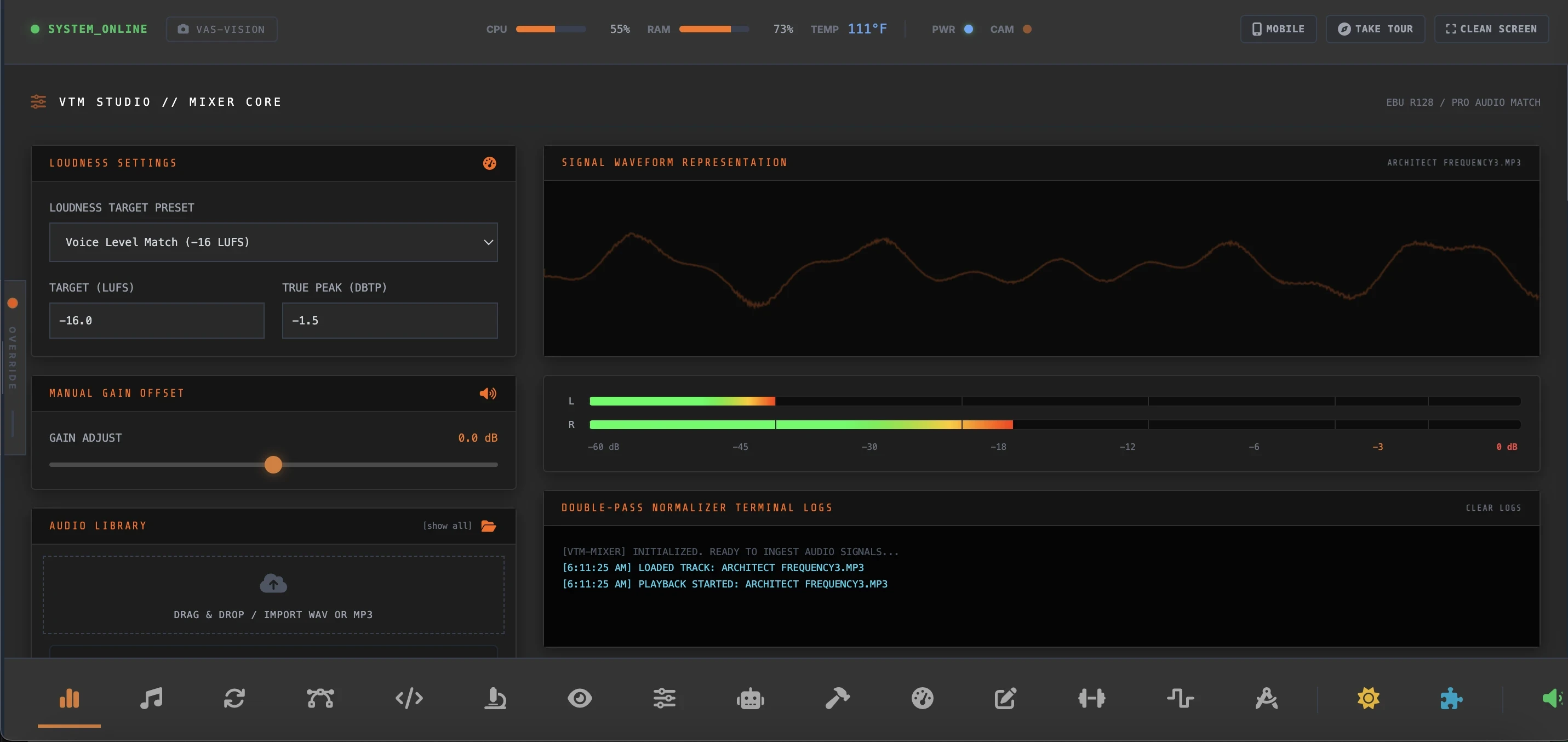
Pro audio loudness normalizer, manual decibel gain mastering console, and real-time spectral telemetry workspace featuring independent left/right scroll columns, collapsible control panels, per-track playhead scrubbers, non-destructive rendering, and individually drag-resizable RTA, stereo Peak VU, and terminal log displays.
You need to master a batch of recorded voiceovers and test tones to a uniform broadcast level without overwriting your original files. You batch-import your tracks, audition them with the per-track playhead scrubbers, dial in a precise numeric dB offset or run EBU R128 normalization, and export the mastered copies.
- Multi-select or drag and drop
.wavand.mp3files into the upload zone, then use each card's playhead bar (Play/Pause, Stop & Reset to 0:00, -5s/+5s nudges, scrub slider, and liveMM:SS / MM:SStimecode) to audition tracks. - Enter an exact decibel value in the Manual Gain Offset numeric
input (
-96.0to+15.0 dB), drag the gain slider, or click [0 dB] to reset unity gain in real time. - Click [Norm] (EBU R128 double-pass
-16.0 LUFS) or [Gain] to render a non-destructive mastered copy into your library, then click [Save] to export the file to disk. - Click the Eye-Slash icon to hide any card from the list (or [show all] to restore), and collapse left panels or drag-resize the right-hand RTA, Master Peak VU, and Terminal Log displays to customize your layout.
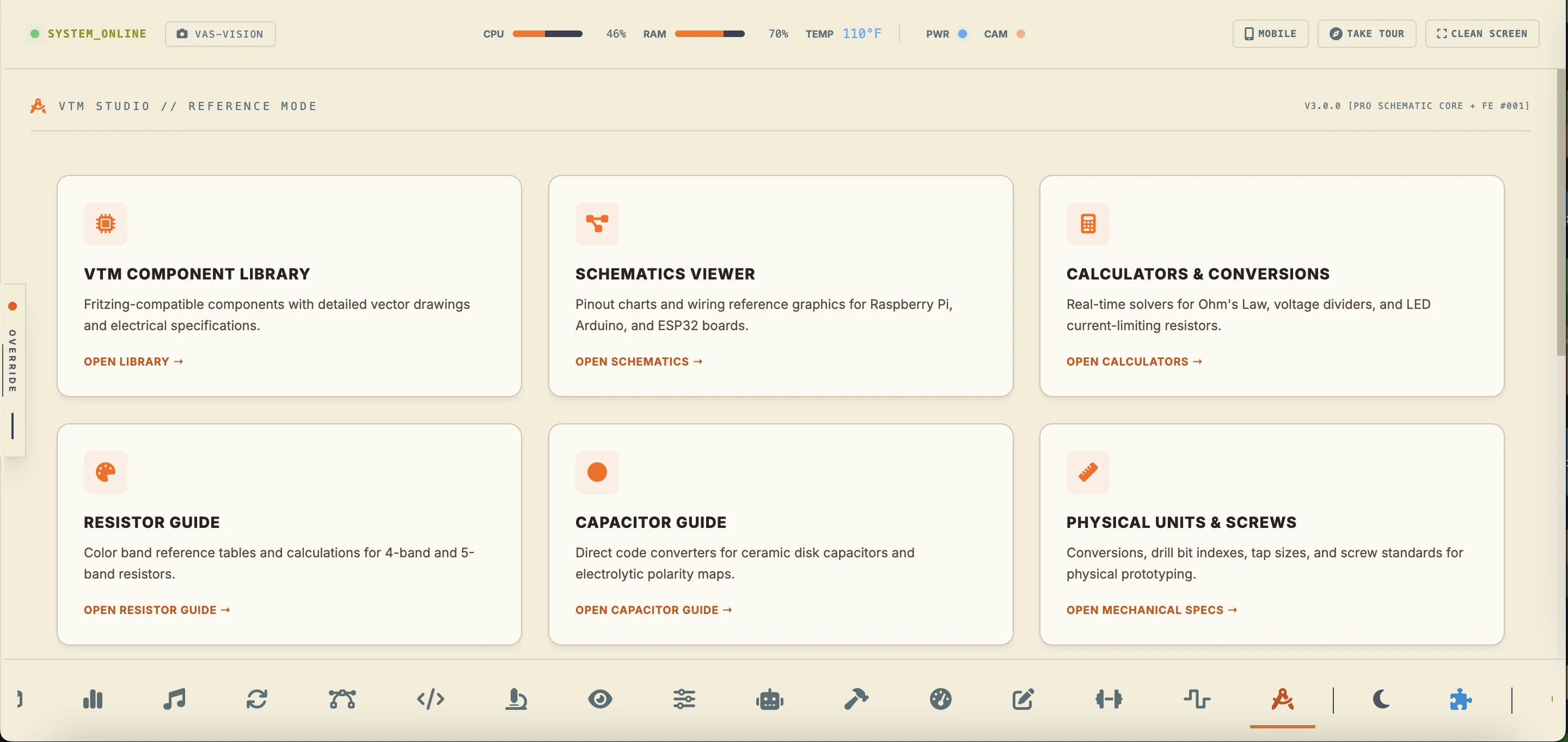
Section 5:18 — Reference Mode
Interactive dashboard containing mechanical and physical engineering reference calculators, thread guides, board schematics, wire tables, and components spec sheet databases.
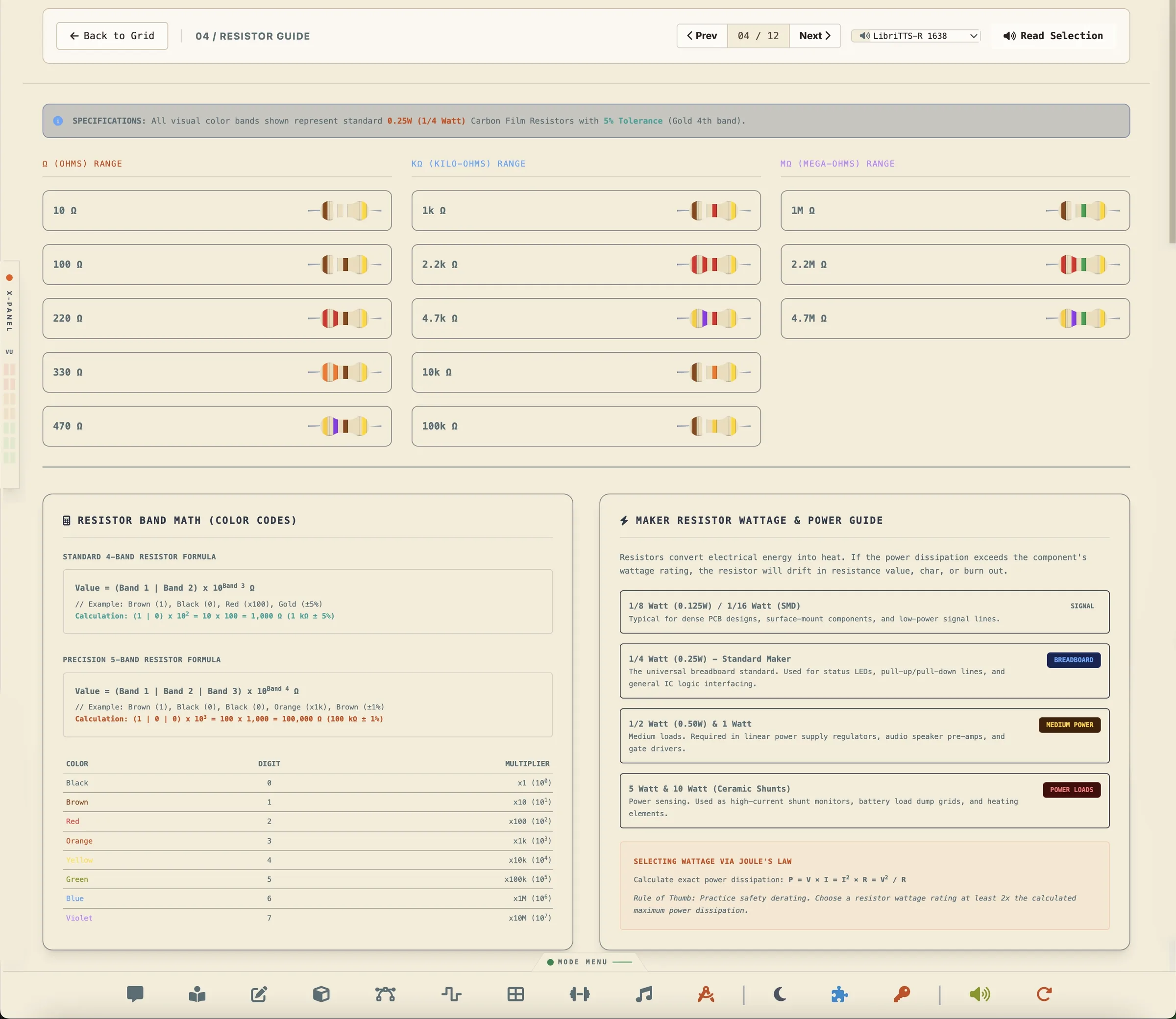
You are selecting a resistor for an LED link. You check the band colors in the decoder to identify its resistance rating, verify the calculations using the 4-band/5-band equations, and use the Wattage guide to select the right package size (1/8W, 1/4W, 1/2W, etc.) to handle the current.
- Tap color bands to calculate resistor values and tolerance percentages.
- Check the **Resistor Color Band Math** sections to learn 4-band and 5-band calculation equations.
- Consult the **Resistor Wattage Guide** to choose appropriate power limits (1/4W standard, 5W shunts, etc.).
- Enter values (V, I, R, P) in the Ohm's Law calculator to compute missing parameters.
- Search the symbol dictionary to view specifications and schemas of components.
- Map resistor tolerances to standard manufacturer drawers.
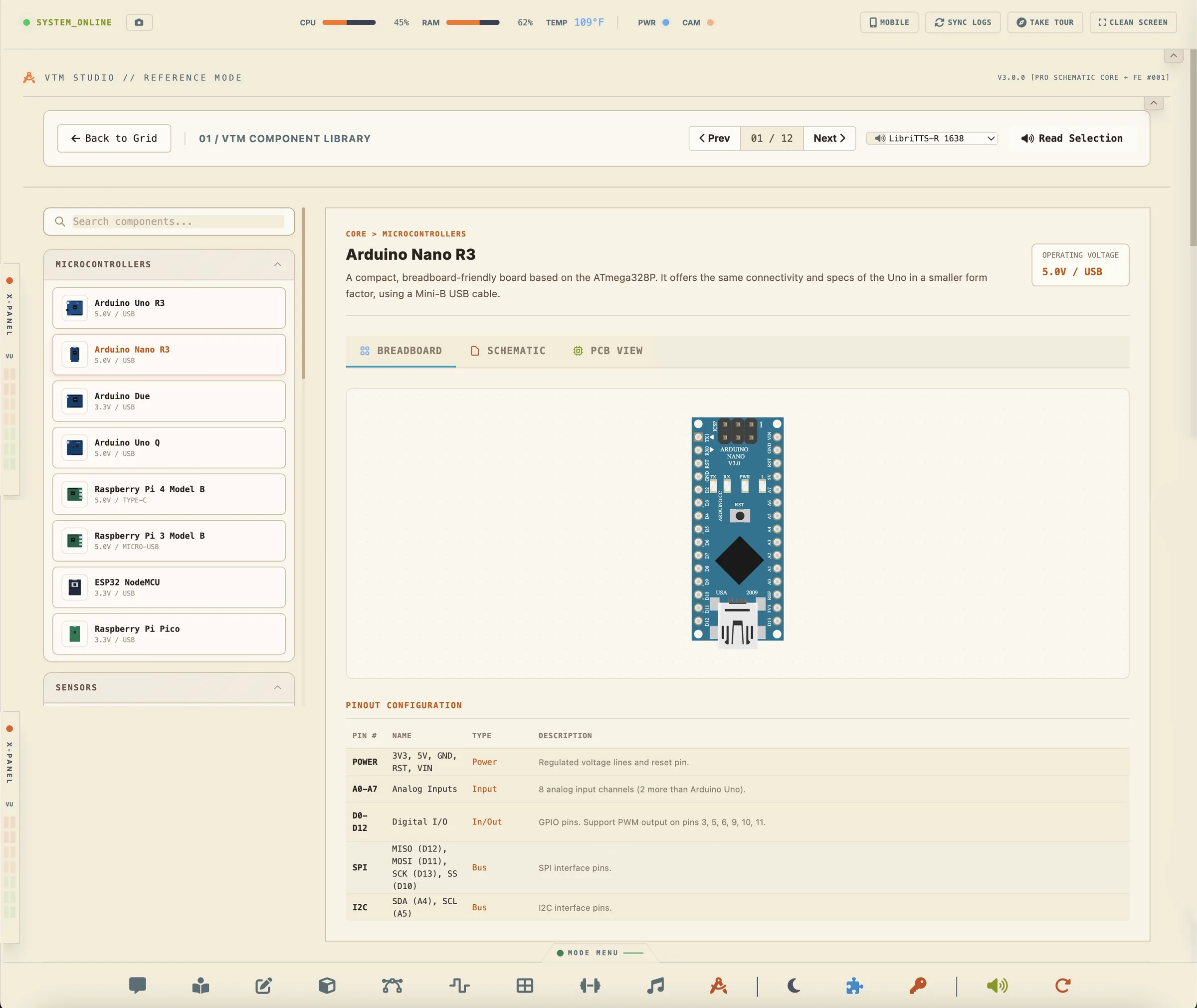
Interactive browser for physical maker boards, sensors, and controllers. Load full description sheets, operating voltages, and toggle views between Breadboard, Schematic, and PCB drawings.
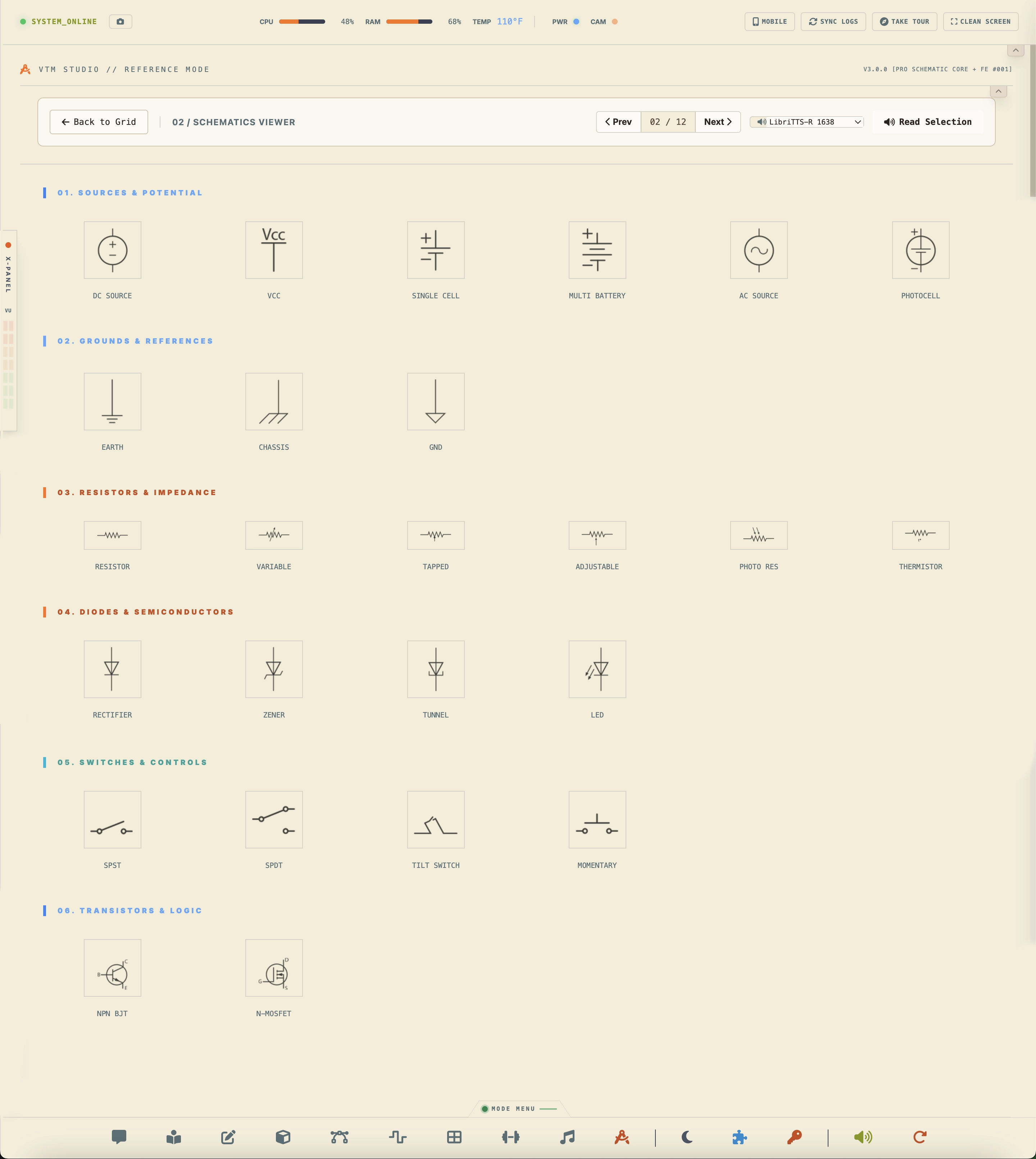
Comprehensive guide explaining schematic symbols for passives (resistors, capacitors, inductors), active components (diodes, LEDs, transistors), logic gates, op-amps, and ground nodes.
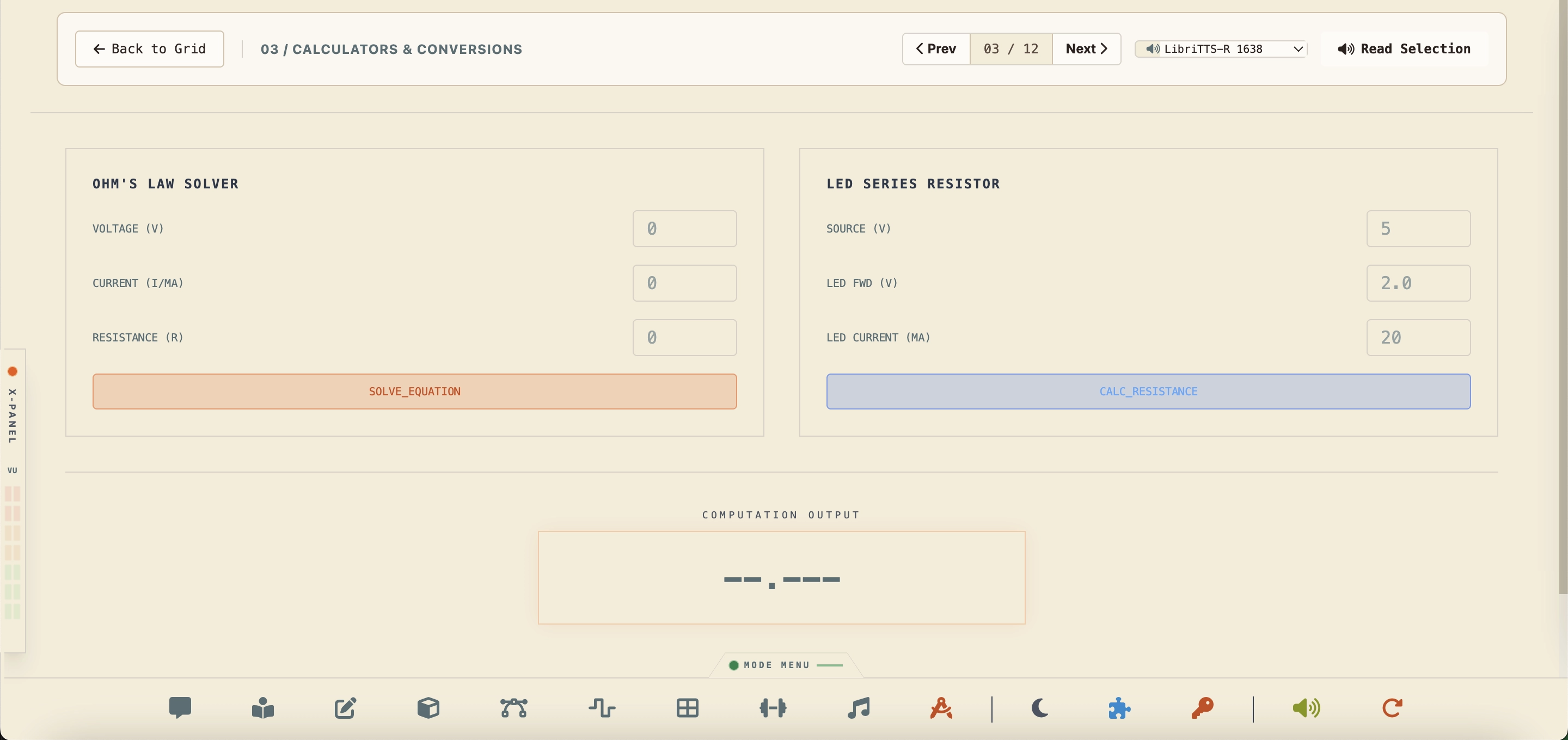
Dual-solver tool: 1) Ohm's Law Solver to compute voltage ($V$), current ($I$), resistance ($R$), or power ($P$), and 2) LED series resistor calculator to find the target current-limiting resistance.
Resistor color band decoder. Explains the mathematical formula of 4-band and 5-band resistors, lists color codes, and maps wattages (1/8W to 10W) with safety derating guidelines.
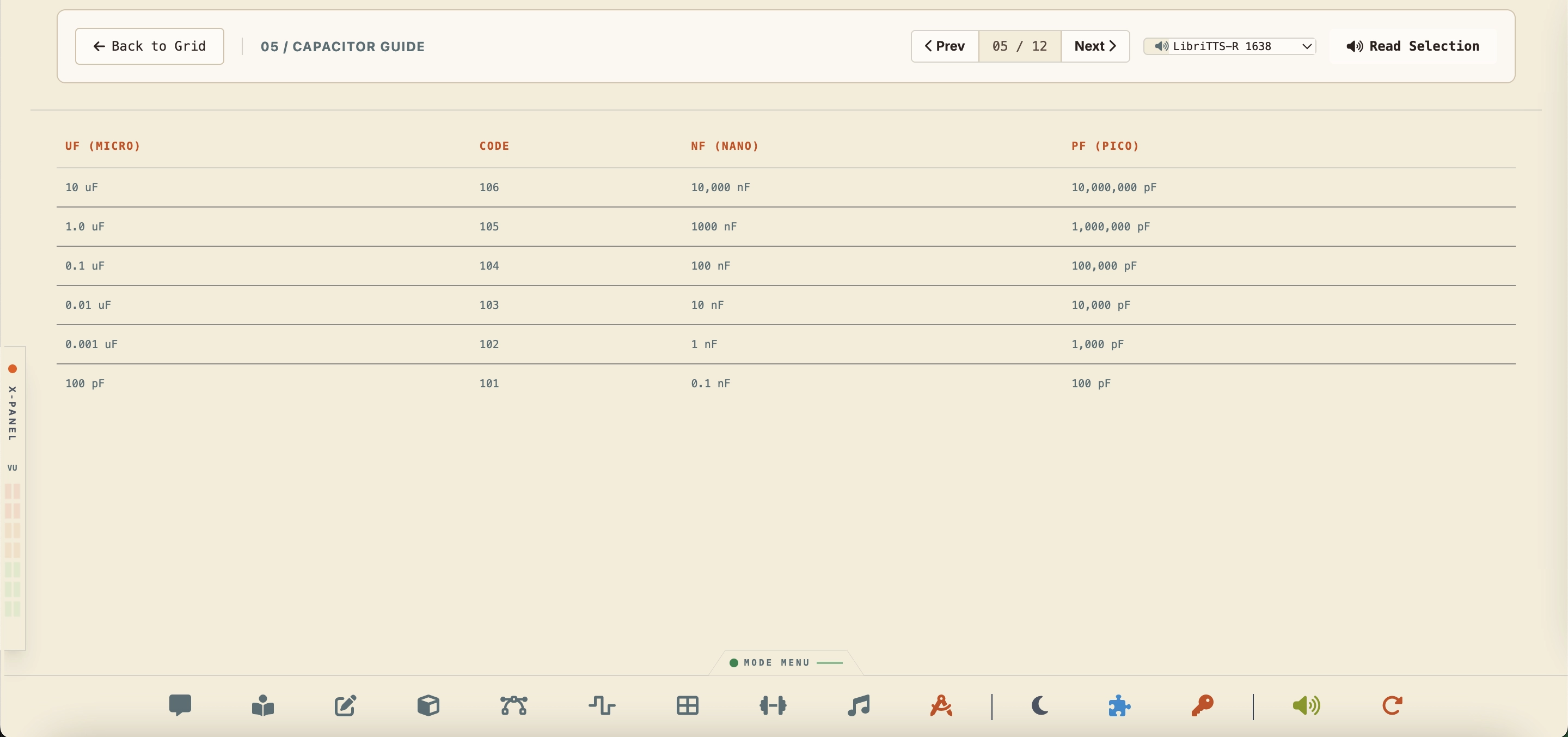
Capacitor code translation chart mapping 3-digit ceramic disk identifiers (101 to 106) to microfarad (µF), nanofarad (nF), and picofarad (pF) capacity values.
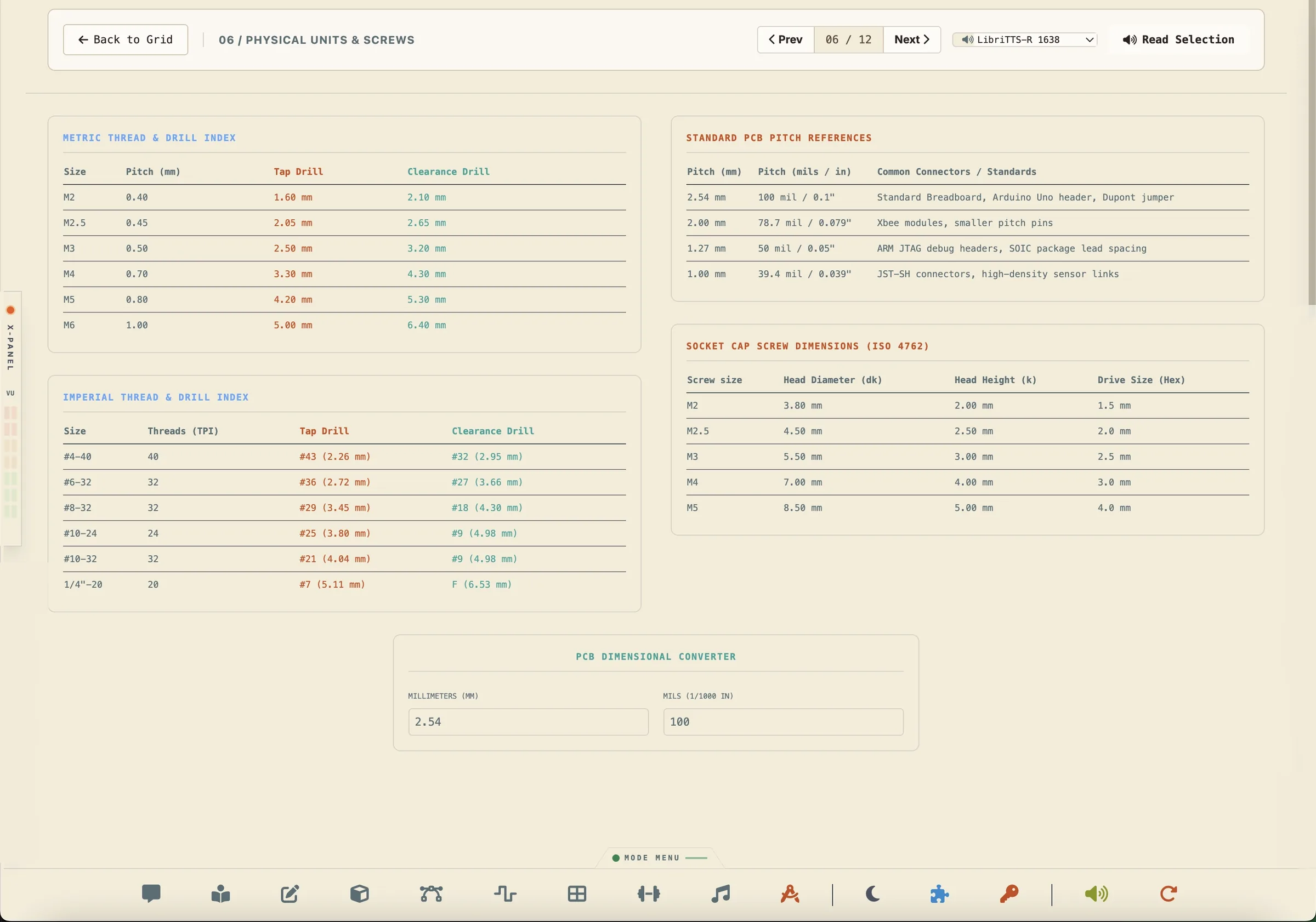
Mechanical index lists covering thread diameters, pitches, and tap/clearance drill sizes for Metric (M2-M6) and Imperial (#4-40 to 1/4"-20) fasteners, plus PCB pin header pitches.
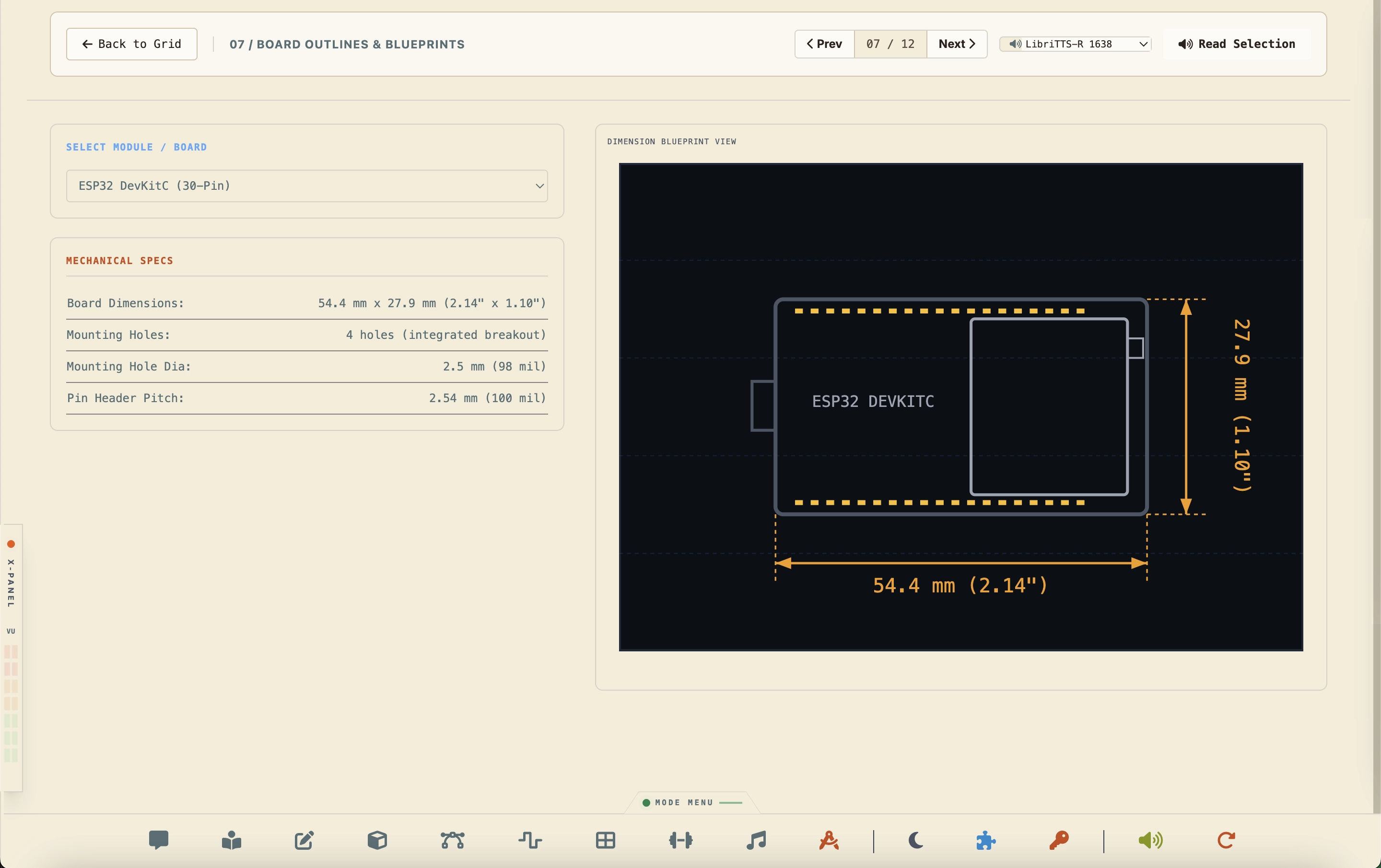
SVG CAD wireframe dimensional drawings for popular prototyping boards (Arduino Uno, Raspberry Pi Pico, ESP32, HC-SR04 sensor, and 0.96" OLED display).
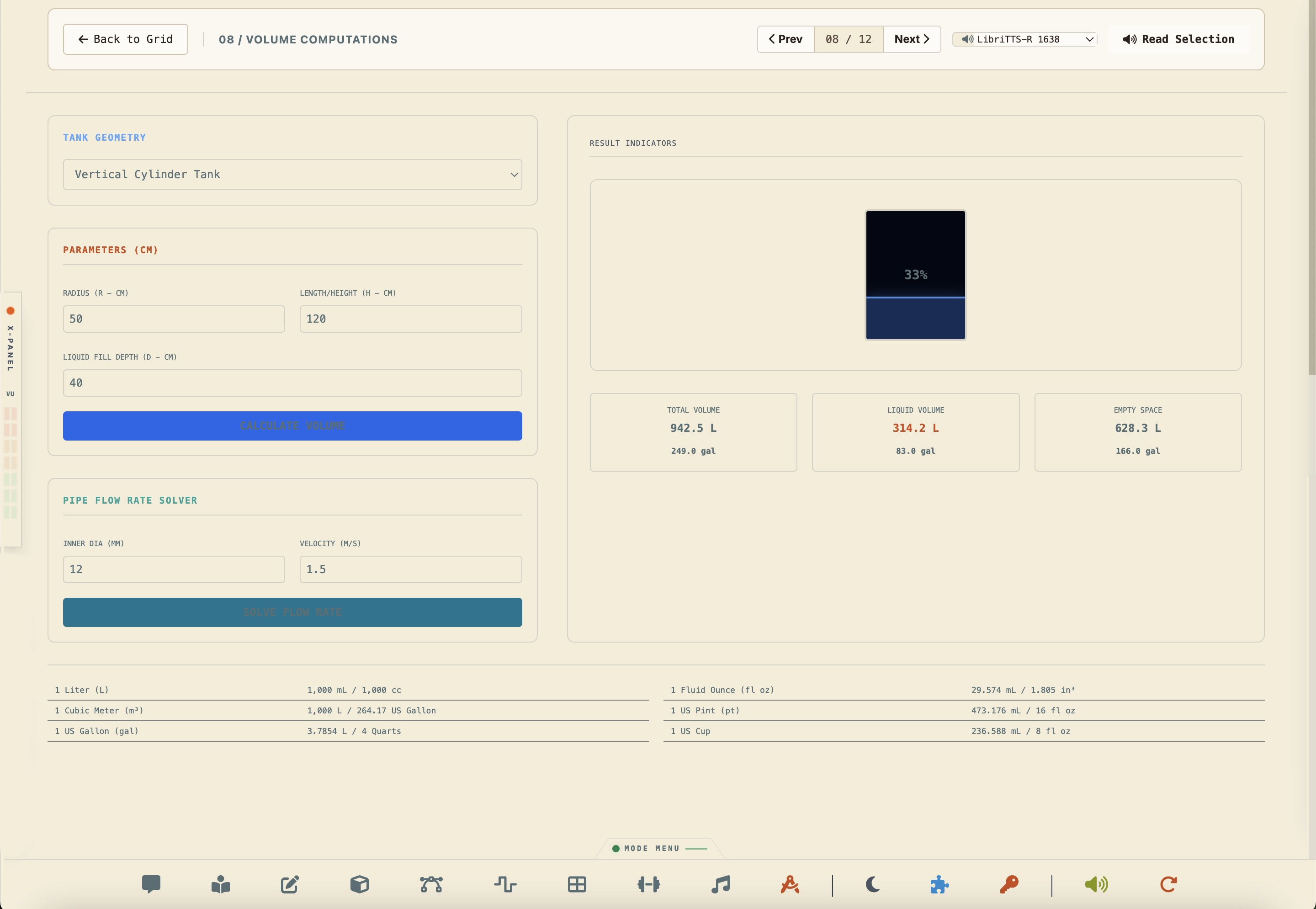
Calculates mass and physical displacement volumes for raw materials (Copper, Brass, PLA, Aluminum, Steel, Resin) across Spherical, Cylindrical, and Prism geometries.
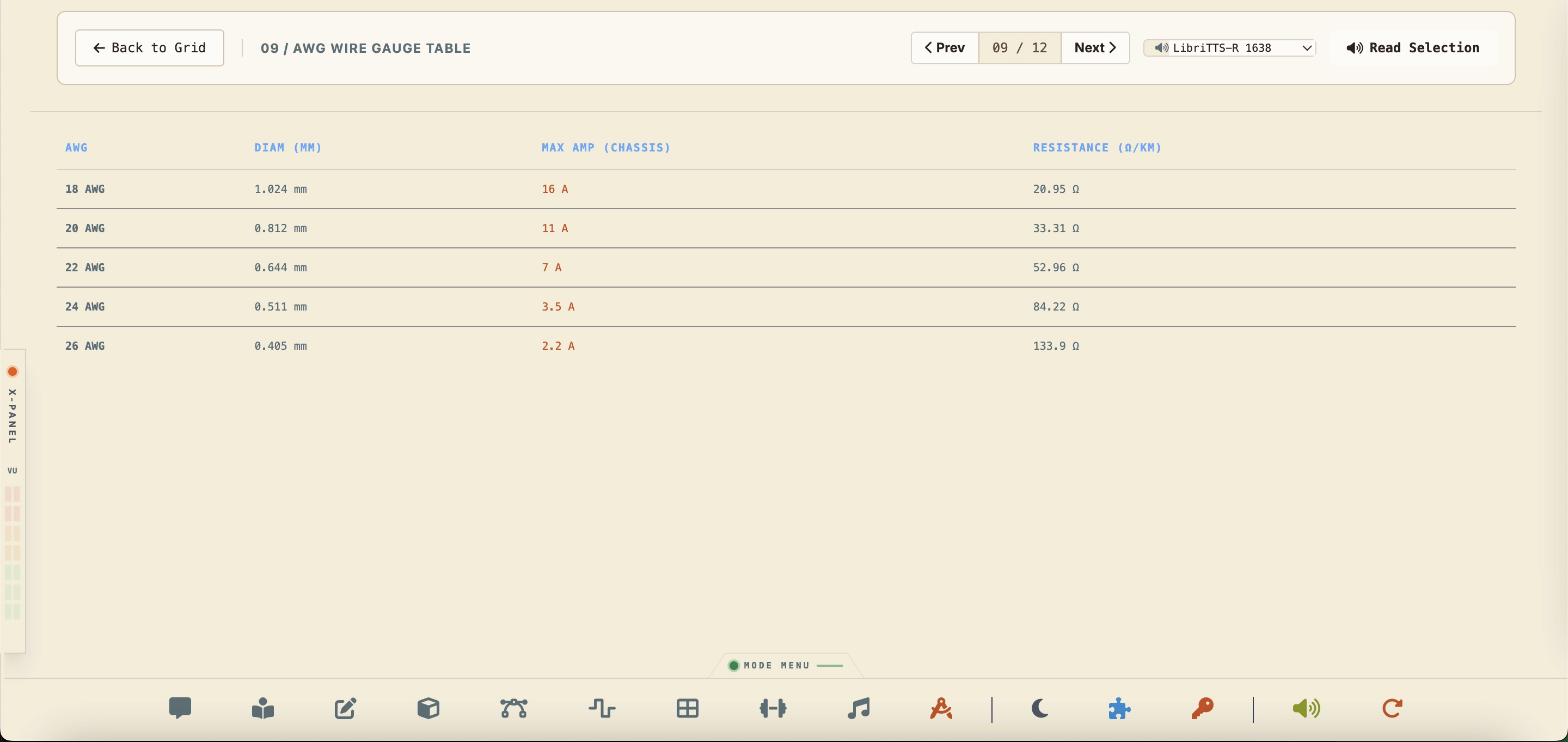
AWG physical characteristics charts matching wire thickness parameters (diameter, resistance per kilometer) with maximum chassis and power carrying currents.
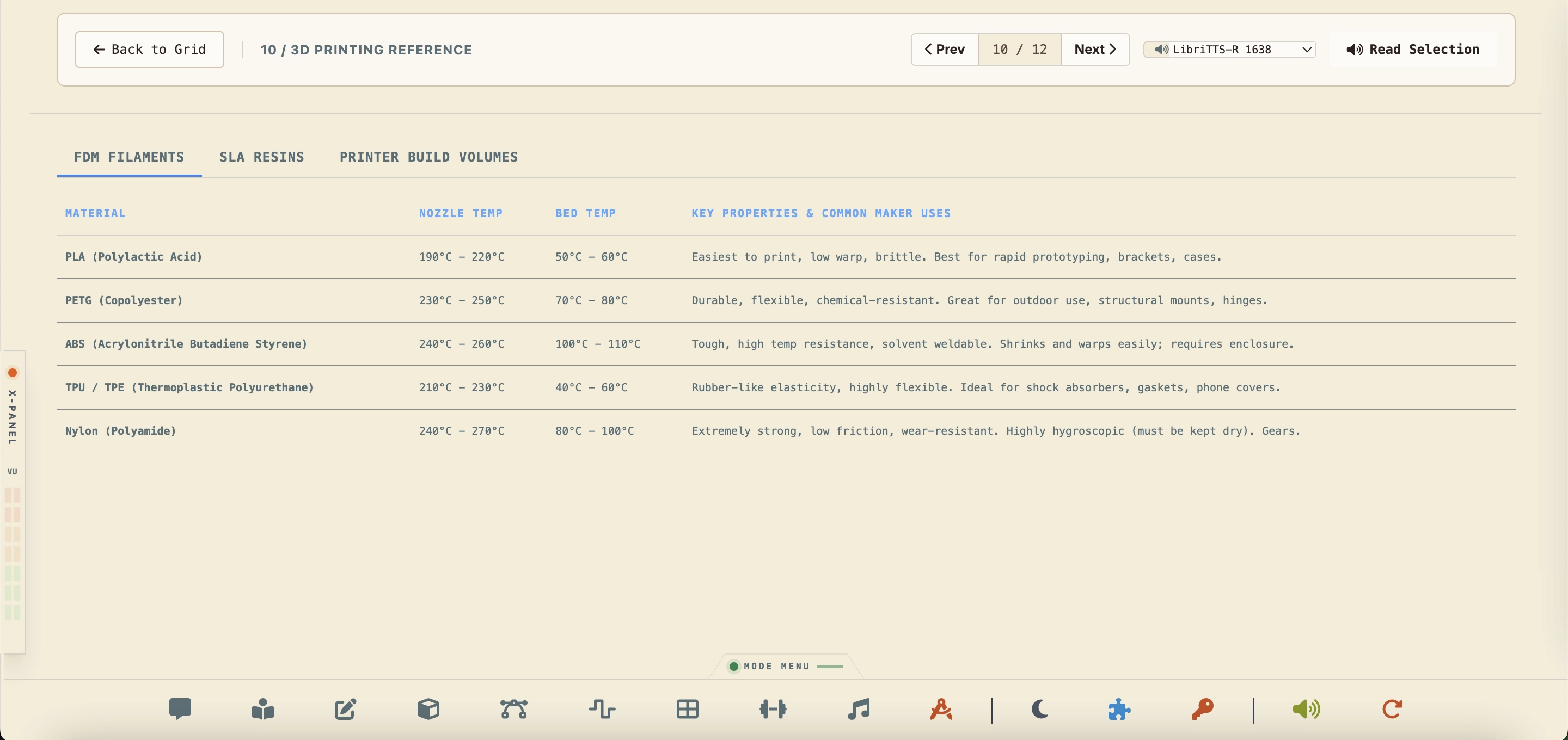
Filament print configuration matrices: details printing temperatures, heatbed guidelines, and print volumes for standard plastics (PLA, PETG, ABS, TPU, Nylon) and SLA resins.
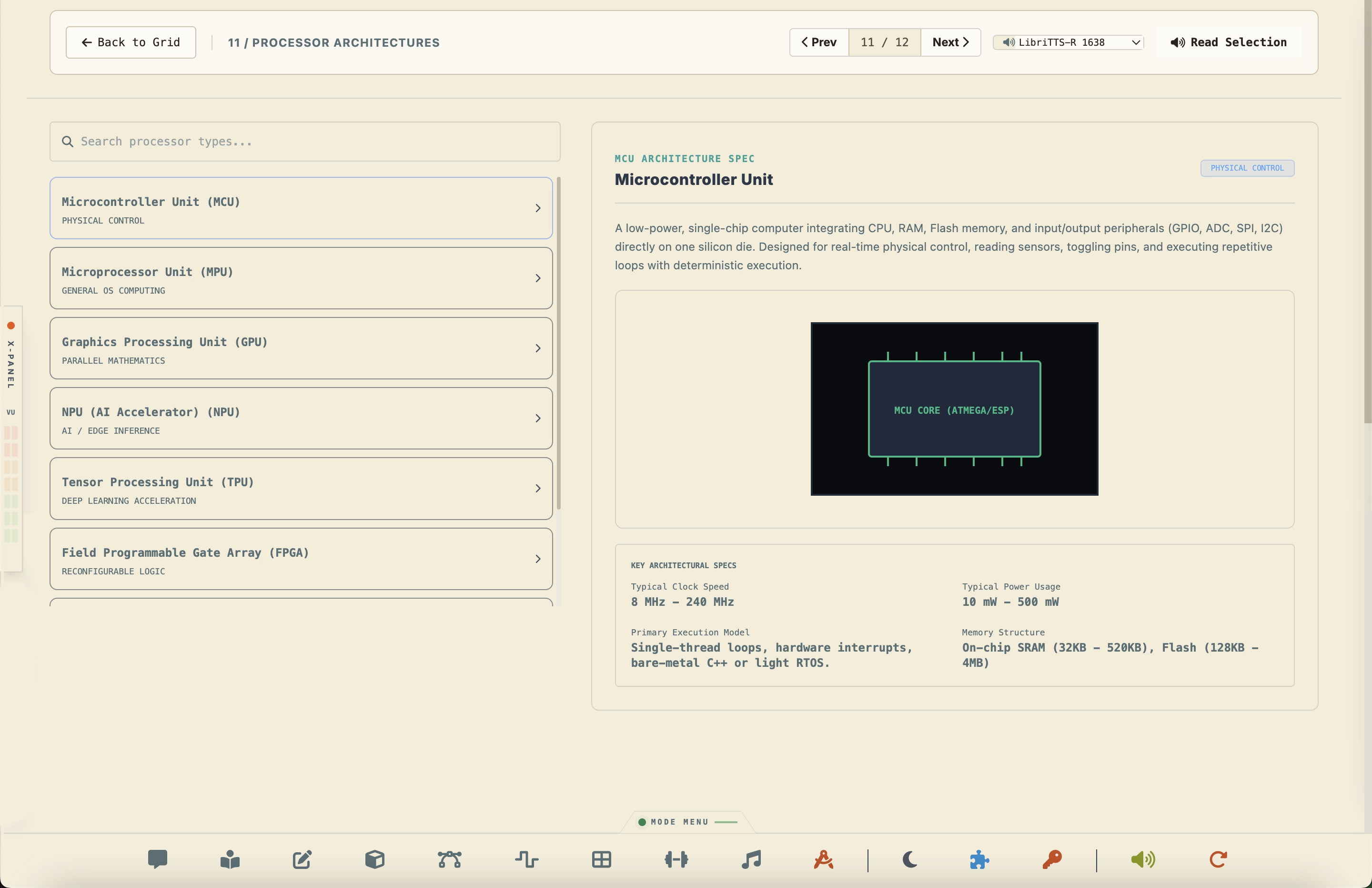
Overview block diagrams and technical specifications comparing computing hardware: MCU, MPU, GPU, NPU, TPU, FPGA, DSP, and SoC.
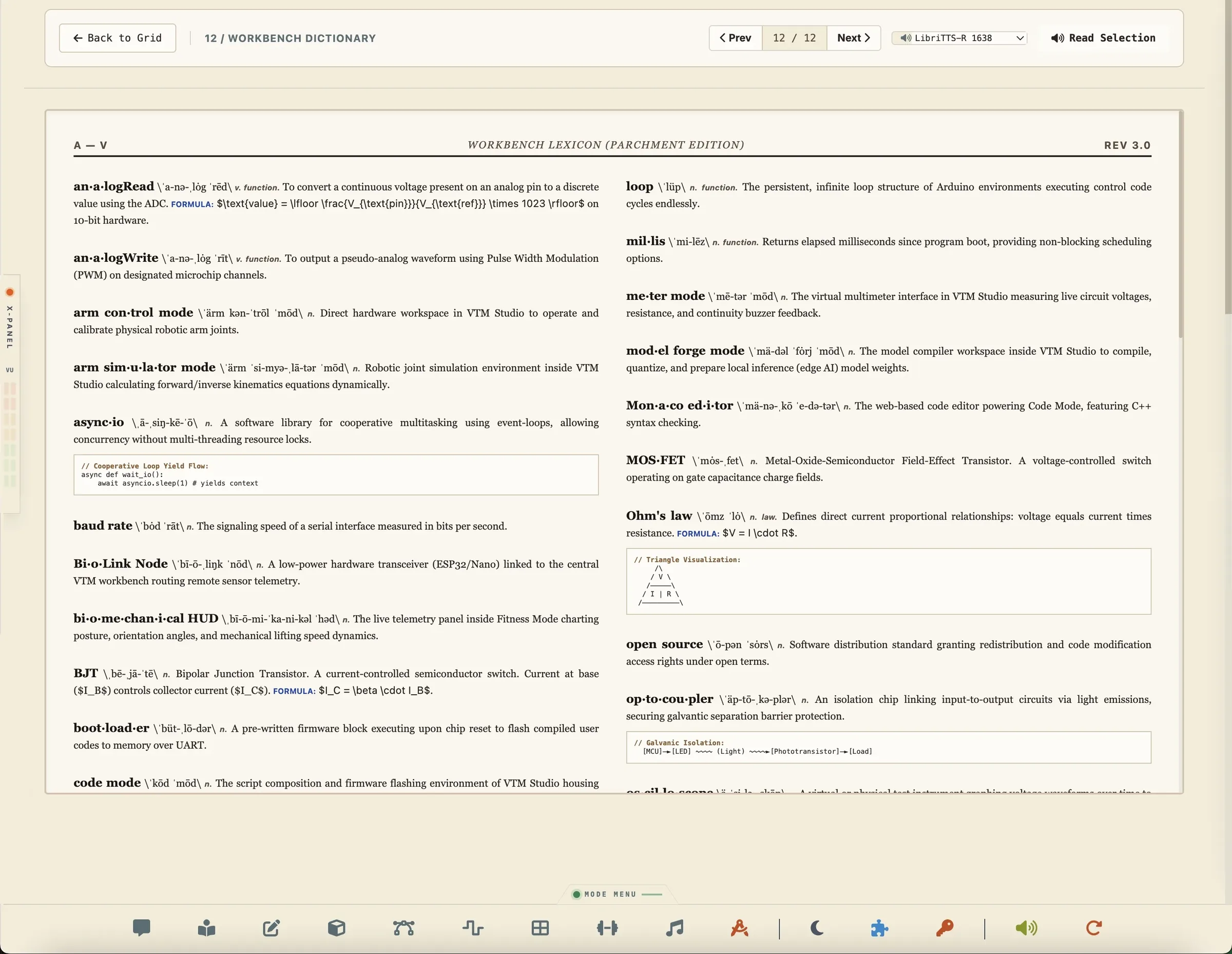
Glossary index defining studio terminology including Compute Nodes, Code Editor configurations, and biomechanical indicators.
Section 5:19 — Converter Mode
High-speed batch processing utility designed for multi-format image conversions, aspect ratio preservation, and Lanczos rescaling. Integrates dual input paths, allowing operators to upload files directly from the client interface or scan absolute directory paths on the host system filesystem.
You need to optimize raw PNG screenshots or high-resolution schematics for display on low-overhead mobile components or web interfaces. You select the target folder path, choose WEBP as the target format, input width/height constraints, and batch-convert the files in a single pass.
- Select the input source: Upload Files (via drag-and-drop or browser selector) or Scan Folder Path (specifies an absolute directory on host).
- Choose target output extension: WEBP, PNG, JPEG, TIFF, GIF, or BMP.
- Optionally specify width and height in pixels and check **Maintain aspect ratio** to enable Lanczos anti-stretch scaling.
- Enter an optional absolute target directory in **Save Folder Path** (defaults to source or temp directory).
- Click **Convert Queue** to run batch processing and view real-time log feedback in the Scrolling Console Terminal.
- Click **Open Output Folder** to view processed assets natively in the system file manager.
- Experience the flickering digital unscramble entrance animation starting natively in Chinese/Mandarin before resolving to English, and run the interactive workspace tour using the tour button in the header.
Section 5:20 — Study Mode
Congratulations, Maker! You have unlocked Study Mode—a complete, high-fidelity visual and speech textbook analysis laboratory designed to expand your engineering, mathematical, and business knowledge. With this module, you can read complex textbooks side-by-side with ARC T - A (AI Reasoning System - Textbook Assistant). ARC T - A acts as your dedicated study coordinator: you can ask it deep conceptual, academic, or brainstorming questions about the subject matter, or direct it to control the laboratory display—opening any textbook, navigating instantly to specific chapters and sections, or verbally controlling reading playback. You can also search key terms, stream spoken audio readouts paragraph-by-paragraph, and dynamically resize your panel views for optimum workspace layout. Let the experiments in learning begin!
You are studying the laws of electromagnetic induction. You load the physics textbook and navigate to the Faraday's Law chapter. As you read, ARC T - A follows along automatically, explaining the mathematical derivations, displaying the page text context in real-time, and preloading speech audio so you can listen hands-free while building circuit links.
The Study Mode catalog includes 13 open-licensed OpenStax (CC BY 4.0) titles ready for on-demand download (Access for free at openstax.org). Select any title below to install it directly into your local library:
- University Physics Volume 1
- University Physics Volume 2
- Introduction to Computer Science
- College Algebra
- Additive Manufacturing Essentials
- Algebra and Trigonometry
- Introduction to Python Programming
- Principles of Data Science
- Introduction to Intellectual Property
- Principles of Managerial Accounting
- Principles of Marketing
- Entrepreneurship
- Chemistry 2e
Maker, you can navigate your reference library using two distinct methods:
- Open Study Mode by clicking the Study tab (represented by the book icon) in the sidebar.
- Use the keyword search bar to locate specific terms (e.g., "Faraday") across the active book, revealing instant highlighted text snippets.
- Ask ARC T - A to explain any formula or concept. It reads the exact text on your screen to guide your explanation.
- Click the 'READ' button or tell ARC T - A directly (e.g., "read this page") to start sequential audio streaming playback. Listen to paragraph-by-paragraph readings with zero lag, and tell the assistant to "stop" to halt playing instantly.
- Position your pointer on the vertical border between the panels and drag to resize the chat workspace (up to 50% screen width), or click the collapsible handle tabs on both sides to hide/show panels instantly.
- Start the interactive 7-step Study Mode tour to visually walk through layout sections, ARC T - A's specific boundaries, and reading controls.
Section 5:21 — Mobile Sync & VTM Studio Lite™
Welcome, Home Experimenter! Welcome to the fascinating world of physical intelligence. With VTM Studio, you are not just building software—you are creating a physical signal network! The **VTM Studio Lite™** mobile dashboard transforms any smartphone or tablet into a fully equipped remote sensor array and control panel. By streaming data over the network, your mobile device becomes a physical extension of your laboratory, giving you the power to monitor telemetry, stream sensors, and control modes from anywhere!
The Mobile Connection HUD (Routing Your Signals)
Before we can capture invisible signals, we must build a bridge between your desktop workbench and your mobile device. Click the Mobile Icon in the header bar to slide open the Mobile Connection HUD. This panel behaves exactly like a classic signal routing switch, allowing you to select the connection path for your mobile dashboard, VTM Studio Lite™:
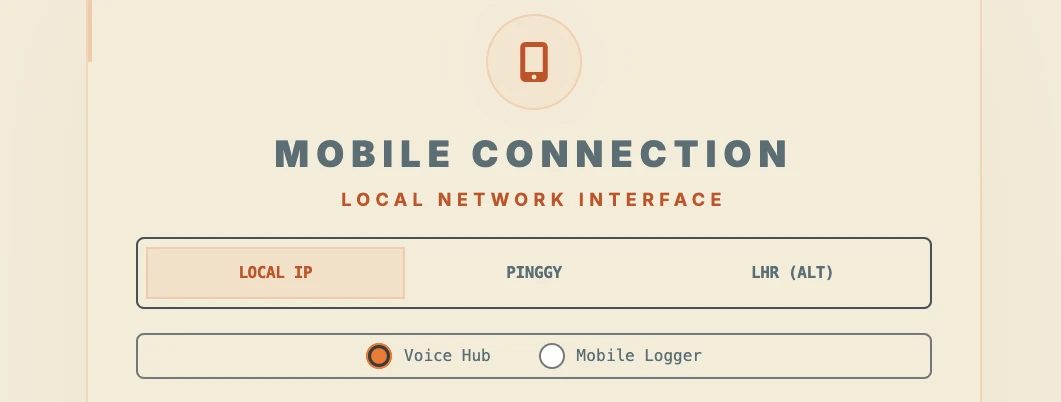
The simplest local path! When your desktop computer and phone share the same local Wi-Fi network, this route establishes a direct peer-to-peer bridge. Scan the generated QR code to connect instantly.
Permanent secure connection! Engaging the Cloud Secure Link spins up a
secure Cloudflare Tunnel
routing traffic directly to your custom subdomain (studio.videotronicmaker.com).
This allows you to add the VTM Studio Lite™ interface directly to your
phone's home screen.
Section A: Voice Hub Mode & Multimodal Sensor Stream
Step up to the microphone! The **Voice Hub Mode** within **VTM Studio Lite™** (or
served standalone at the
/voice_hub path) turns your phone into a hands-free laboratory
communications station. Tap the flashing voice buttons to talk directly to your
workbench assistants—capturing lab logs, compiling checklists, or dictating ideas
without lifting a finger.
But that is not all! Flip the **Sensor Stream** switch on your phone screen, and watch the marvel of modern physics come alive! Your phone's internal hardware transmitters are instantly mapped, broadcasting these metrics to your desktop dashboard at a blistering 10Hz:
- 🔊 Audio Volume (dB): Measures sound waves via the microphone to drive a vintage VU meter.
- 🏎️ 3-Axis Accelerometer: Captures kinetic force vectors (X, Y, Z axes) as you move.
- 🧭 Compass Heading: Tracks your phone's physical orientation in degrees.
- ☀️ Light Sensor (Lux): Measures ambient illumination from the camera lens.
- 🔋 Barometer & Altimeter: Calculates air pressure and estimated altitude.
- 🛰️ GPS Locator: Streams latitude, longitude, and satellite locks.
- 📟 Hall Effect Proximity: Detects magnetic cover closures.
- 📡 UWB & LiDAR: Maps spatial tags and ToF distance sweeps.
- 🧬 Face Depth Mesh: Simulates secure wireframe facial scans.
- 👆 Touch Scanner: Interactive
Section B: VTM Studio Lite™ Mobile Modes
Put the power of the laboratory in the palm of your hand! The **VTM Studio Lite™**
mobile dashboard (served at /vtm_studio_lite) is your remote control
deck for
logging sessions, streaming telemetry, and tuning hardware. When you are moving
around the laboratory or
working at the test bench, this interface gives you direct command of three vital
modes:
- 📋 Fitness Mode & Splits (Coming Soon): Keep track of your exercises, reps, and weights. Log daily protein grams against target goals, and assess localized strain levels on an interactive physical strain assessment grid map.
- 📟 Multimeter Mode Mirror: Working on a tight circuit? Mirror the live digital multimeter readout (DC Volts, Current, Resistance) directly on your phone screen, complete with continuity audio check tones so you never have to look up!
- 🦾 Robotic Arm Override: Take physical command of the workbench! Use sliders to override individual axis angles (Base Rotate, Shoulder, Elbow, Wrist, Gripper) on your connected robotic arms, sending raw pulse commands over serial instantly.
- 📖 Docs Mode (VTM Docs): Redesigned as a glassmorphic manual viewer inside VTM Studio Lite. Offers high-contrast typography, text sizes scaled up by 40% for phone screen legibility, and a search input bar with an embedded magnifying glass for rapid manual navigation.
- 🔒 Multi-Device Session Guard: Robust proxy security layer prioritizing request headers over cookies. Allows simultaneous, isolated Mac and mobile active sessions without session conflicts or endless PIN loops.
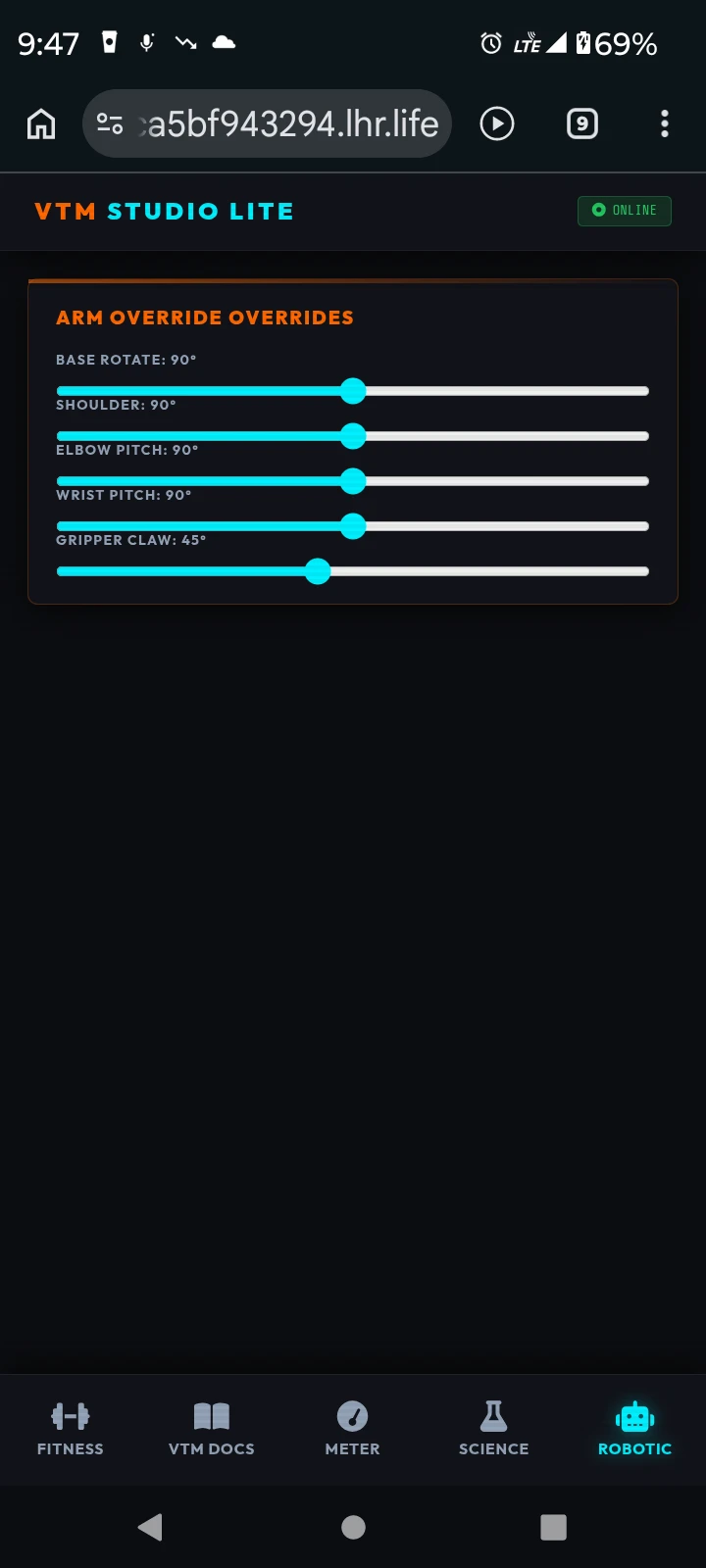
Section C: Cloud Secure Link & Home Screen Installation
Take VTM Studio Lite™ on the go! By leveraging the **Cloud Secure Link** (powered by
Cloudflare Tunneling), you can connect to your local laboratory server from external
cellular or public networks via a permanent, encrypted channel routed to:
https://studio.videotronicmaker.com/vtm_studio_lite.
To save the mobile dashboard directly as an app on your device:
- Open the link on your mobile phone's browser (e.g. Safari on iOS).
- Tap the browser's **Share** button (box with an up-arrow).
- Scroll down and select **Add to Home Screen**.
- Confirm the name as **VTM Studio Lite™** and click Add.
This saves the mobile interface with a custom square avatar app icon, loading instantly in standalone fullscreen mode without browser address bars!
VTM Studio Lite™ Gallery
Explore these real-time views captured from the home laboratory, showing the Mobile Connection HUD, Voice Hub Mode, and physical instrumentation views:
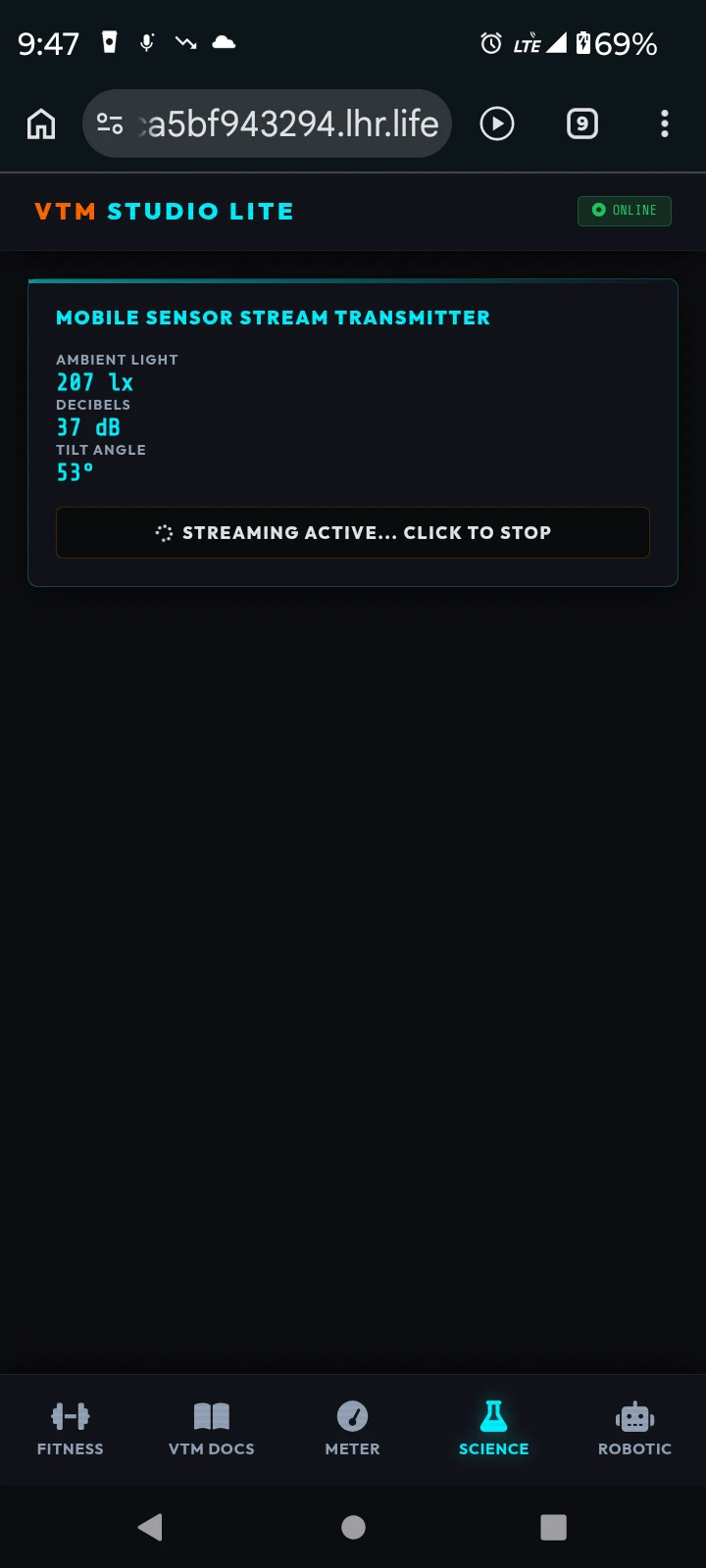
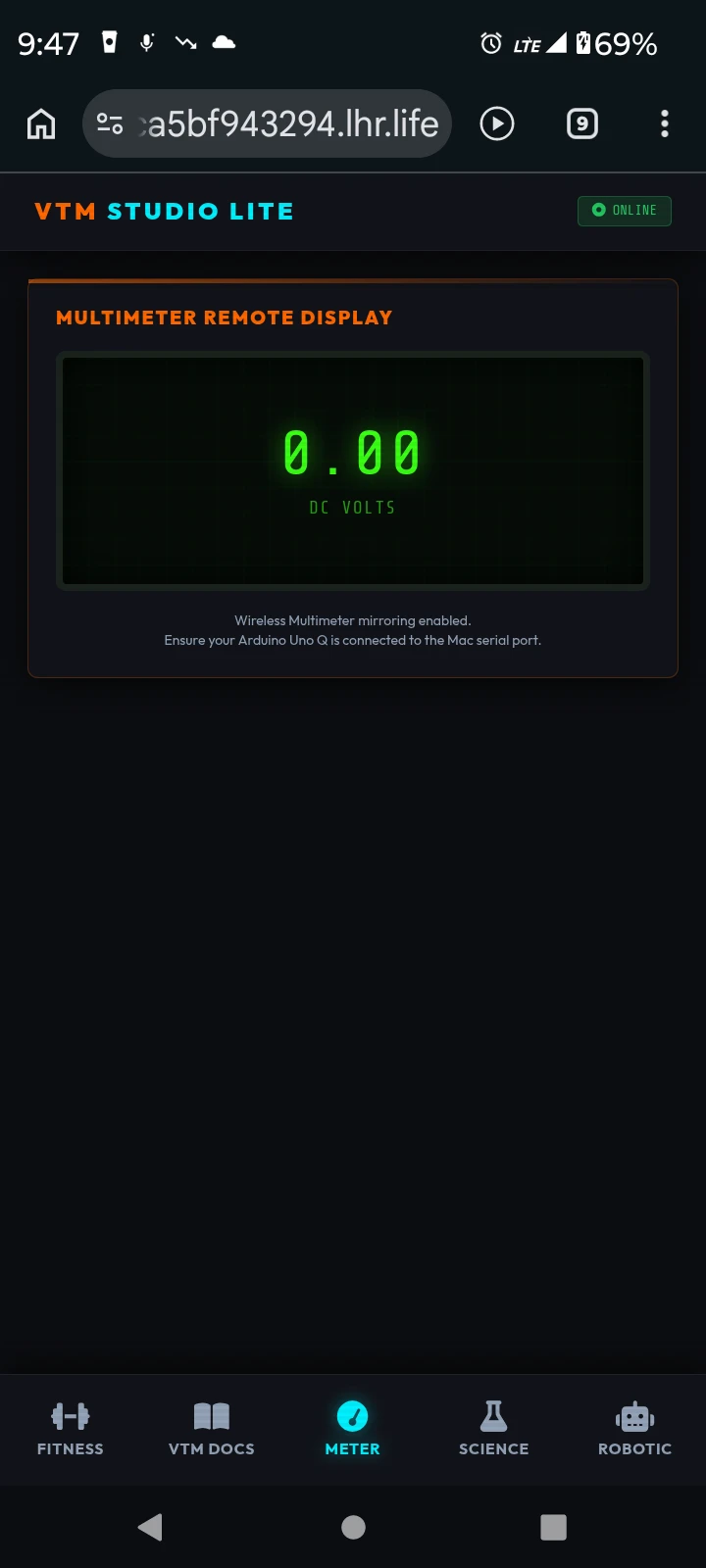
Chapter 6 — VTM Instruments™: Measurements and Reference Tools
You will notice throughout this manual that we frequently emphasize the importance of making precise circuit measurements. If you are going to truly understand electronic circuitry and physical computing, you must learn to measure circuit values—specifically voltage, current, and resistance. Only then can you verify exactly how your data flows between the software layer and your physical builds.
"When you can measure what you are speaking about, and express it in numbers, you know something about it; but when you cannot measure it, when you cannot express it in numbers, your knowledge is of a meager and unsatisfactory kind: it may be the beginning of knowledge, but you have scarcely, in your own thoughts, advanced to the state of science."
— LORD KELVIN, 1883
To provide this essential capability directly on your workbench, VTM Studio includes Meter Mode—a full-featured virtual digital multimeter designed for testing breadboard circuits—alongside a comprehensive suite of hardware reference utilities. This turns your workspace into an integrated laboratory of electronics tools, letting you gather data and analyze components safely as you build.
Section 6:1 — VTM Meter Mode (Virtual Multimeter)
VTM Meter Mode acts as your primary test instrument. It allows you to probe circuits directly using standard Dupont wires hooked into your Arduino Uno Q microcontroller. The instrument operates in two separate environments depending on your current workbench state: a Virtual Simulator for software-based testing and a live Hardware Telemetry mode for physical circuits.
The virtual multimeter dashboard provides tactile control options that mirror a bench-top digital multimeter:
- Rotary Dial: Scroll your mouse wheel or click and drag the dial to choose between measurement modes: OFF, DCV (Direct Current Voltage), ACV (Locked for safety), DCA (Direct Current Amperage), OHM (Resistance), CONT (Continuity), and DIODE.
- HOLD Button: Freezes the active measurement on the digital display for closer logging and inspection.
- LIGHT Button: Toggles the retro LCD panel backlight on or off for clear visibility.
- Safety Jacks: The virtual probe jacks (COM, VΩ, µA/mA) automatically illuminate on your screen based on your rotary dial position, showing you exactly where to insert your physical patch wires.
- Sim Mode (Interactive Breadboard Sandbox): Run experiments completely in software without physical hardware connected. Use the simulation engine sliders in the lower panel to adjust virtual circuit outputs. Probing actions, probe tip contact simulations, and continuity buzzer alerts will visualize instantly on the active screen graphics.
- Hardware Mode (Live Telemetry): Measure real electronic components on your physical breadboard. The system dynamically updates the Physical Wiring Guide panel to illustrate exactly how to route your Dupont probe wires into the matching analog input pins on your Arduino hardware layer.
CRITICAL SAFETY LIMIT: Physical Dupont breadboard circuits and Arduino microcontroller pins are strictly rated for 5.5V DC maximum. Never attempt to measure mains AC house voltage (110V/240V) or high-current shunts. Doing so will permanently destroy your hardware layer and presents an immediate fire hazard.
To drive live telemetry streams back to the VTM Studio interface, your microcontroller must be pre-flashed with the accompanying lab firmware:
- Sketch Deployment: Flash the
vtm_meter_node.inosketch onto your Arduino Uno Q. - Signal Mapping: The firmware continuously monitors analog inputs A0, A1, A2, A3, and digital pin D2. It translates raw 10-bit ADC values into human-readable engineering units, calculates resistance values across internal dividers, and packages the data into clean JSON payloads.
- Connection: Set your connection panel to bridge your computer's COM port to the interface at 9600 baud to initiate the live data stream.
To probe physical components and voltage levels, build the following breadboard layouts and connect them to your Arduino Uno Q terminal pins:
- DC Voltage Probing (DCV): Connect the target voltage
node directly to analog pin
A0, and run a grounding wire from your test circuit to the ArduinoGNDpin to establish a shared reference. (Strictly rated for 5.5V DC maximum). - Resistance Divider (OHM): Route a 5V source output to
one terminal of the unknown resistor (Rx). Connect the other
terminal of Rx to analog pin
A3, and wire a 10kΩ reference resistor from pinA3toGNDto complete the voltage divider loop. - Continuity Test Loop (CONT): Connect digital pin
D2andGNDto your test probes. The microcontroller activates its internal pull-up resistor onD2, triggering a digital LOW reading and the interface buzzer when the probes touch. - Current Shunt (DCA): Route your circuit's current
return path through a known low-resistance shunt resistor on the low
side of the load, and connect analog pin
A1to the high side of the shunt to measure the voltage drop. - Diode Forward Drop (DIODE): Place the diode in forward
bias (anode to analog pin
A4, cathode toGND) to measure the junction's characteristic voltage drop.
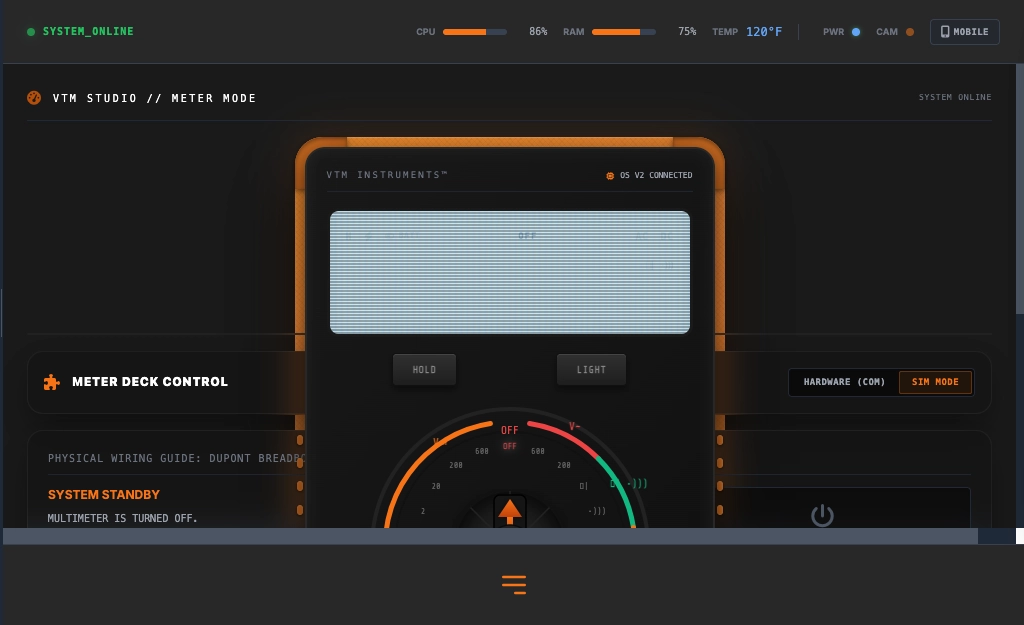
Chapter 7 — VTM OS Repository: Open DIY Sandbox
Google Chrome has Chromium. Red Hat Enterprise Linux has Fedora. Android has the Android Open Source Project (AOSP). And VTM Studio™ has the open-source VTM OS Repository.
While VTM Studio serves as your highly polished, turnkey environment for daily prototyping and AI interaction, the underlying VTM OS repository remains completely open-source, public, and accessible for your personal use. It is a complementary two-part relationship modeled directly on these classic industry frameworks:
- Red Hat Enterprise Linux & Fedora: Red Hat provides a stable, polished, corporate workstation environment, but it is entirely paired with Fedora, the upstream, 100% open-source playground where anyone can modify the source code and build their own Linux setups.
- Android & AOSP: Devices ship with a refined, pre-configured interface, but the entire foundation relies on the AOSP repository. This open repo allows developers to pull the raw code, customize it completely, and invent unique mobile variations.
- Chromium & Google Chrome: Google Chrome is the polished, optimized desktop application most people use daily, but it is built directly on top of Chromium, the completely open-source codebase that anyone can fork to build their own independent browsers (like Brave or Microsoft Edge).
This repository serves as your open DIY sandbox, allowing you to study the baseline firmware, customize signal paths, and write your own scripts to expand the prototyping workbench from the ground up.
The official source code is hosted publicly on GitHub at:
https://github.com/VideotronicMaker/VideotronicMaker-OS
Section 7:1 — Open-Architecture Foundation
The community edition repository provides the primary architecture required to establish a secure coordination bridge between your host computer and the physical microcontroller:
- Microcontroller Firmware: Baseline C++ sketches for the MCU (such as the STM32 board) to coordinate servo operations, matrix display layouts, and serial communications.
- Host Server Wrapper: A lightweight python application (utilizing Flask) containing core route endpoints and serial event bindings.
- Structural Framework: Layout diagrams and design specifications for assembling the reference vertical workbench (the VTM P³™ frame).
Section 7:2 — Licensing & Community Standards
To protect the community and ensure it remains a resource for makers, the VTM OS Community Edition operates under a non-commercial licensing model:
- Creative Commons (CC BY-NC-SA 4.0): The community source files and hardware drawings are free for personal learning, classroom study, and maker prototyping. Redistribution for profit, bundling, or commercial exploitation is strictly prohibited.
- Proprietary Studio Additions: Advanced capabilities found in VTM Studio—such as speech-to-text (STT) parsing, text-to-speech (TTS) voice generation, and edge-model compilers—are proprietary extensions and are not included in the baseline public repository.
OS & Product Vision
VTM Studio™ is a pioneering prototyping platform for AI and Physical Computing. It is designed to act as a guide, a baseline reference, and direct engineering inspiration. By trying this framework, makers understand advanced telemetry control and edge intelligence, then confidently branch off to build bespoke software configurations.
- Architectural Independence: No single platform or open-source product natively unifies all these specific components into a cohesive, single-pane-of-glass studio layout.
- VTM Community OS: Leverage the free, open-source reference codebase to build up your own custom pipeline, or utilize the proprietary VTM Studio™ build as an advanced product guide.
Iteration & Community Standards
"This OS is not a product; it's a prototype. If you see a feature missing, build it. If you see a bug, patch it. I am sharing my notes so you can find your own way."
- How to Build Your Own Mode: Every mode in VTM Studio™ is a simple
<main>section with a unique ID. Add your view container<main id="view-my-mode" class="view-section hidden flex-grow">and navigation triggerswitchView('my-mode'). - Status: Published, open-source, and ready for community forking.