Set Time Easily with Visuino
ARDUINO TUTORIAL · HARDWARE BUILD GUIDE

Set Time Easily with Visuino - VTM Systems Store

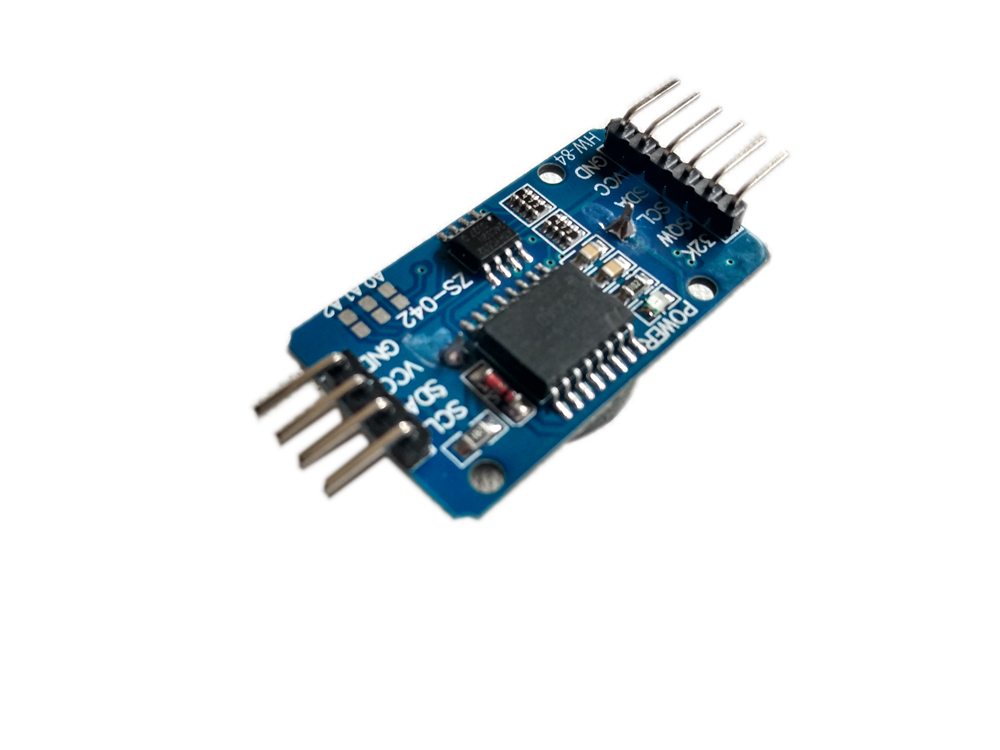
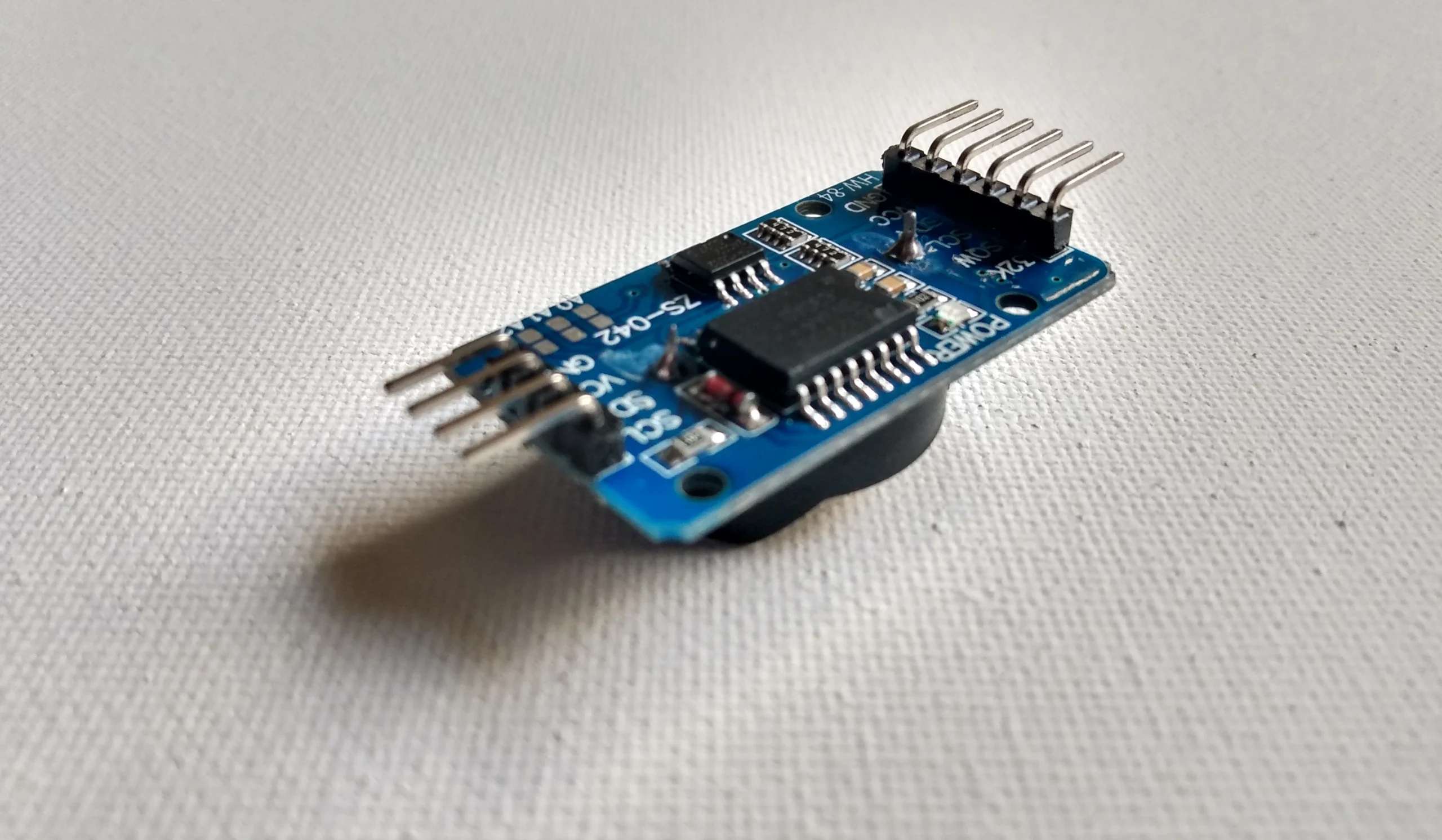
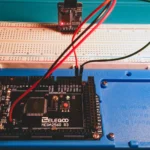
Direct Technical Summary Set Time Easily with Visuino Set time on DS3231 in one minute with Visuino. No need to code. If you want to build a clock using Arduino, the first thing you need to do is set the time on the clock. The battery on the DS3231 will then store the time on the module so that even when power on the Arduino board is turned off the clock will save the time. Visuino was created for people like me who are new to physical computing and Arduino and do not know how to code. Even if you know how to code it's a great tool. Watch this short tutorial to learn how to set time. I also cover some Visuino basics like the two types of Visuino components and switching boards easily.

Set Time with DS3231 RTC-Arduino

October 27, 2019

Comments are closed.

BENCH FAQ // HARDWARE TROUBLESHOOTING

Frequently Asked Questions

Visuino initial time parameters, battery backup switching, generator vs processor components, board migration, and workbench integration.

1. How does Visuino set the initial time on a DS3231 RTC without writing C++ code? +
In Visuino, add a Maxim Real Time Clock (DS3231) component and connect its I2C output pin to the Arduino board I2C channel. In the component Properties inspector, set the InitialTime parameter to your current time, or enable the SetTime clock generator pin to capture your PC's local clock upon upload. Visuino compiles the necessary binary I2C commands into an automated sketch and flashes it directly to the Arduino MCU.
2. Does the DS3231 lose its time settings when the Arduino is unplugged from USB power? +
No. As long as a functional coin cell battery (CR2032 or LIR2032 depending on module circuit) is installed in the battery bracket, the DS3231 automatically switches its power input to the battery terminal (VBAT) when the 5V VCC supply drops below 2.5V. It continues driving the internal TCXO oscillator and incrementing seconds, minutes, hours, and date registers in ultra-low-power standby mode (~1µA).
3. What is the difference between generator components and processing components in Visuino? +
Generator components create data or timing events spontaneously (such as a Pulse Generator, Clock Generator, or constant values); they only feature output pins. Processing components (such as math filters, formatters, and LCD drivers) receive incoming signals on input pins, perform a computation or hardware operation, and pass the transformed output forward. In clock projects, an RTC acts as a generator component delivering datetime structures to downstream displays.
4. How easy is it to migrate this RTC project from an Arduino Uno to an Arduino Nano or Mega? +
Visuino isolates hardware pin mapping from functional logic. Click the "Select Board" icon in the top toolbar and choose your new target board (e.g. Arduino Nano or Arduino Mega 2560). Visuino automatically remaps the I2C bus pins (e.g. Analog A4/A5 on the Uno to Digital 20/21 on the Mega) while keeping all component blocks, clock properties, and visual wiring intact.
5. How does this Visuino tutorial integrate with VTM Studio? +
This guide pairs with VTM Studio Reference Mode (for physical board pinouts across Uno, Nano, and Mega models) and Code Mode (for viewing, modifying, and serial-debugging the native C++ source code generated by Visuino). It establishes verified hardware timekeeping before attaching complex multi-sensor logging arrays in Science Mode.